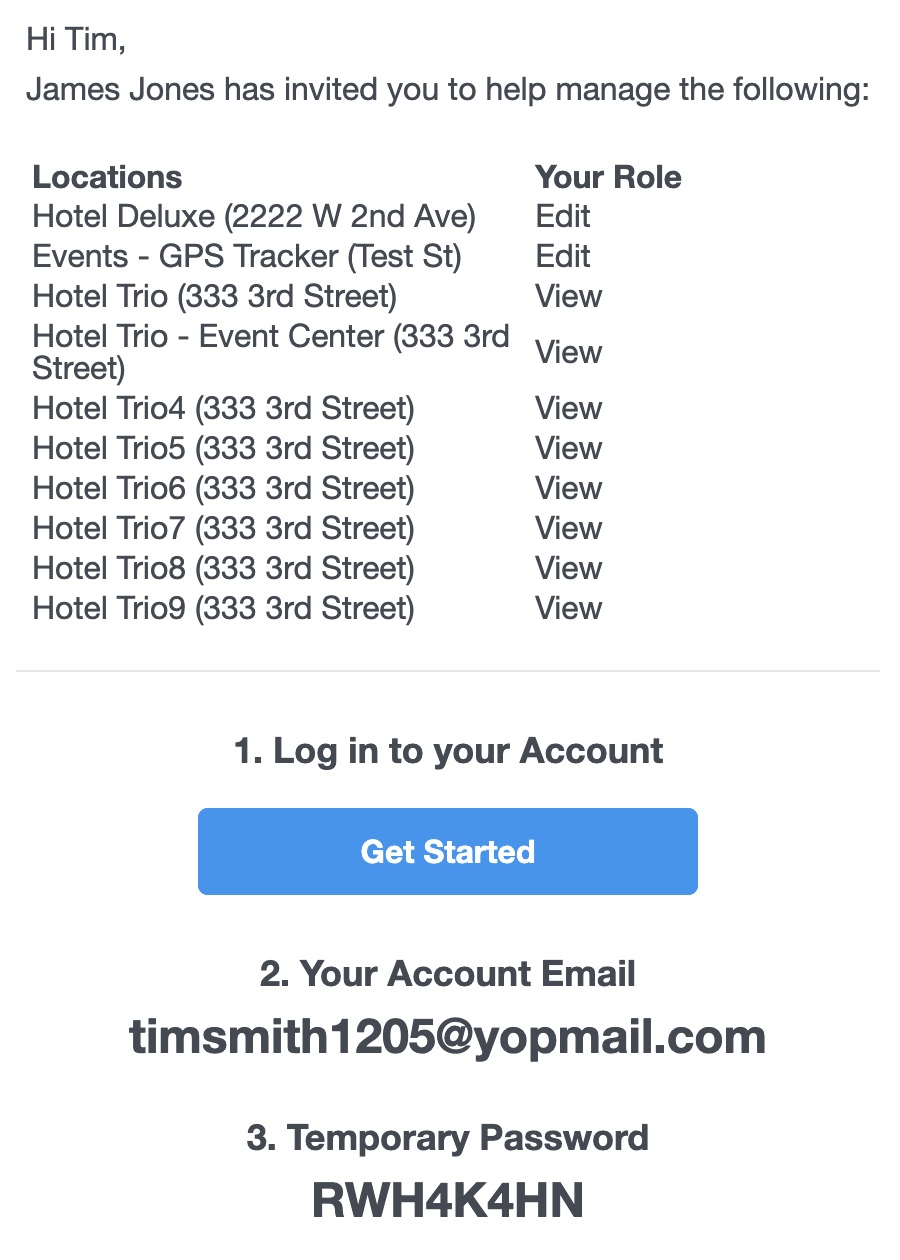
This help article will show you how to add new contacts and grant them access to only specific locations/departments. Before someone can view a location you manage, they must be granted app access to that location. This can be easily done by adding a new Contact and specifying the appropriate permissions.
-
Open the Contacts screen via ☰ → CONTACTS.
-
Select the + button to being creating a new contact.

-
Fill in the contact’s details, such as their name, phone number and email address and desired language.
💡 Be sure to double-check the email address is correct.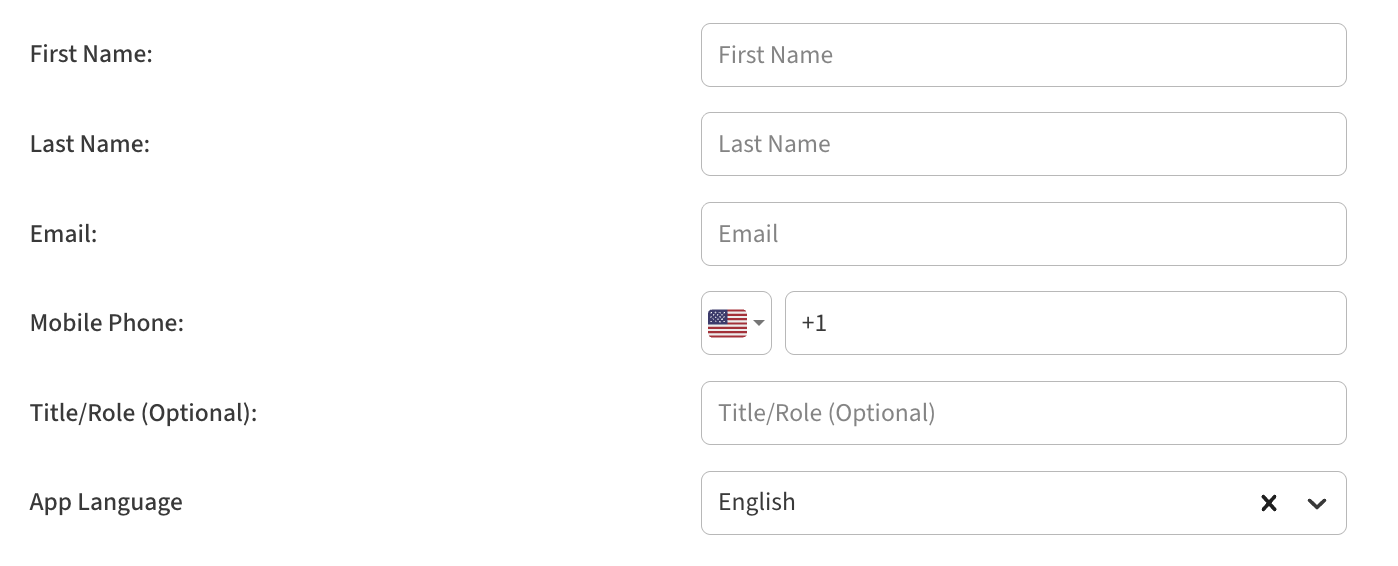
-
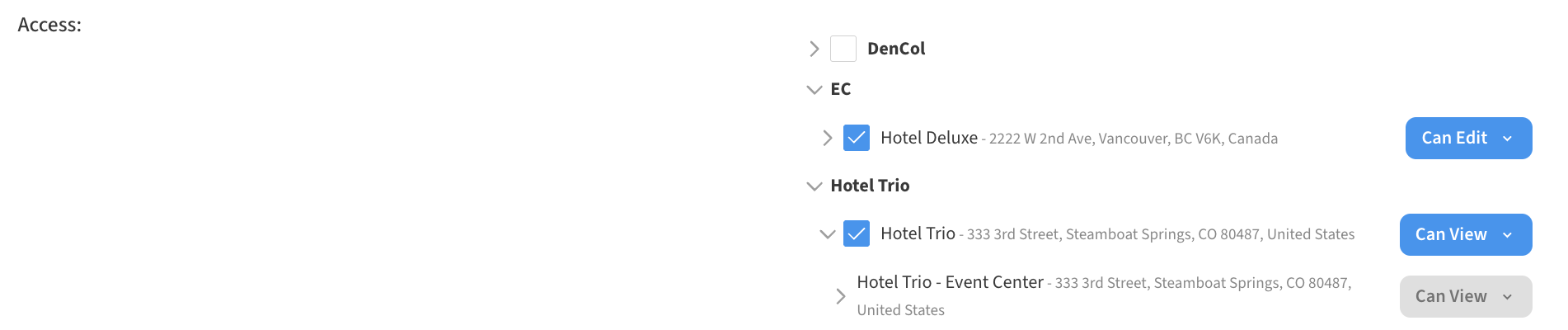
Under Access, pick which locations the user will be granted app access to, and what their permission level should be for each location.
Can View: Contact will be invited to see the details of the location, but cannot make changes. Can View users can still set corrective actions and notes.
Can Edit: Contact will be invited to help manage the location, including making changes such as adding/editing/removing devices, alerts, reports and sensor maps.
Owner: Contact has Can Edit permission and can also modify other Contact permissions, including inviting additional Contacts to the location.
-
Tap Save to save the contact. A pop-up will appear asking if the contact should be added to all existing and future alerts and reports as a default recipient, and via email, text message, or both.
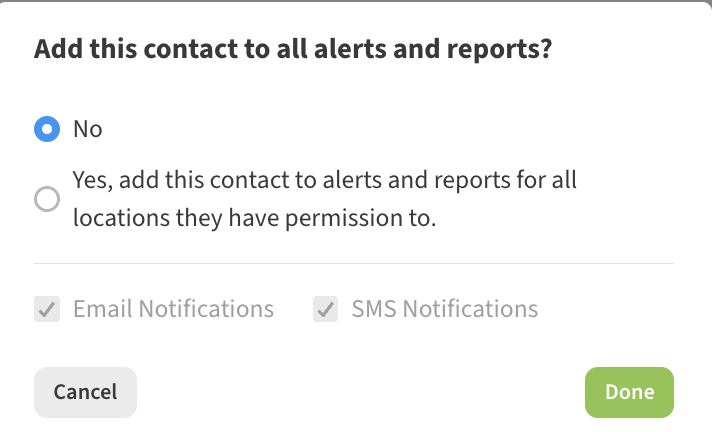
Choosing Yes here will add the user to all existing alerts and reports associated with those locations and set them as a Primary Contact for those locations which ensures they will be a default recipient on any future alerts/reports set up there.
Choosing No won’t add them to any alerts or reports, but they can still be added in the future to any number of alerts and reports.
-
Once saved, the person will receive an an email inviting them to access the location(s):