

Change Temperature Unit
To change the temperature unit used for any device, first locate the device on the Manage screen List View and click or tap on it.
Next, go to the Settings tab for that device
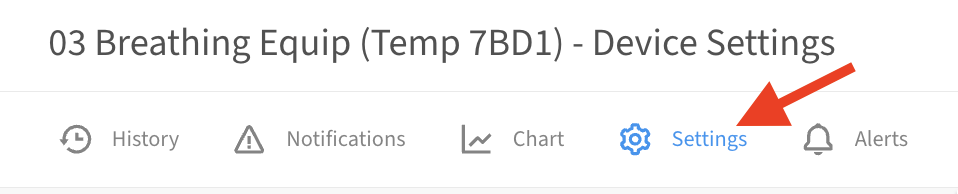
Scroll down and change the Display Unit setting to the desired temperature unit.

Finally, be sure to click Save to save your changes.
Please note this only affects the displayed temperature unit. It does not update the temperature unit on Alerts associated with those devices. If the device has existing alerts set up, they should be updated via Menu → Alerts and clicking the Edit (pencil) icon next to the desired alert.
Apply Temperature Unit changes to many devices
If you have other devices of the same model that need the same temperature unit change, you don’t need to do it individually for each device. On the same Settings page where you updated the Display Unit, scroll down to the Apply settings to other devices section. You can use this to select other devices that the change should be applied to.
Pick Form Settings from the Select Setting to Apply drop-down menu, check the box for the devices that should also get this change, and finally click Save to update all of the selected devices.
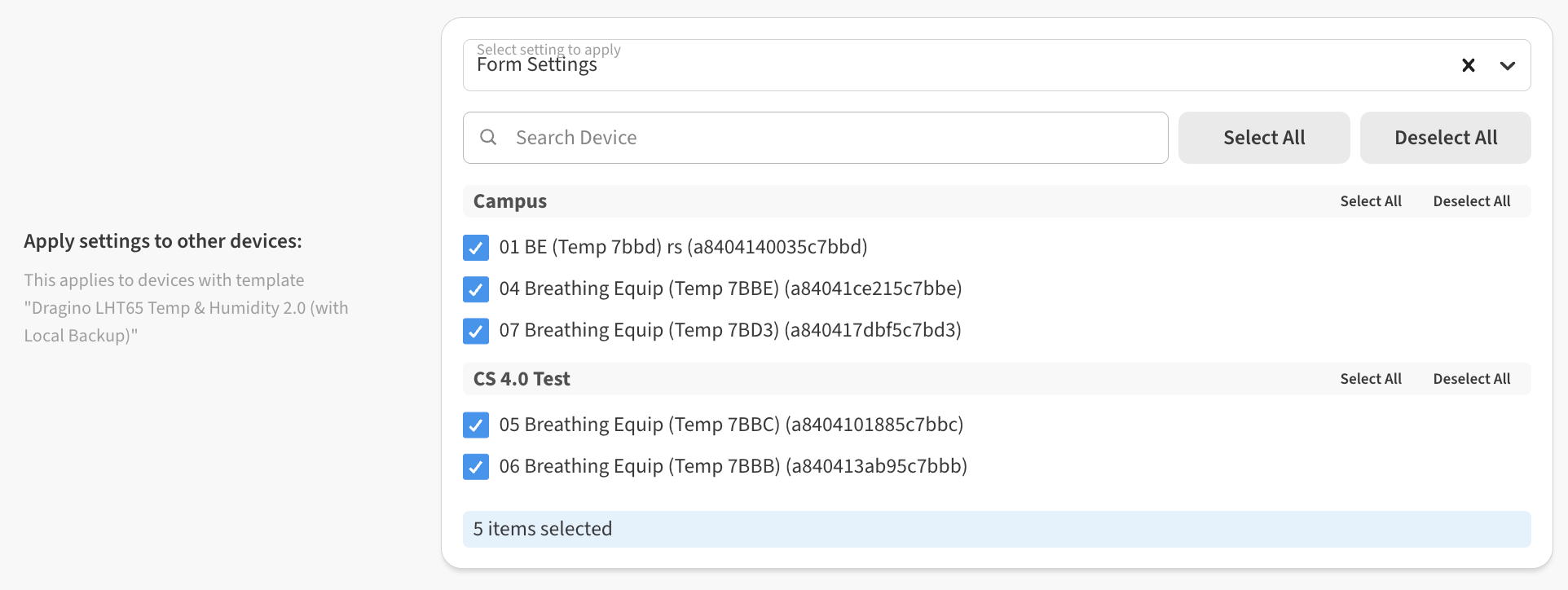
You can only Apply settings to devices which have the same Device Template in one action.
The Device Template is also listed on the Settings tab. If you have multiple models of temperature sensors, and thus multiple device templates, you may need to repeat changing the unit once for each device model / template.