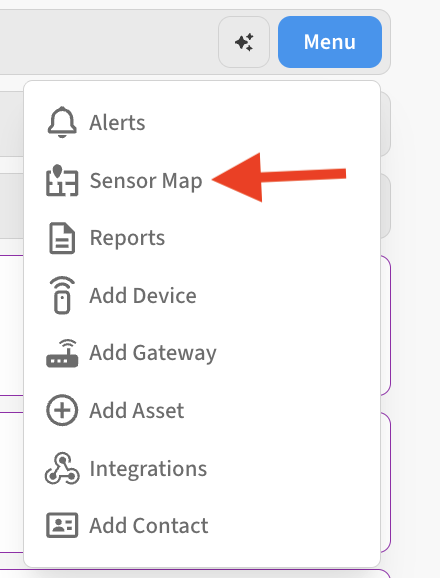
You can create new sensor maps from the Sensor Map screen. You can create as many sensor maps as you want for each location. Access the Sensor Map screen from Menu → Sensor Map on the Location where you’d like to add a new Sensor Map
-
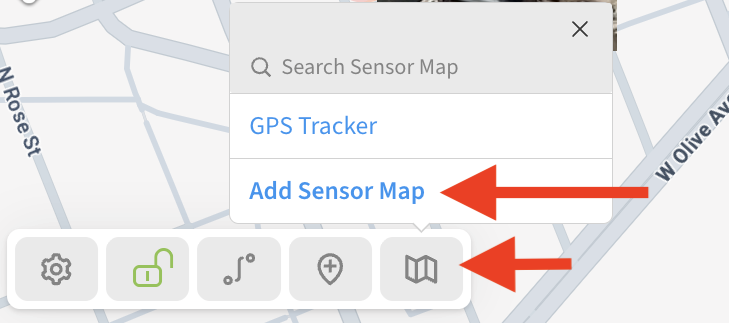
Once on the Sensor map screen, click on the Map icon on the bottom-center toolbar and then Add Sensor Map to start creating a new sensor map.
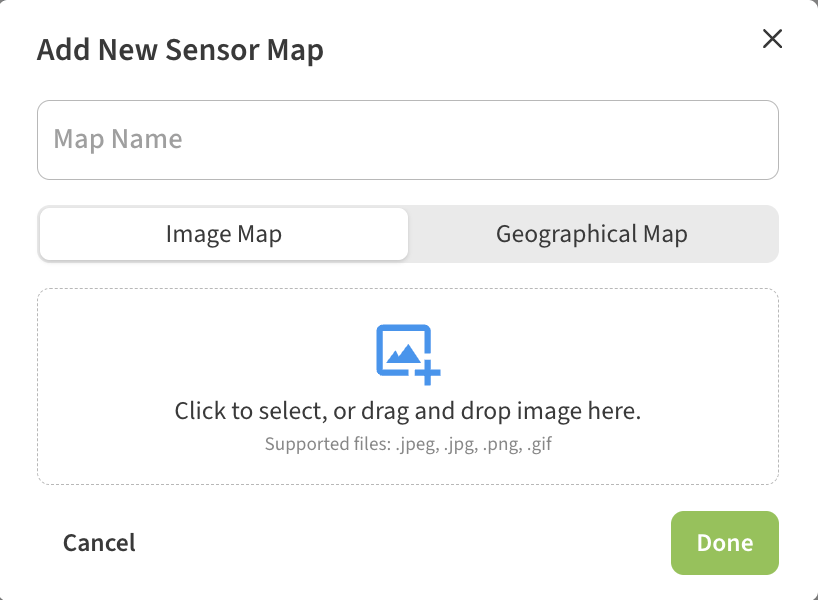
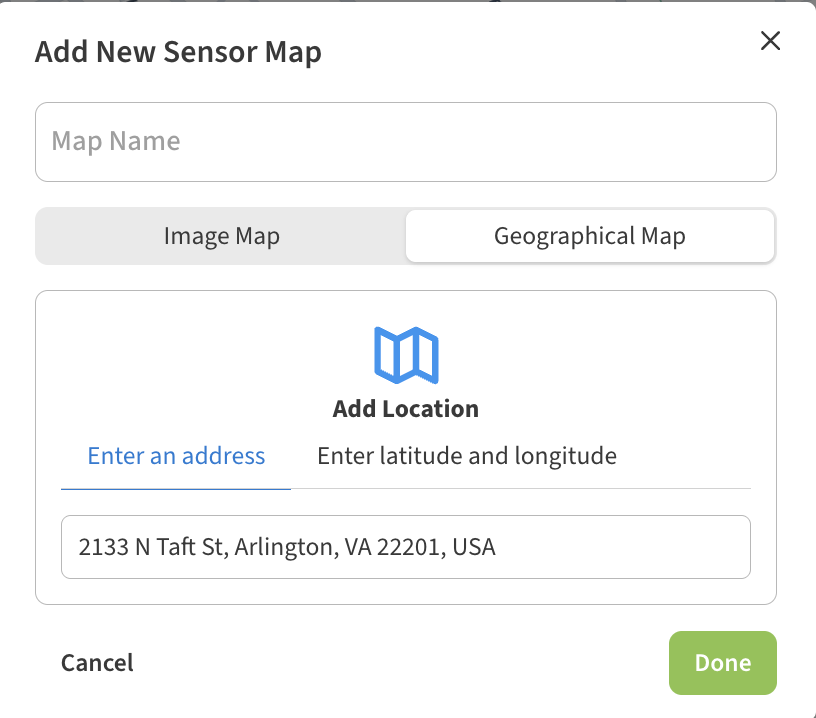
A dialog will appear to displaying two sets options for creating new sensor maps (Image Map and Geographical Map) -
Begin by selecting which type of sensor map you want to create.
-
Image Map allows you upload a photo or image from your computer or phone, such as a floorplan or photo of the facility. You can click/tap the dialog to upload your image, or drag and drop it only the dialog. Image map files must be in .jpeg, .jpg, .png or .gif file formats
-
Geographical Map lets you specify a location address or longitude and latitude coordinates, and will result in a Google Map of the location.
-
-
Regardless of which map type you create, be sure to enter a Map Name for this sensor map.
-
Click on the Done button to create the sensor map.
➡ After adding your new sensor map, the Sensor Map screen will update to display your new sensor map. You will next want to position your devices on the sensor map. -
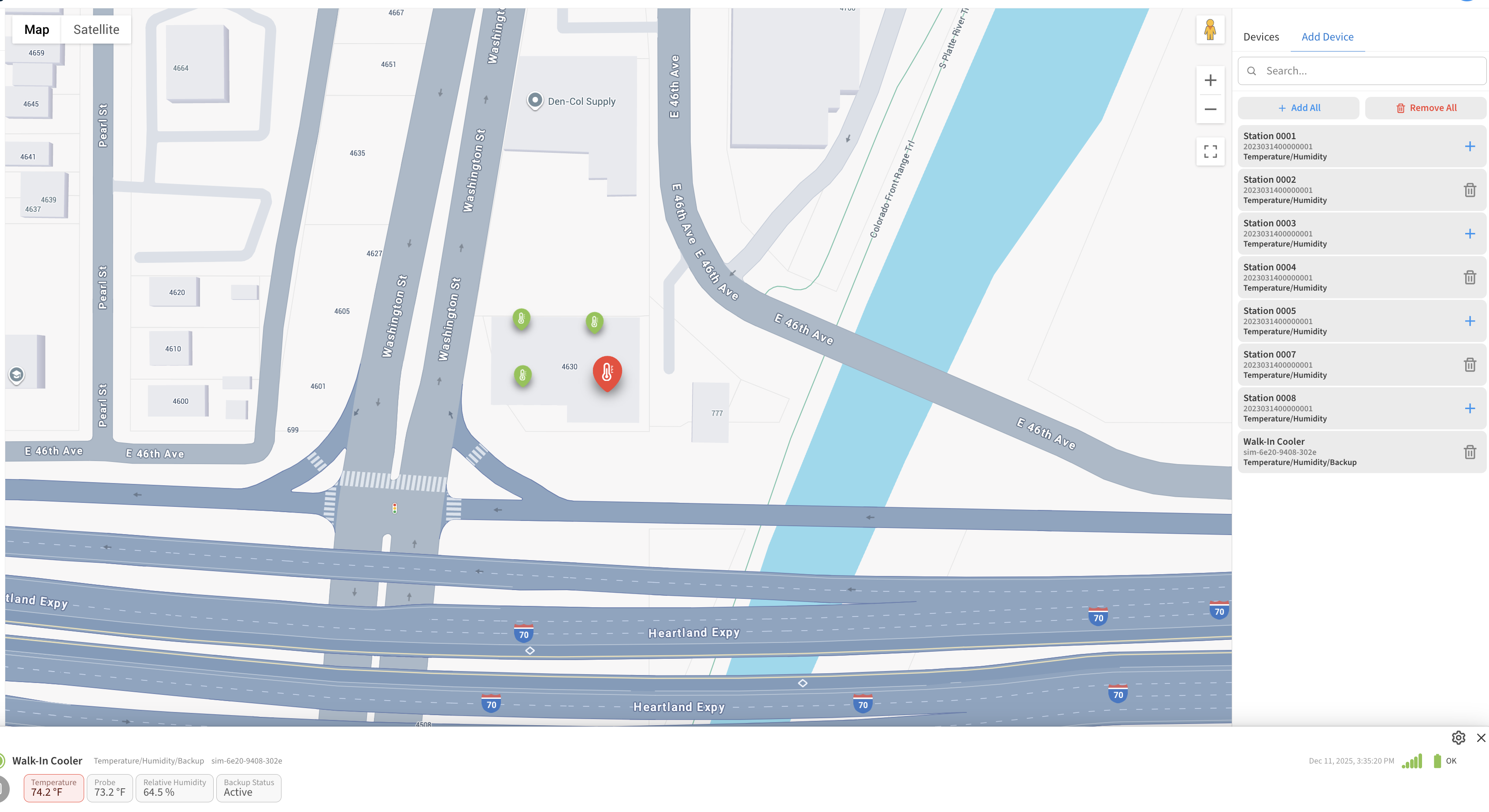
Click on the + button.

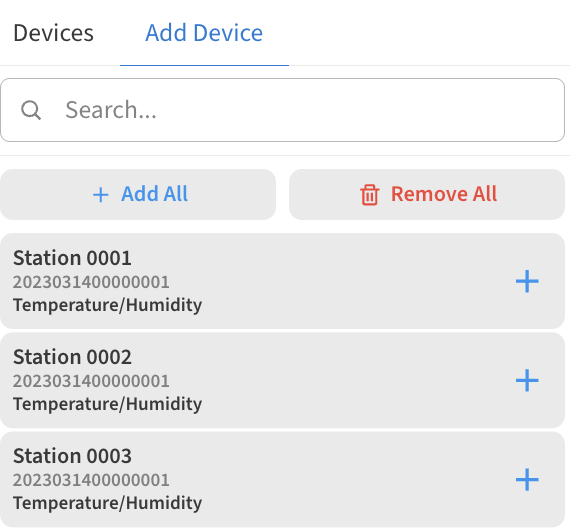
This will open a sidebar with 2 tabs:
-An Add Device tab where you can add existing devices to the sensor map. Here you’ll see a list of available devices that can be added to the sensor map.
-A Devices tab where you can manage devices that already exist on the sensor map.
-
Choose the Add Device tab.
To add a device to a sensor map, click the add (+) button shown next to that device. As you do so, the device will be added to the map and a pin marker will appear on the sensor map.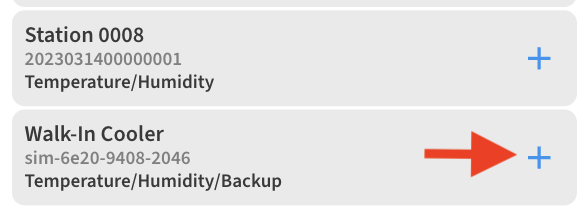
Add as many devices as you want to the sensor map.
After adding devices to your sensor map, you will see their pin icons displayed on screen. You can drag and drop these pins to their correct location on the sensor map. This allows you to place the device exactly where it is located. In addition, you can click on the pin to view its current status.