The following article will help you troubleshoot missing markers on your sensor map.
Device has not been added to the map
Before a device will appear on any map as a marker, it must first be added to the map. This is easy to do from the sensor map sidebar.
-
Open the Sensor Map you want to add your pin to.
-
Expand the sidebar with the + button

-
Select the Add Devices tab.
-
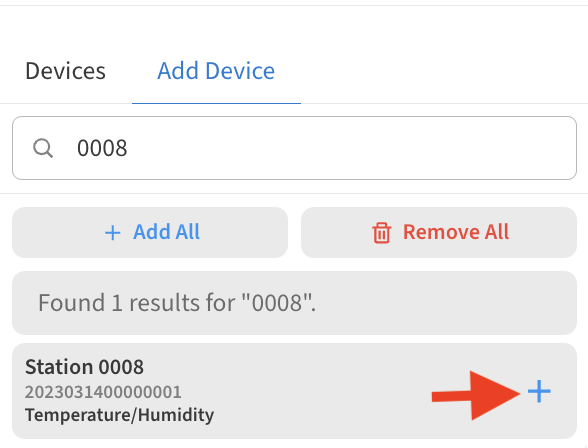
Search for the device you want to add and select the + button to add it to the current map.
Non-alerting makers hidden on map
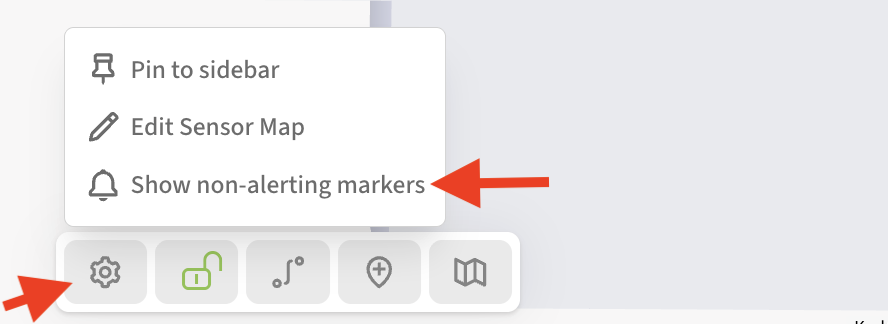
In the settings for each sensor map, there is an option which allows you to hide or show all non-alerting markers. This setting is unique per-map.
This setting is useful when you want only a view of alerting markers, but it can cause confusion for those who are unaware it was turned on.
It is worth double-checking to see if the setting is enabled. If you want to see all markers, not just those in the alert mode, you will need to select Show non-alerting markers from the Settings (gear) menu in the bottom-center of the sensor map.