This is an Ethernet gateway, so its Internet connectivity is based on your local network configuration.
Please check with your Network Administrator or IT to confirm that your network will allow communication to the correct ports and servers as outlined in this article: My facility has a secure firewall, will this work?
Activation
-
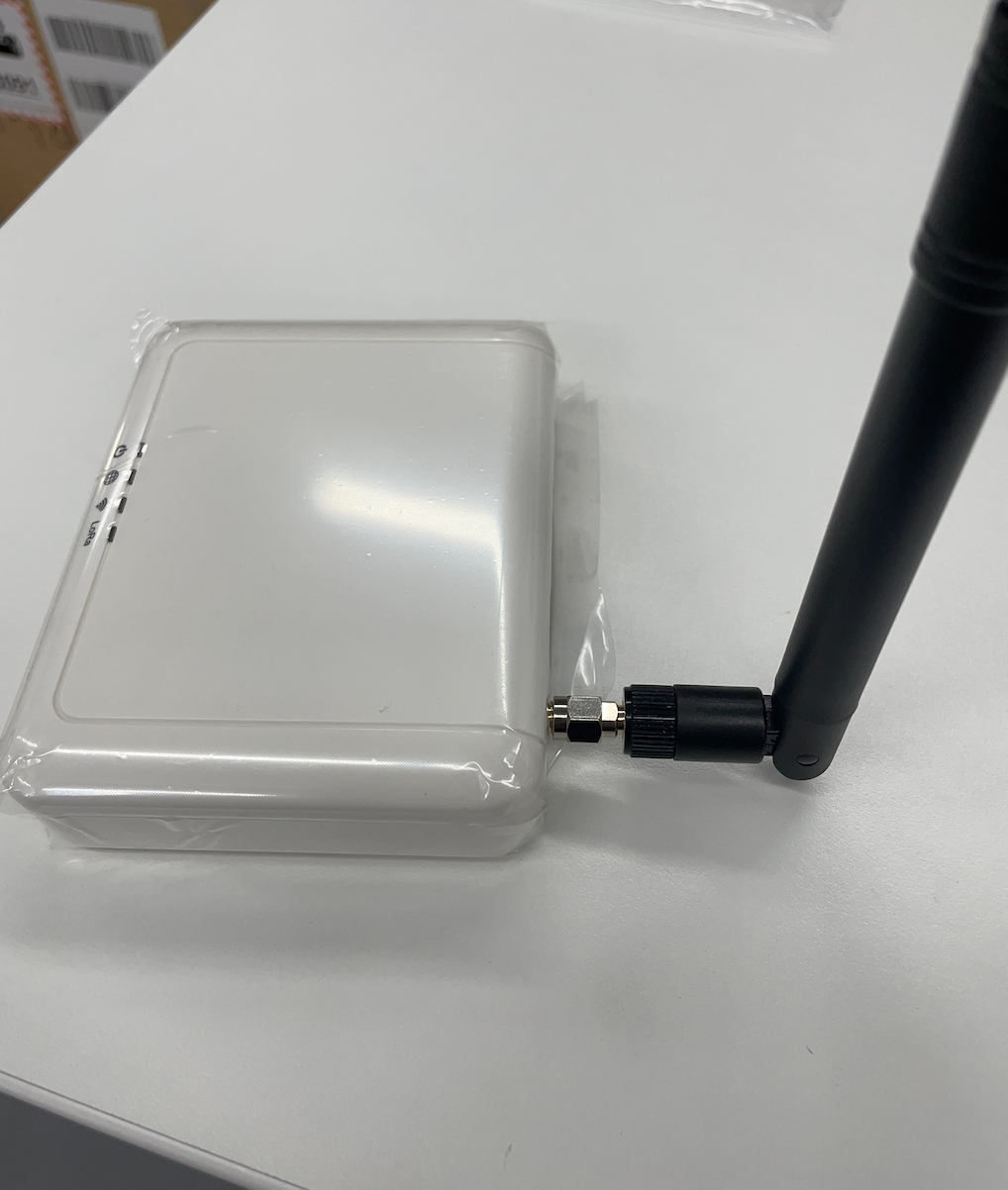
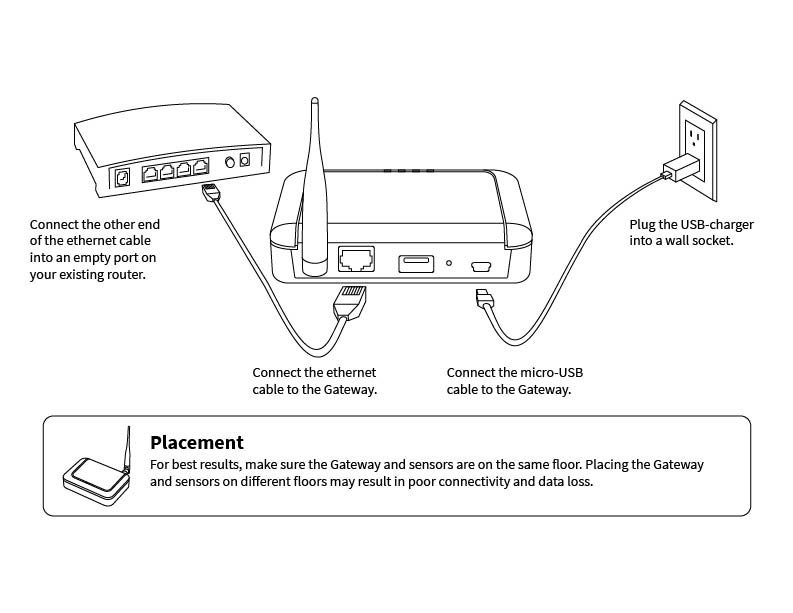
Connect the antenna to the gateway.
-
Using the network cable, connect the gateway to your network so that it can access the Internet.
-
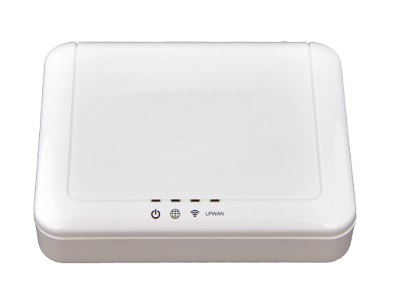
Connect power to the gateway. The power indicator (leftmost) will change to green while the device is powering up.
-
After a few minutes the power indicator will change to solid red and all other status indicators should be solid green. Your gateway is now ready for use.
Installation
Reset
In the event your device is offline or you need to reset it, please follow these steps.
-
Disconnect power from the gateway and then wait several seconds.
-
Reconnect power to the gateway. The power indicator (leftmost) will change to green while the device is powering up.
-
After a few minutes the power indicator will change to solid red and all other status indicators should be solid green. Your gateway is now ready for use.
External Antenna
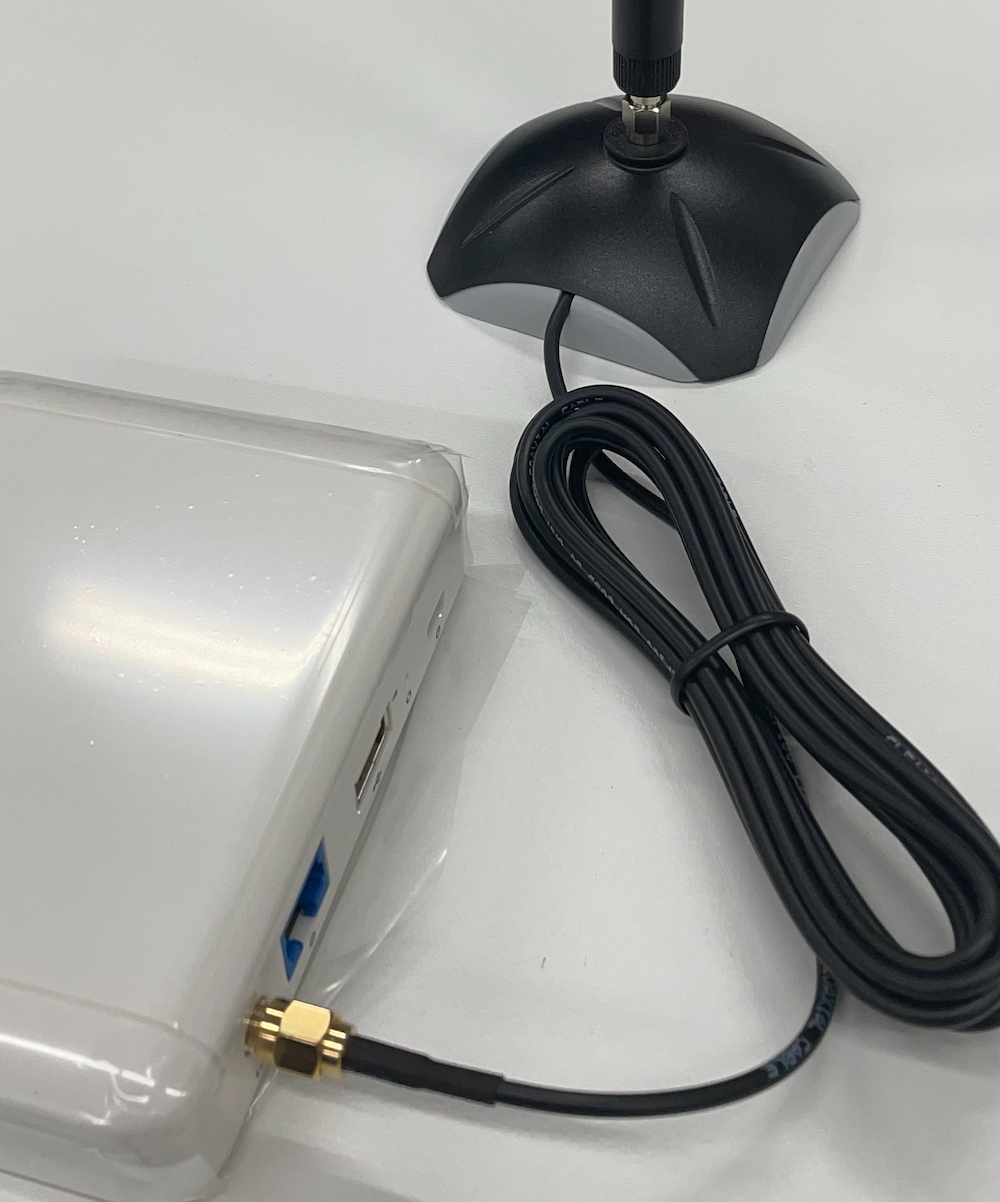
Your LoRa Ethernet gateway may have an external antenna added to enhance your LoRa coverage. This antenna can come with a magnetic base in order to extend the location of the antenna from the Gateway.
External Antenna is approximately 3ft and the magnetic base is approximately 9ft in length. See your Sales Rep and Account Manager about pricing and adding this to your existing solution.