

This article shows how to activate a newly added Panic Button for the first time, as well as how to solve your button showing up as Offline in the dashboard.
Activating a Panic Button
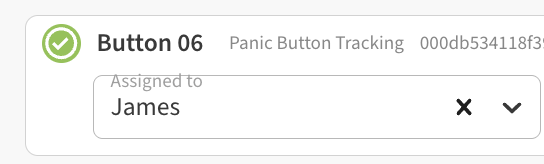
To activate your panic button, place it on the USB charger. It will check in via the closest gateway and show online on your web dashboard a few seconds later (green checkmark)
Recovering an offline Panic Button
-
Ensure your gateways are all online. Gateways are receivers for the Panic Buttons and they cannot connect without an online gateway that can hear them.
-
Place the button on the USB charger to force it to activate and send a reading. Allow 10 minutes on the charger before checking the dashboard in case the battery was fully drained.
-
If the button is still showing offline, try resetting it while on the charger by pressing and holding for 20 seconds, then releasing. The button should vibrate to confirm the reset and attempt to reconnect online.