

Adding a new Beacon device is easily done using the dashboard or mobile app. The following article will show you this process.
-
Go to Menu → Add Device in the Location you’d like to add the beacon.
-
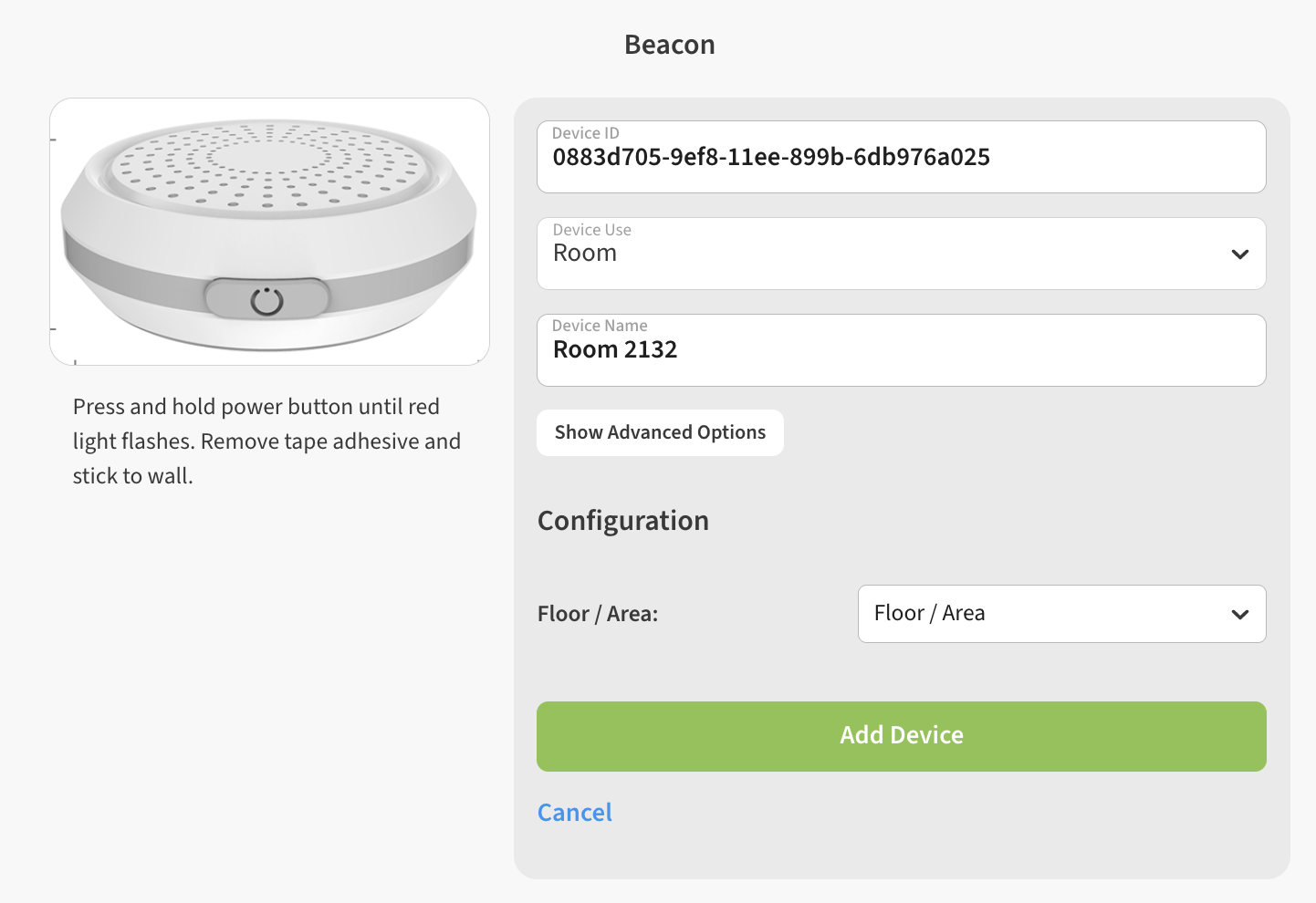
Add the Beacon by entering or scanning the Device ID or QR code for the Beacon device.
-
Name the beacon and assign it to a Floor. Click Add Device to finish.
-
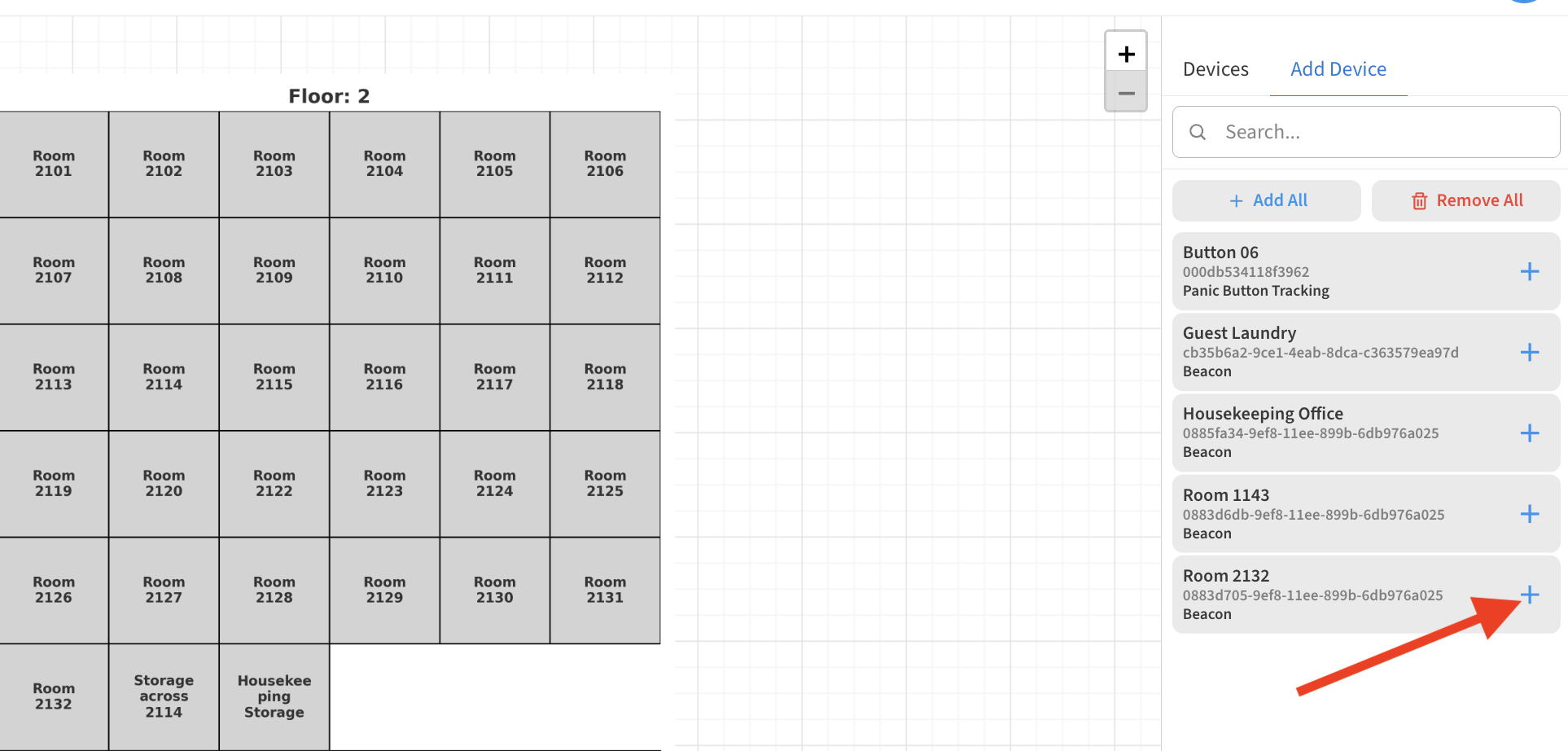
Add the Beacon to your Sensor Map. This allows you to visualize the beacon placement and so that you can see Emergency alerts on your floor plan.
-
To complete the installation, Power On the Beacon by pressing its power button until you see a blinking red light, then activate emergency mode on a nearby Panic Button by double-pressing it.
You can verify the installation is complete by looking for the green checkmark and battery information shown in the dashboard.