The following article will show you how to edit an Alert so that you can adjust the recipients. It discusses how to add or remove recipients and how to configure each recipient for whether they get Text messages, Emails (or both) when the alert is triggered.
Modifying Alert Notification recipients
-
Open the alert for editing via Menu → Alerts and click the Edit (pencil) icon next to the alert you want to modify.
-
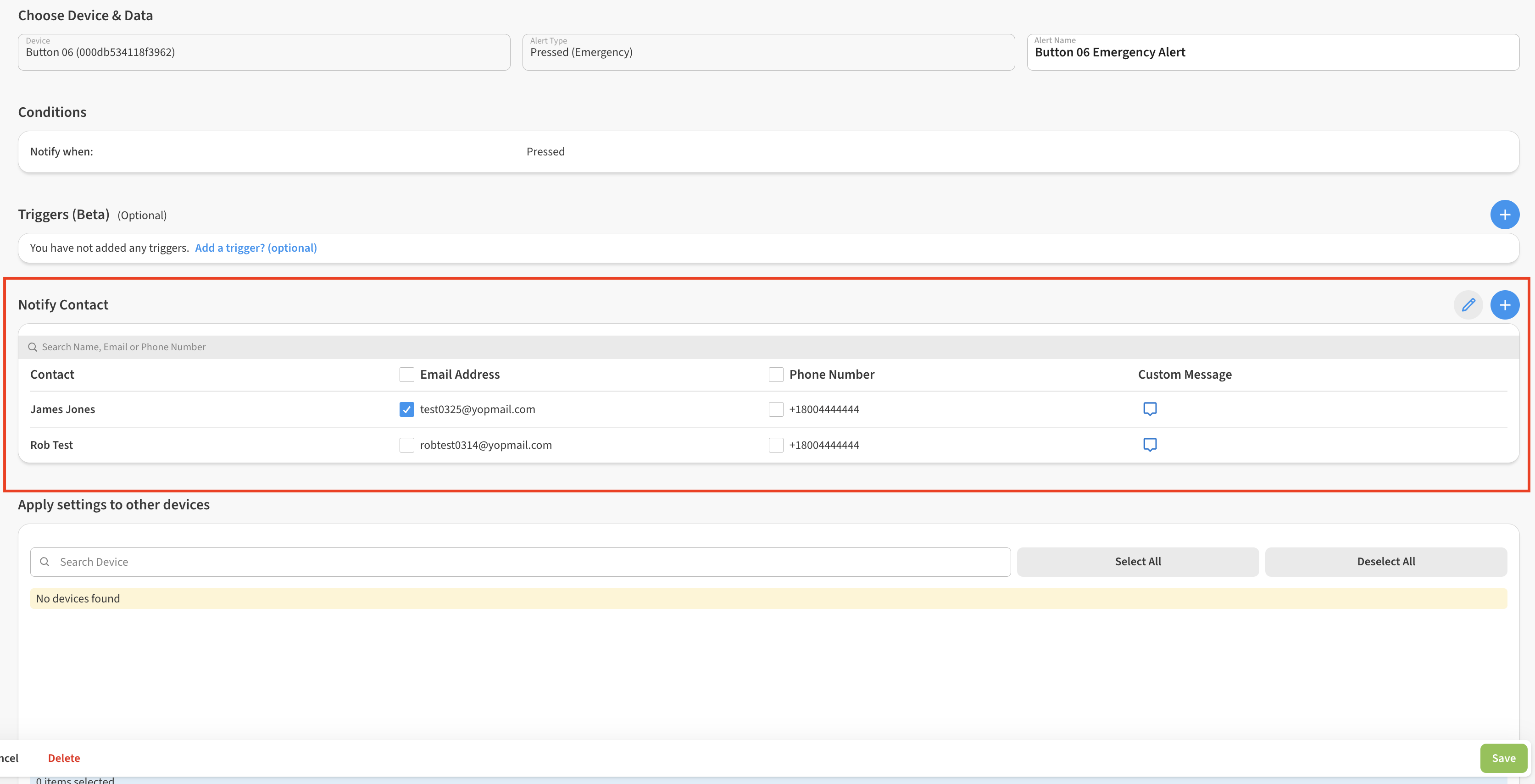
Click the Edit (pencil) icon next to the Notify Contact section to open the recipients list for editing
-
Check or un-check the desired phone number or email setting for each person on the list. If you leave both boxes unchecked for a contact, that person will not be notified via either method.
-
(optionally) use the + icon in the Notify Contact area to add additional contacts to the account so they can be added as alert recipients. (requires Owner or Admin permission level)
-
Click Save to save your changes.