

You can use Gateway Offline Alerts to receive notifications when a Gateway has lost its connection to the platform.
In many cases, Gateway Offline alerts are created automatically when gateways are added to an account. The information presented in this article will show you how to create a Gateway Offline alert manually.
Create new Gateway Offline Alert
To create an Offline alert for your Gateway:
-
Click the Alert (bell) icon for the gateway where you want to add the alert, then + Create New Alert
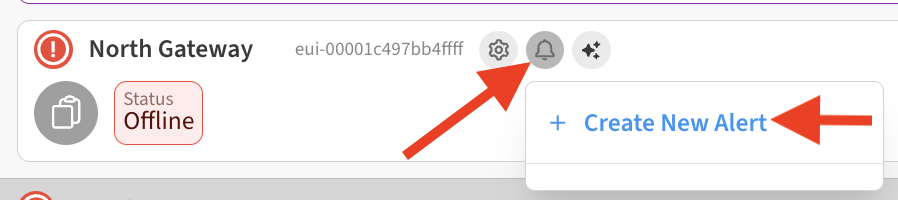
If the gateway already has an Offline alert, you’ll see it in the list on this popup below “+ Create New Alert”
-
On the Create Alert page, select your gateway from the Device list, then select Online/Offline in the Alert Type dropdown.

-
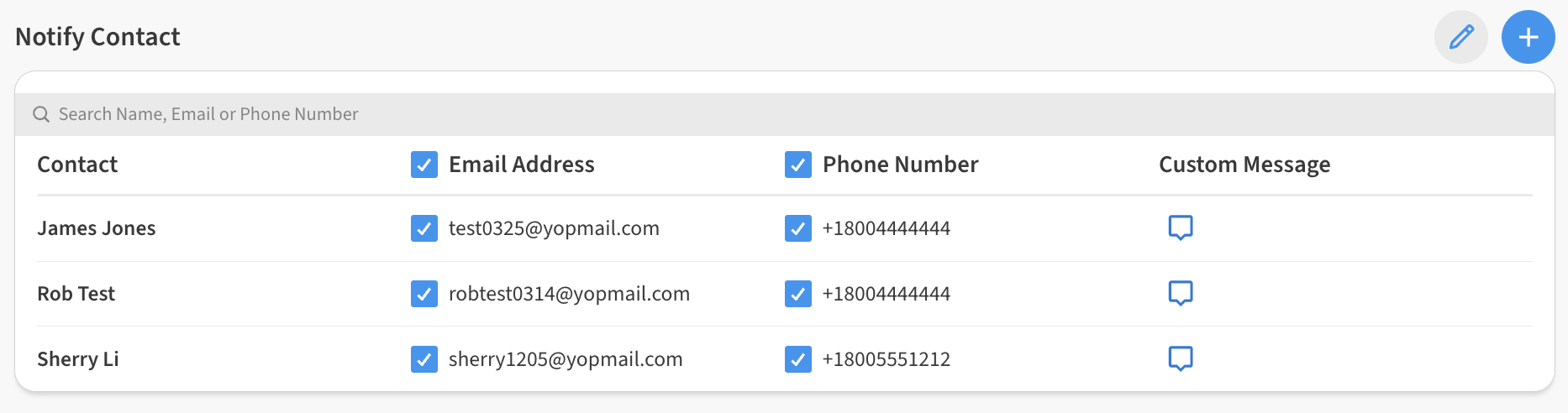
Use the Notify Contact section to specify which recipients should get the Gateway Offline alert notification, and whether by email, text message, or both.
-
Be sure to click Create Alert to save the new Gateway Offline alert.

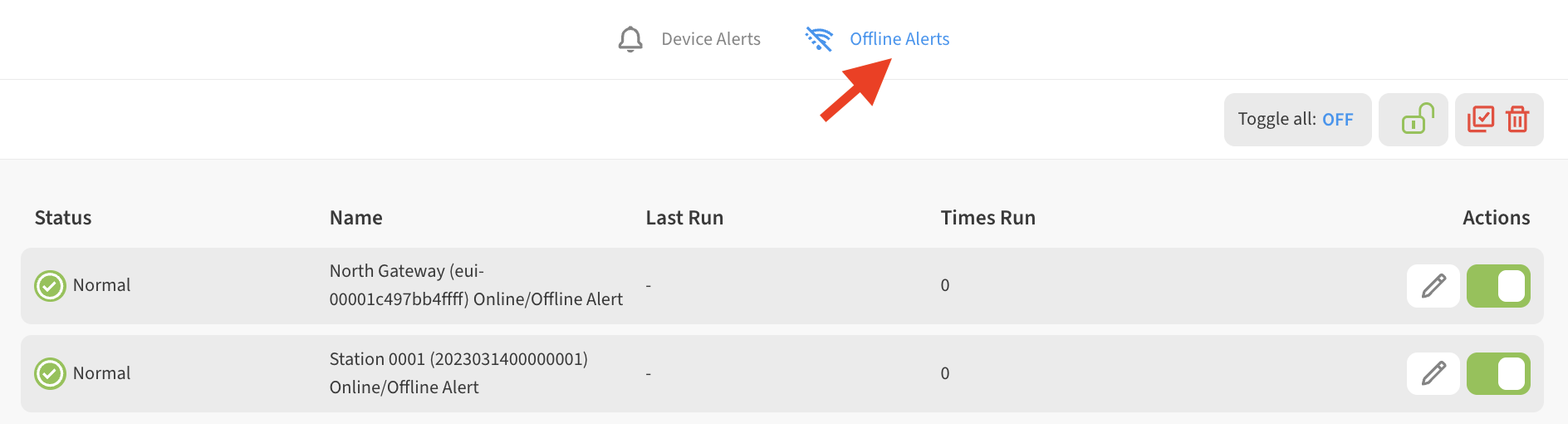
After saving your alert, you can find a list of existing alerts by selecting the Offline Alerts tab on the Alerts list.
Creating Gateway Offline alerts for multiple gateways
If you have multiple gateways that will have similar Offline alert recipients, you can easily quickly set them up all at once.
-
Start creating a new Gateway Offline alert (for more help refer to above steps), or you can edit an existing Gateway Offline alert that you wish to copy.
-
Select which contacts to notify – these same settings will be applied to all alerts you select in the next step.
-
Expand the Apply settings to other devices option and select whichever gateways you want this to also apply to.
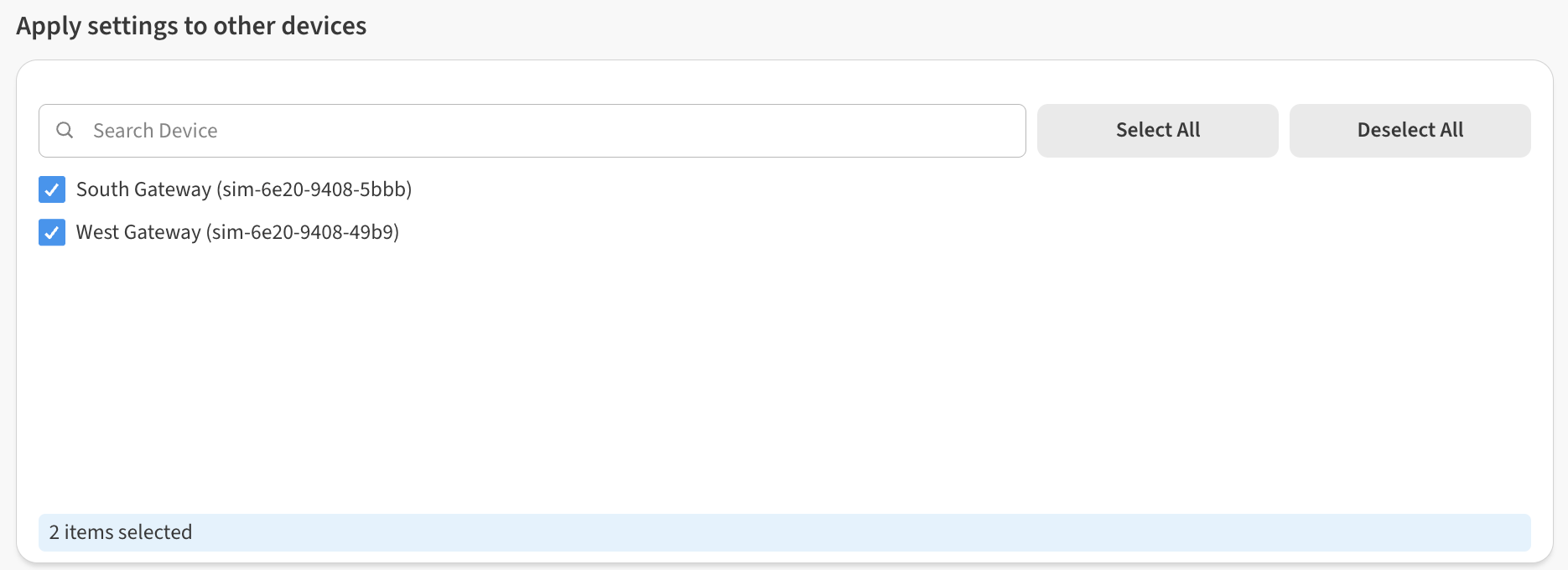
💡 This will automatically create Gateway Offline Alerts for all the gateways selected. If Gateway Offline alerts exist already for these gateways, it will update their settings to match.
-
Don’t forget to select Save at which point all of the gateways you selected will be created/updated with Gateway Offline alerts.

How Gateway Offline alerts work
When Gateway Offline alerts trigger, email and/or text message (SMS) notifications will be sent to all recipients listed in the Notify Contact section of the Gateway Offline alert, letting them know the gateway has dropped offline and providing troubleshooting suggestions.
When a Gateway reconnects online, email and/or text message (SMS) notifications will be sent to the same recipients immediately.
Gateway Offline alerts will trigger after a gateway has not been seen by our server for 50 minutes. This is a hardcoded value that cannot be changed at this time. Please note that the web UI will show a gateway with a red “Offline” marker after only 5 minutes, so there is some indication of a problem. The alert itself will trigger 45 minutes later (at the 50-minute mark). This is by design to avoid flooding users with Gateway Offline messages for very short disconnections which can happen with cellular internet devices.