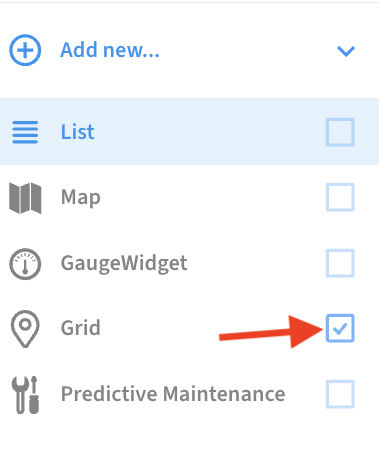
The following article will show you how to Pin an additional map screen so that it appears in your sidebar on the home screen. This allows you to select a Sensor Map such as your floor plan directly from the Manage screen, or to set the default to a view such as your floor plan.
-
Open the sensor map you want to pin to your home screen via Menu → Sensor Map, then using the map icon in the bottom-center to select your map

Select Map icon
-
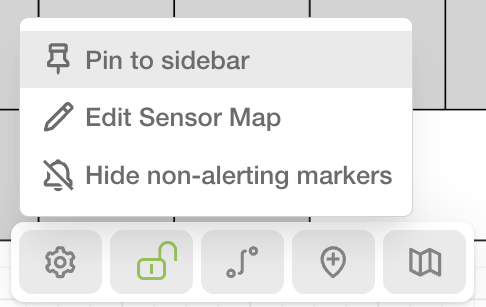
In the bottom center, click on the settings (gear) icon, then Pin to Sidebar. This will pin the map to the left sidebar that is visible at all times in the web app.
-
If you want the map to be the default page you see when you sign in, you can check it’s checkbox in the left sidebar.