

Using the Remove Device option from settings will free up the sensor, but you will lose access to any historical data, and all alerts associated with the device will be deleted.
To keep your sensor data history while replacing an existing sensor with new hardware, use the Replace Device feature.
Use Replace Device feature to replace a device
-
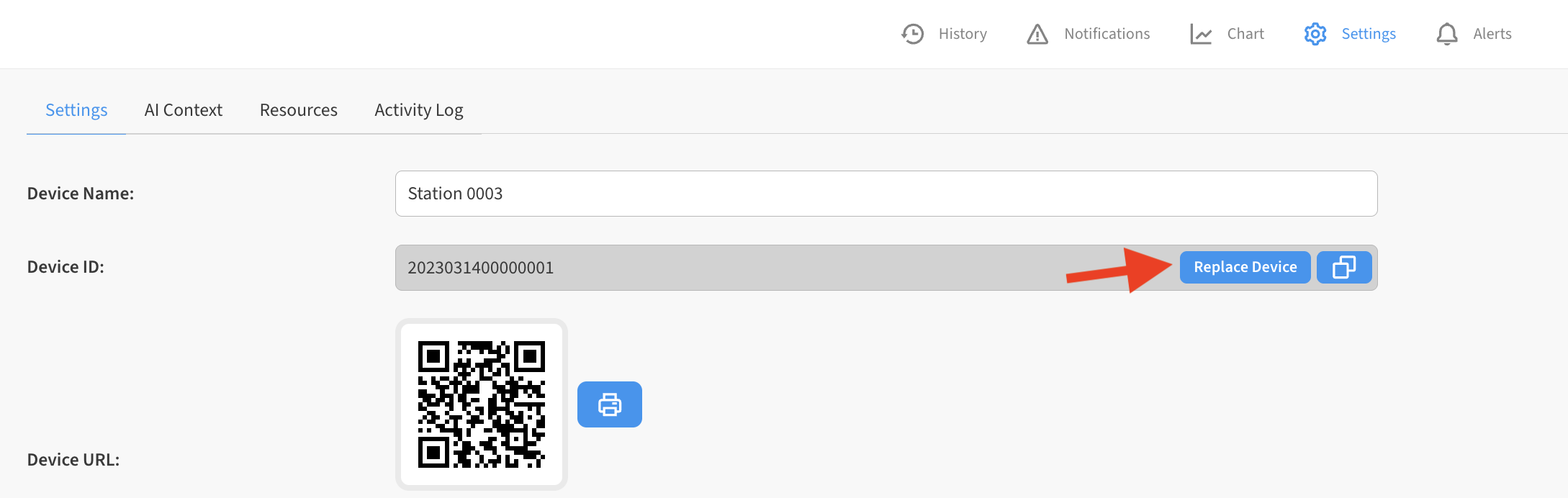
From the Manage screen list, click on the Gear icon for a device to access that device’s Settings tab.

-
Click the Replace Device button on this page
-
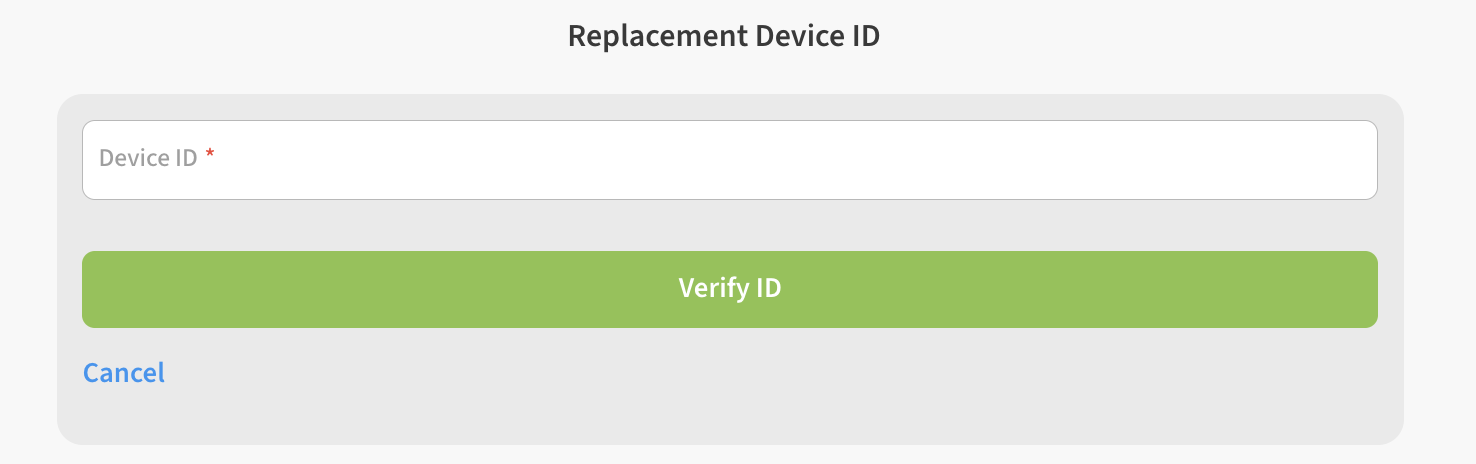
Enter the device ID or scan the QR code for the replacement device and click Verify ID
-
Follow the on-screen instructions to activate the replacement device, then click Replace Device to finish
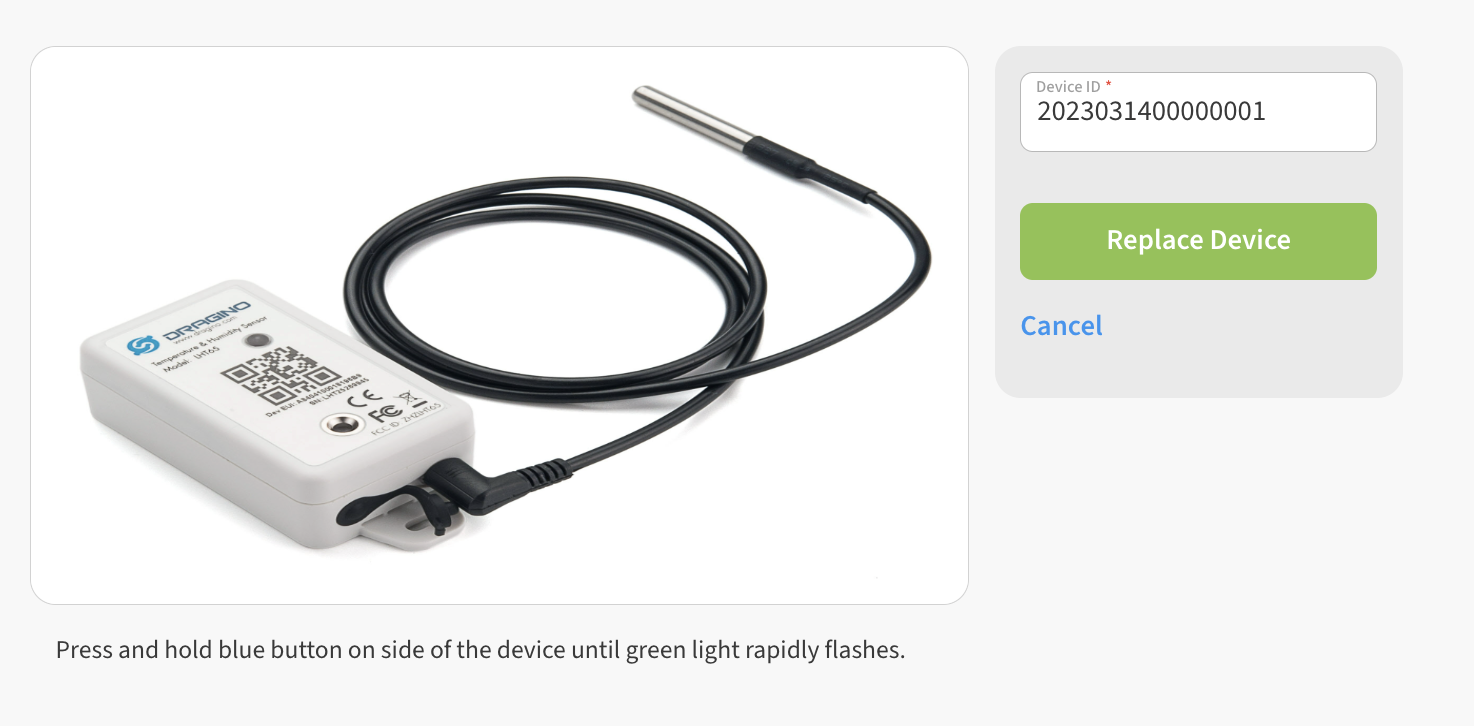
Replace Device only works if you are replacing an existing sensor with the exact same Template and Hardware Model. If there are any differences between the old and new sensor, the operation will not succeed. If you have any doubts if a device should be replaceable, feel free to contact us (include both New and Old Device IDs so we can compare).
💡 Tip: this also releases the old sensor so that it can be reused in another location.