

The most common reason for missing readings is because the sensor cannot reach a gateway. Sensors will attempt to reach any gateway in range, but if there is interference or if the sensor is located at the far end of range for a gateway, you may experience missing readings.
After deploying a new sensor we strongly recommend using the web app to verify that the sensor is transmitting with 100% accuracy before leaving the sensor in the field to perform its monitoring. Aim for -99 dBm or better signal strength for best performance.
Recommended steps to deploy & verify sensors
-
Add the Sensor into your dashboard account.
-
Activate and Deploy the sensor into the facility.
-
Watch the sensor for between 1 - 2 hours (more for devices which do not transmit regularly).
-
Using the web app to verify 100% transmission success.
Adjust as necessary if you do not get a 100% success rate. See our tips below for verifying and making adjustments.
How to verify sensor transmission history using the web app
-
Log into your app dashboard where the newly deployed sensor was added.
-
From the Manage screen, select the sensor to open Device History.
-
There you will see a complete history of the latest readings received for the sensor.
-
Look for any gaps in history that indicate issues with transmission.
E.g. if the sensor transmits on 20 minute intervals, you should see a reading every 20 minutes, without any gaps.
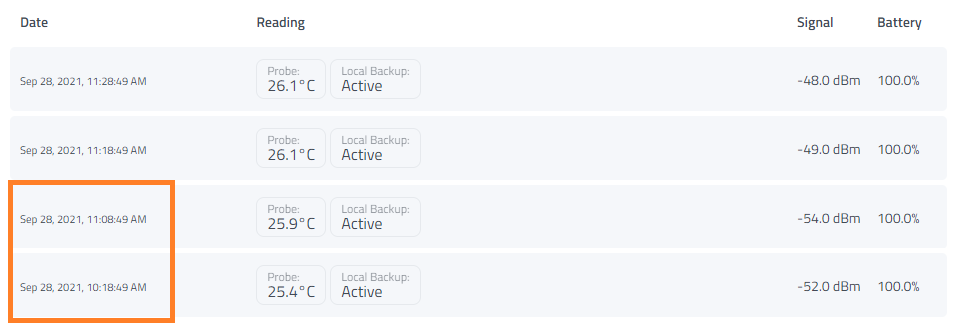
We can see missed readings on this example sensor. It is running on a 10 minute interval, but had no readings between 10:19 and 11:08
-
Look for any instances where the Signal Strength (RSSI) drops.
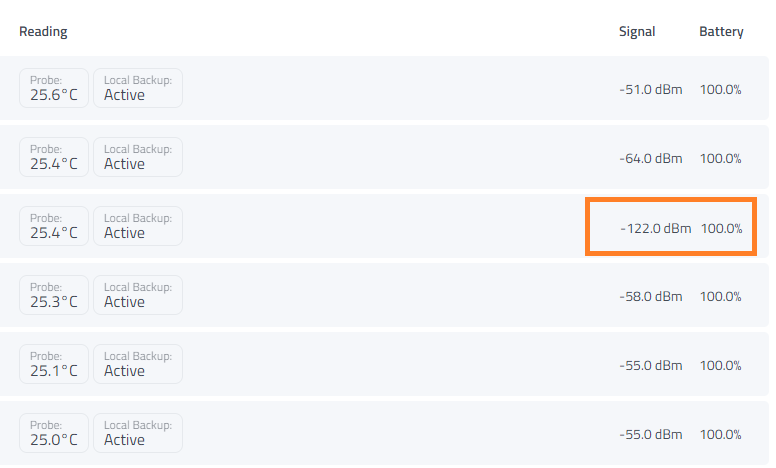
This -122 dBm reading is concerning as it indicates very weak signal
-
Decoding Signal Strength
All signal strength values are negative numbers. The closer they are to zero, the better. Based on our experience in customer installs, here is a guide to signal strength:
-
0 to -70 dBm: Excellent, likely no missed readings
-
-71 to -90 dBm: Good, likely no missed readings
-
-91 to -100 dBm: OK, occasional missed readings
-
-101 to -115 dBm: Poor, you’ll start to see groups of missed readings here
-
-116+: You’ll likely see larger amounts of missed readings here, and potentially the sensor will drop offline (3x missed readings in a row) for large periods of time
This is just a general idea based on our experience with some of our most common sensors. Different hardware and facility setup can impact these numbers.
What to do if you see gaps in transmission
-
Reposition the sensor - Positioning the sensor near the front of a unit or in a more optimal position to where it can more easily get line of site to a nearby gateway can make a difference in getting strong signal.
-
Reposition the gateway – Moving the gateway closer to a problem sensor can help for reception with that sensor. Keep in mind that you may be moving the gateway farther from other sensors in your installation. Try to place the gateway(s) centrally amongst the sensors you’d like it to cover. You may need additional gateways if one gateway can’t cover the desired locations of all sensors in your facility
-
Consider deploying additional gateways - For best coverage and redundancy we recommend using multiple Gateways at each facility being monitored. Having multiple gateways can help with both coverage and power issues experienced at your facility. Multiple gateways should not be placed in the exact same physical area or they won’t help to improve coverage at all.
We recommend to consider the desired placement of all your sensors and space out multiple gateways throughout that space to ensure that all areas of your facility that need it have a gateway which can hear sensors in that area. -
Try reconnecting / resetting the sensor - As a final troubleshooting tip, it can sometimes help to reset the sensor and force it to reconnect to a gateway. Follow the instructions for resetting your sensor. These can be found in the web app by clicking on the Gear icon to access a sensor’s Settings tab, then clicking on Resources

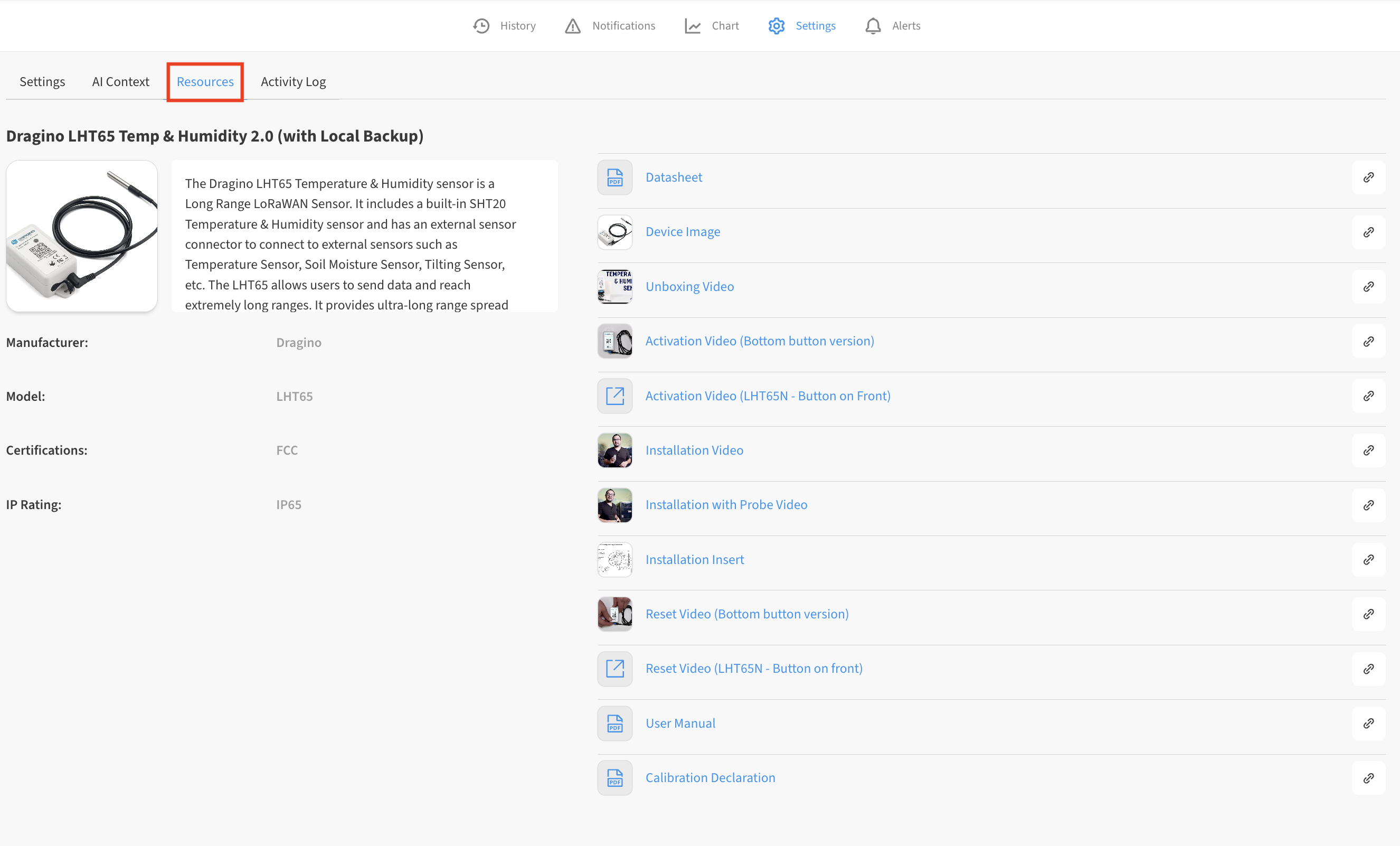
You can also find reset, re-connection, and troubleshooting steps for many hardware models in this help system: https://iot-help.scrollhelp.site/iotkb/sensors
The process of doing a reset and re-activation should force a new reading to be sent. You can then use the web app and monitor the sensor to check to see if your changes in position or the reset of the sensor has led to improved transmission. If it has not, the best path forward is to go back to finding a better position to deploy the sensor from.