Activation
-
Use Smartphone (Samsung, iPhone) to Download the Milesight Toolbox app.
-
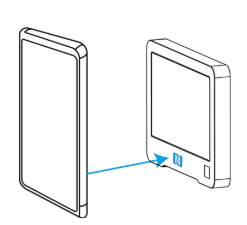
Place your phone on the NFC area of the device to read device.
-
When DS3604 is refreshing the screen, do not read or write device or it will show a timeout.
-
Ensure the position of smartphone NFC area and it’s recommended to take off phone case.
-
If the smartphone fails to read/write configurations via NFC, move the phone away and back to try again.
-
DS3604 can also be configured by ToolBox software via dedicated NFC reader provided by Milesight IoT
DISPLAY SETTINGS
-
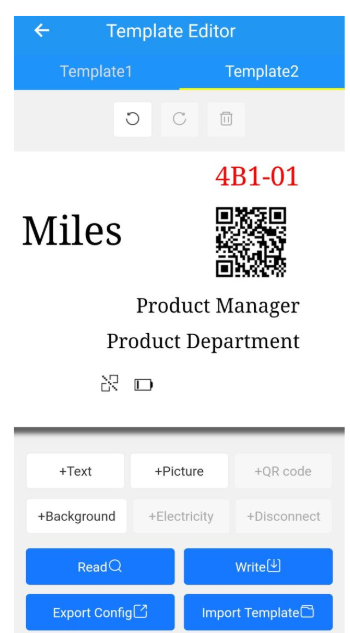
Go to Device>Setting>E-ink Display Settings click READ and attach the smartphone to the NFC area of the device.
-
To Change Text
-
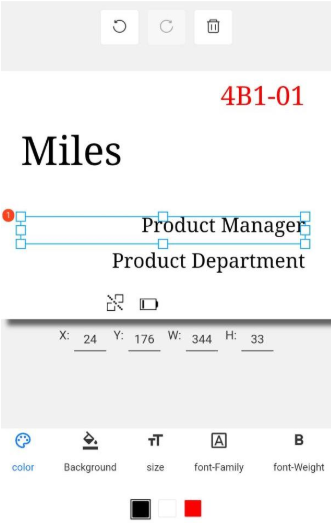
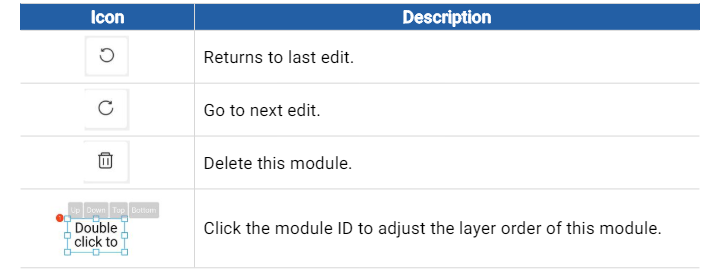
Double click to edit the text content or single click to adjust the properties, or drag it to where you would like the text to be.
-
-
To Change Image
-
Double click to import an image or single click to adjust the properties. NOTE: One template can add 1 image and the resolution must be 400*300
-
-
QR Code
-
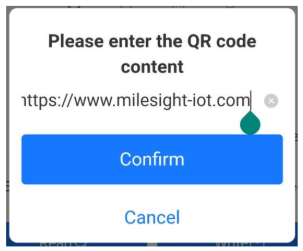
Edit the website URL or a series of strings to generate a QR code. NOTE: 1 Template can only have 1 QR code.
-
-
Template
-
This device has 2 template options, Template 1 and Template 2
-
Device can only work with 1 template at a time.
-
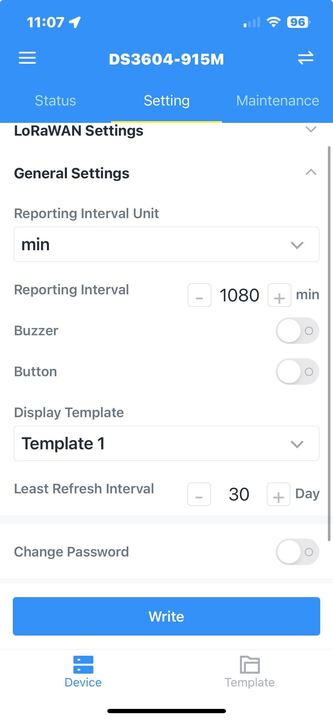
To change the Display template, after connecting to the device, on the top of the screen, navigate to Setting
-
Once under Setting, look for the Display Template to choose which template to display on the screen.
-
Once the template is chosen, click Write and place your phone on the device for the device to read the change.
-
-
-
Click WRITE to save the template to display on the screen.