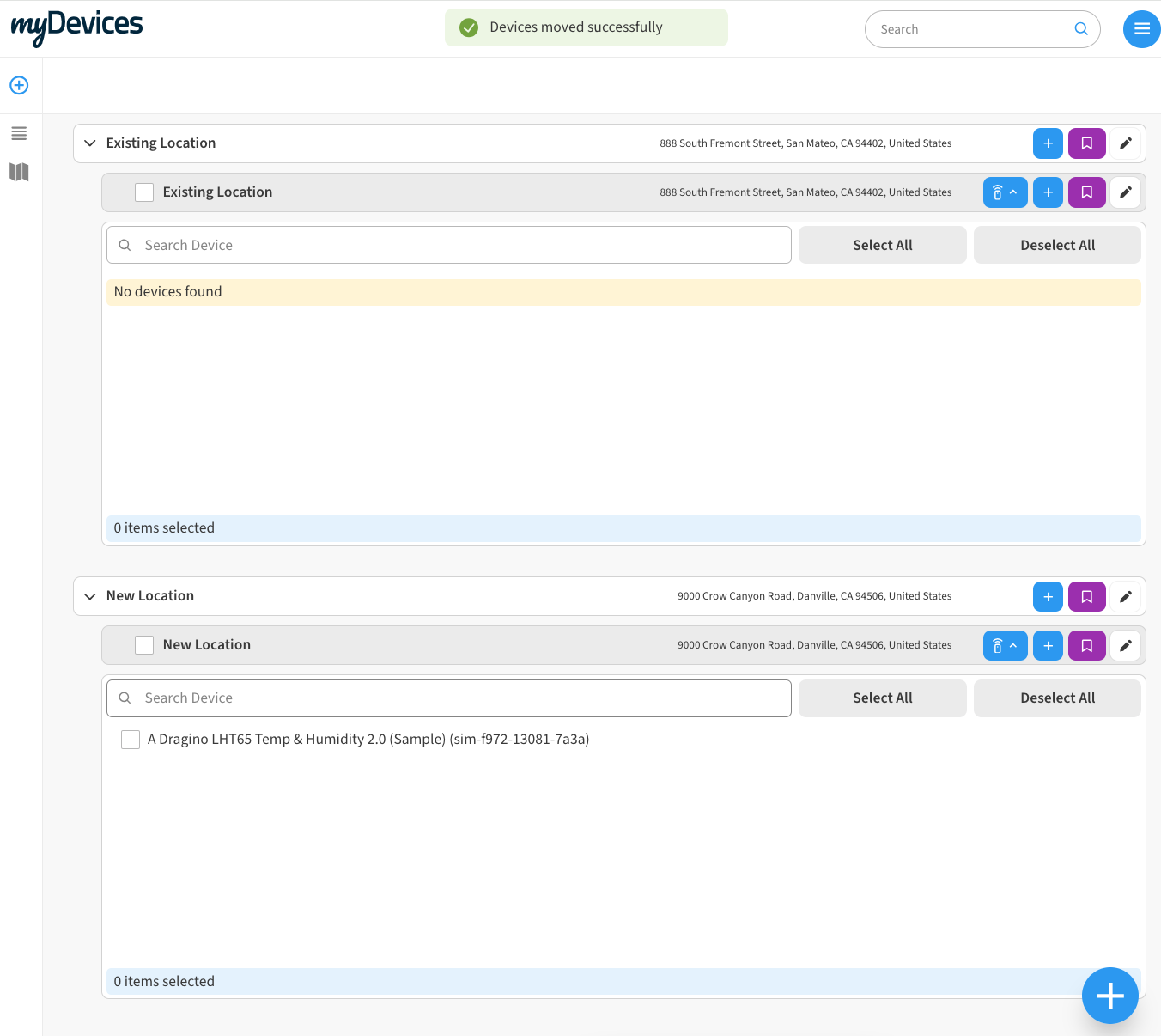
You can seamlessly move devices between any company or location in your account without losing any historical data. This is particularly useful if you need to reorganize or restructure your account after field deployments.
Additionally, you can move devices between accounts in scenarios where the admin of the location needs to change.
Moving Device & Location Features:
-
Flexible Device Movement:
-
You can move devices between different companies and locations in your account without the need to delete and re-add them. This preserves all historical data and ensures continuity.
-
Locations within the same company can be reorganized, allowing for easy restructuring when necessary.
-
-
Permissions for Device Movement:
-
By default, only admins have permission to move devices.
-
You can optionally enable users with the Owner role to move devices as well. This can be done through the Show/Hide settings if you are a realm administrator.
-
Review Move Device & Location Show/Hide Permissions
This section is for Realm administrators only. If you are an end user, proceed to How to Move Devices and please contact support if you don’t see the desired options
-
Before moving devices and/or locations, please log into your Console, click on the Settings tab, and then Show/Hide tab.

-
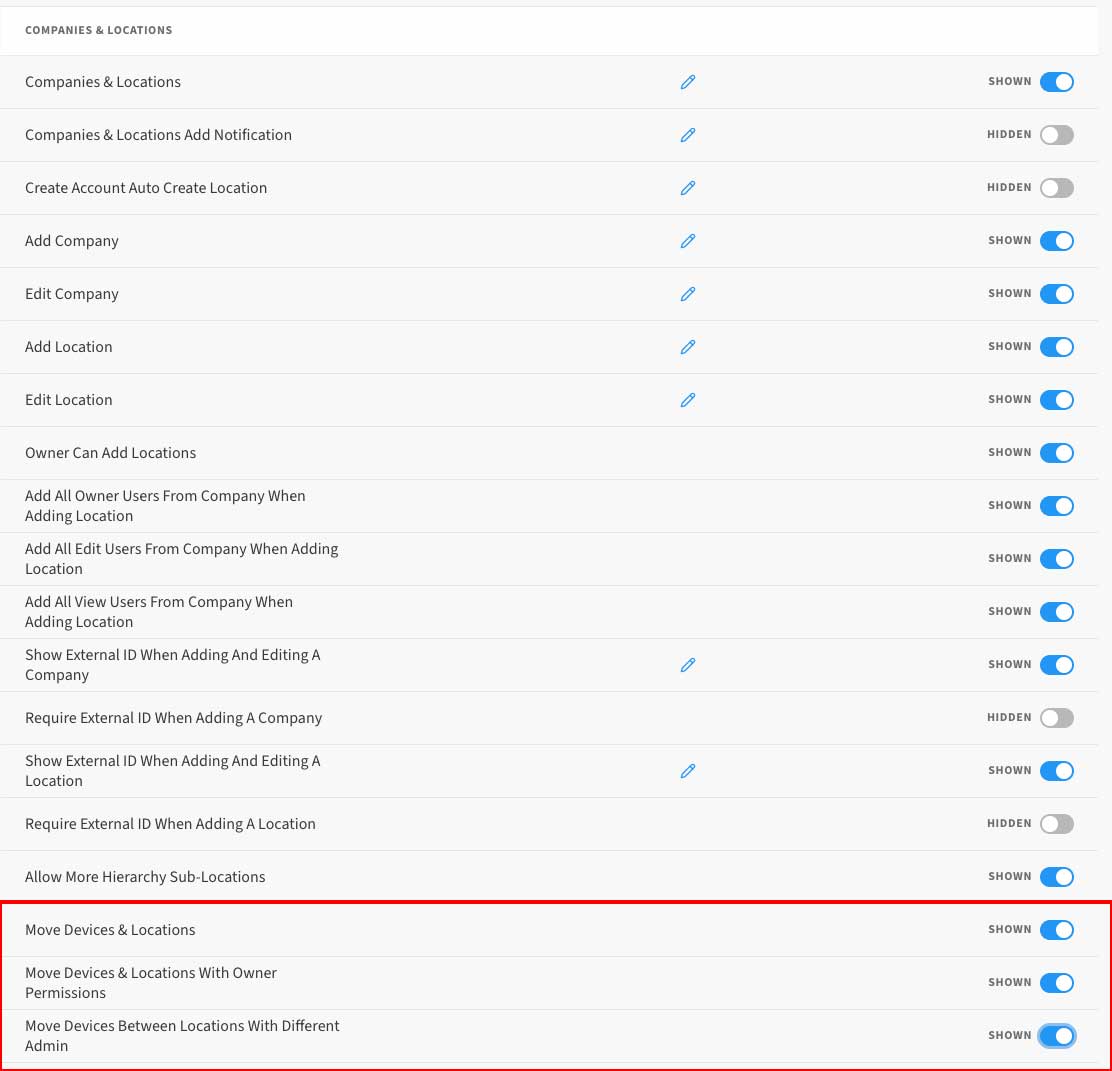
Scroll down until you reach the Companies & Locations screen. There are 3 options for moving devices and locations, depending on what your needs are:
-
Move Devices & Locations:
This enables or disables the feature to move devices to any location within an account and locations within a company. By default, this is enabled and is restricted to end users with the Admin role. -
Move Devices & Locations with Owner Permissions:
This enables users with the Owner role for a Location to move devices to any Location within an account and Locations within a Company. By default, this is disabled and would need to be enabled. -
Move Devices Between Locations with Different Admin:
This enables a user to move devices between Locations which have different Admin users. This should be used when the admin of a location is no longer with your business or organization. By default, this is disabled and would need to be enabled.
How to Move Devices
-
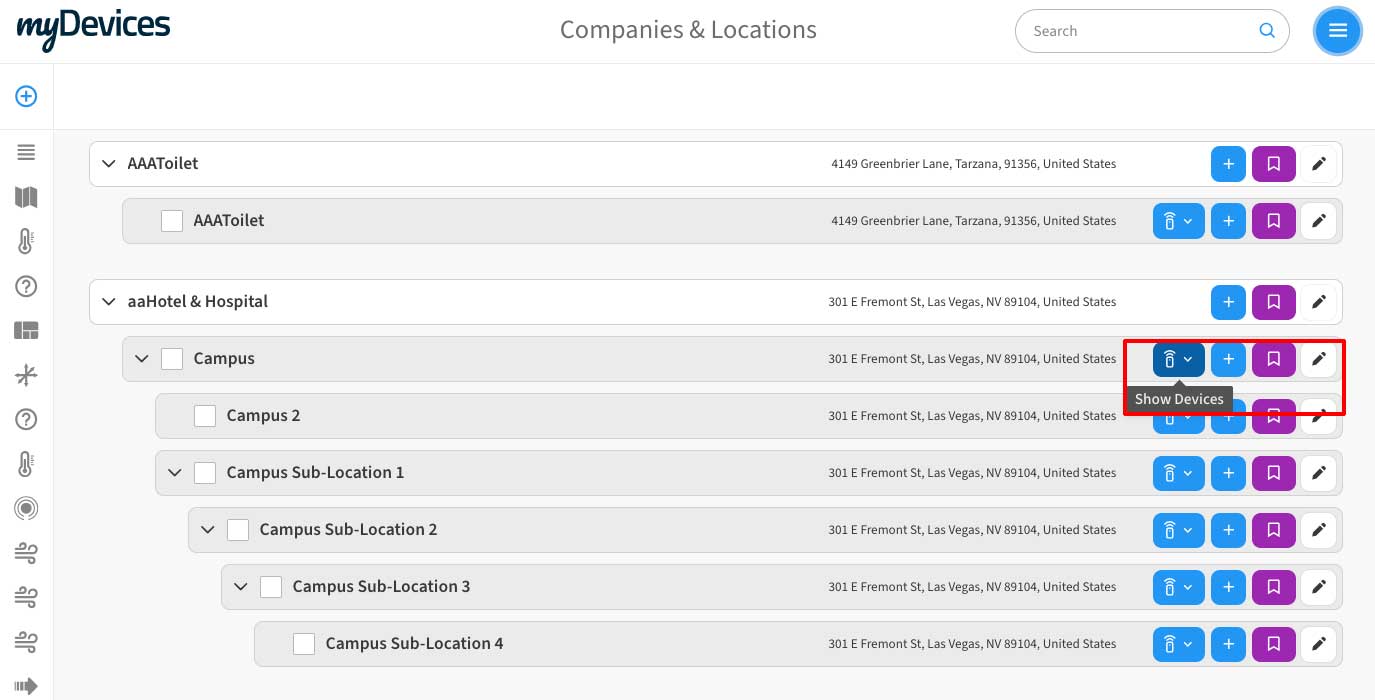
Go to ☰ → COMPANIES & LOCATIONS. Click on the Show/Device Icon to view devices for a location.
-
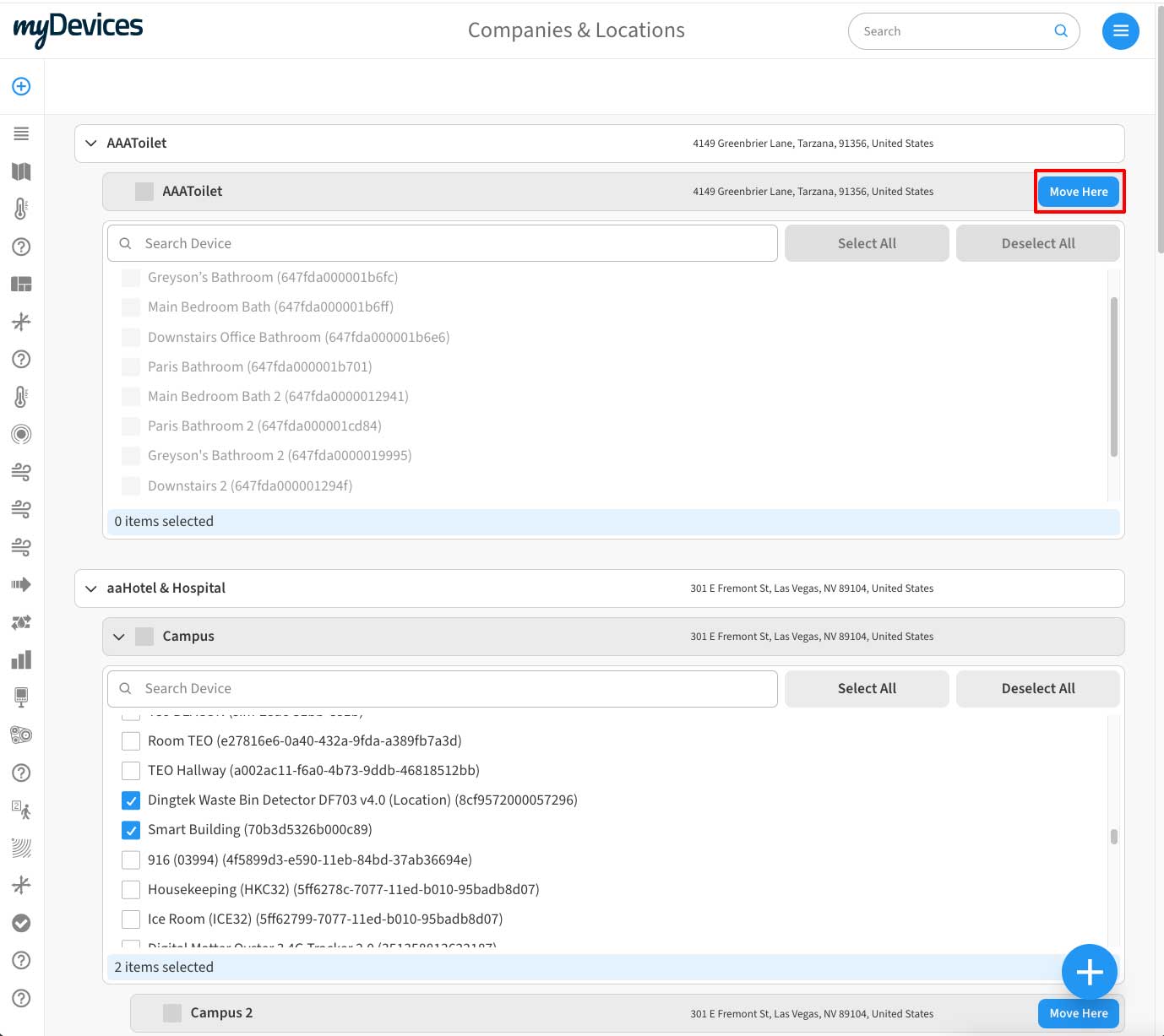
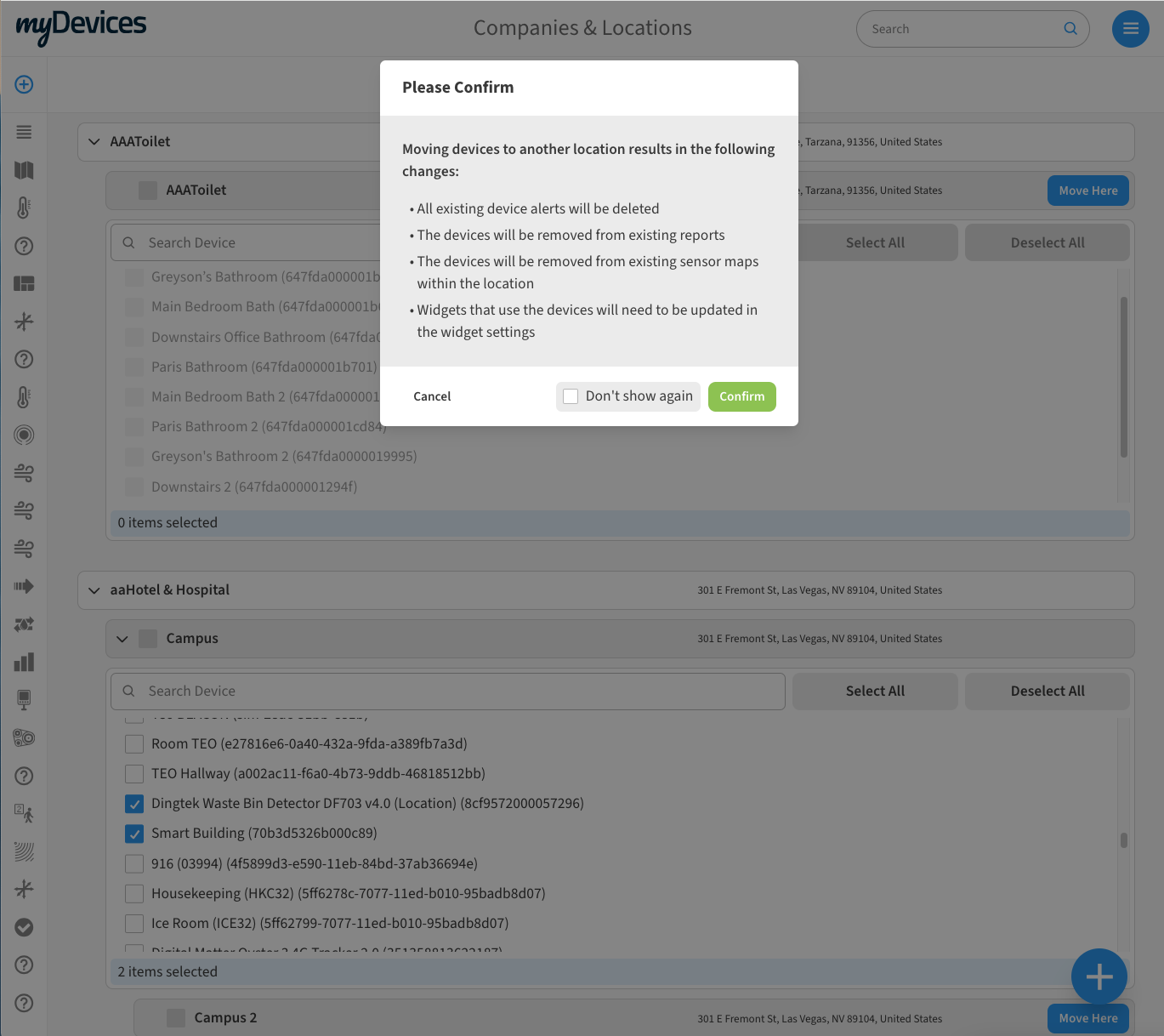
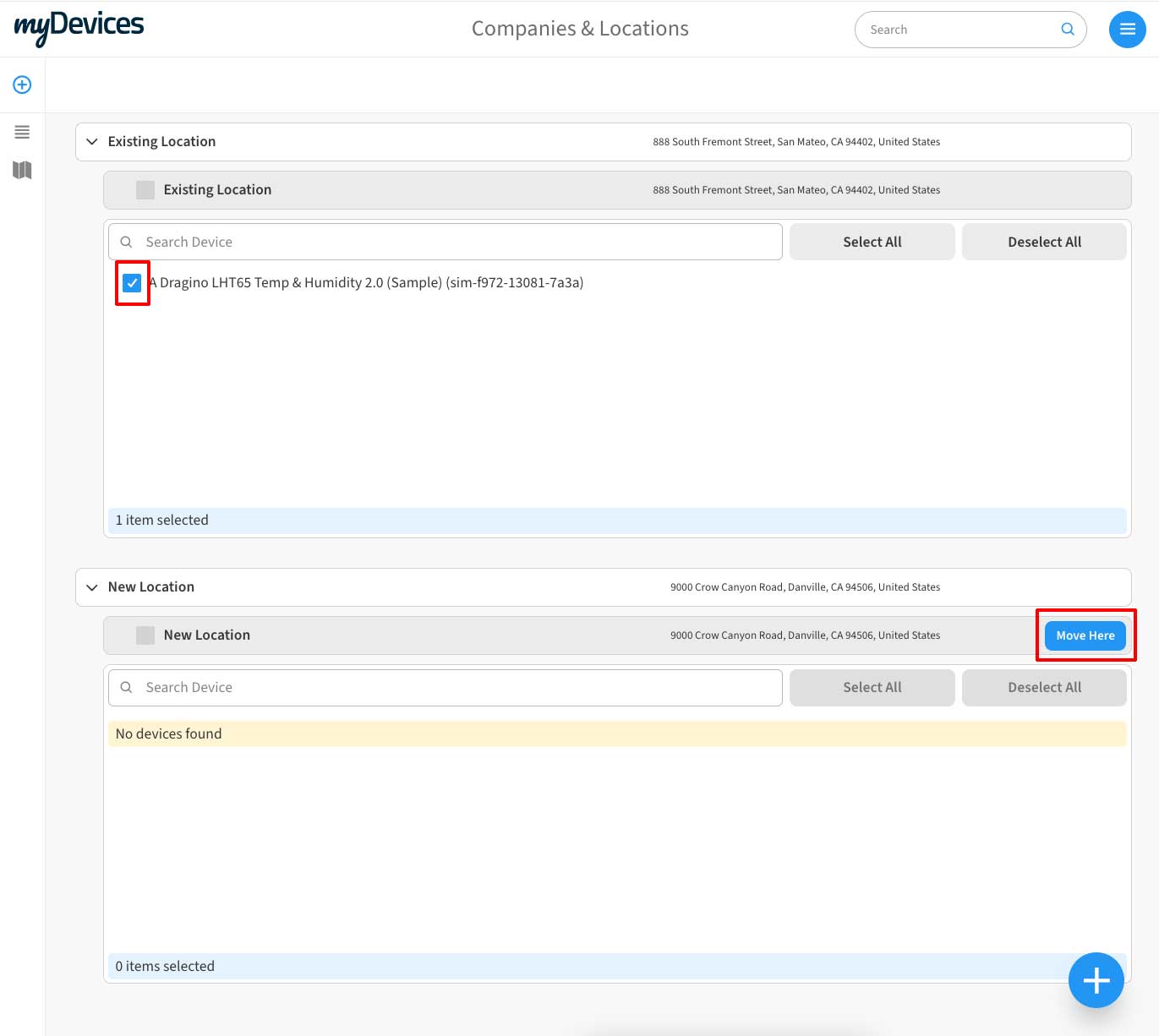
Select the device(s) you want to move and click the Move Here button for the location you want to move the devices to.
-
Confirm the move.
When moving devices to another location, device history is preserved, but the following changes will occur:
-
All existing device alerts will be deleted.
-
The devices will be removed from existing reports.
-
The devices will be removed from existing sensor maps within the location.
-
Widgets that use the devices will need to be updated in the widget settings.
How to Move Locations
-
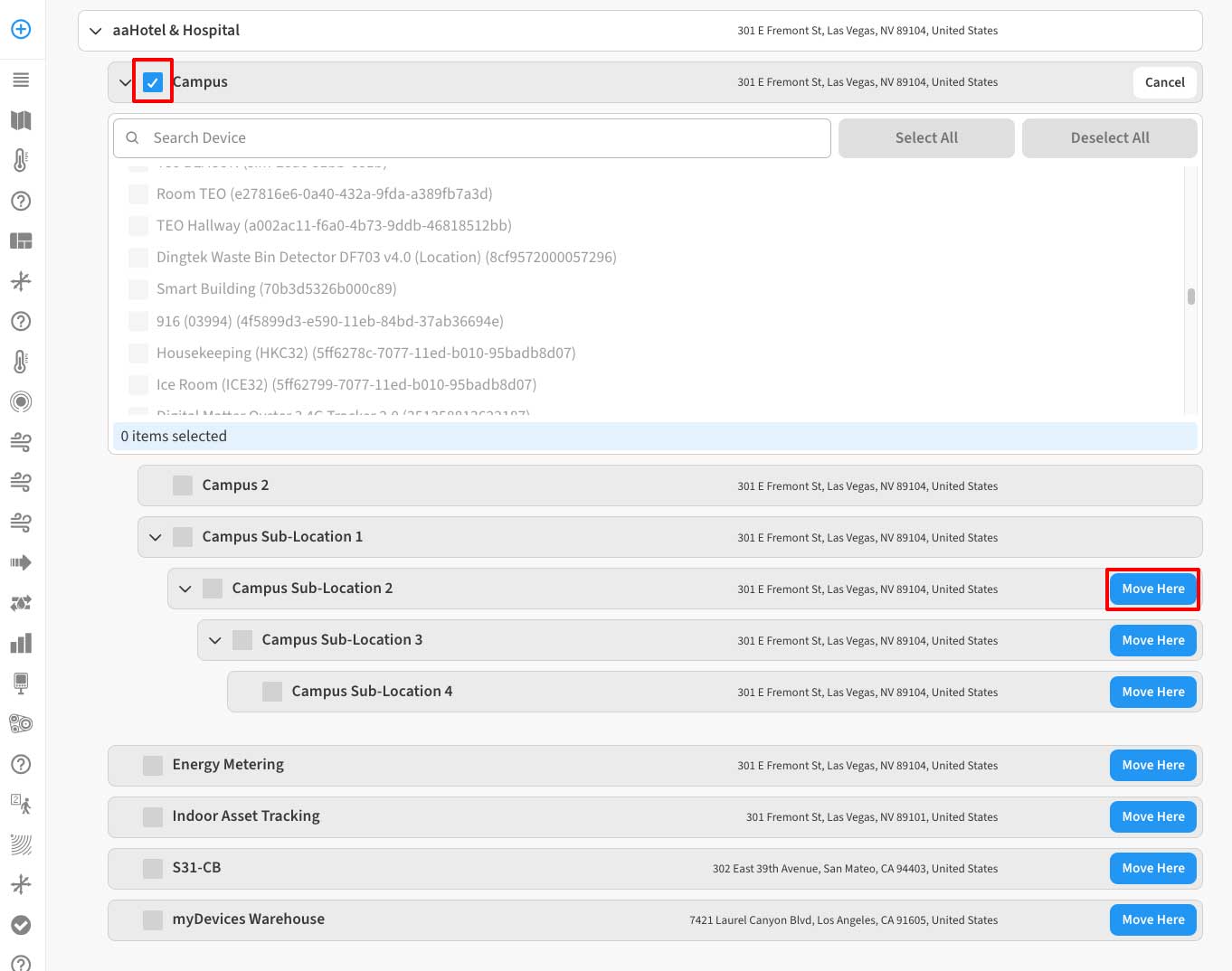
Go to ☰ → COMPANIES & LOCATIONS. Click the checkbox for the location you want to move, and then click the Move Here button on the location you want to move it under.
You can only move locations to be sub-locations within the same company.
Transferring Device Ownership
-
Before moving devices to a different admin, log into your Console, click on the Settings tab, and then Show/Hide tab. Make sure all 3 Move Device & Locations options are enabled.

-
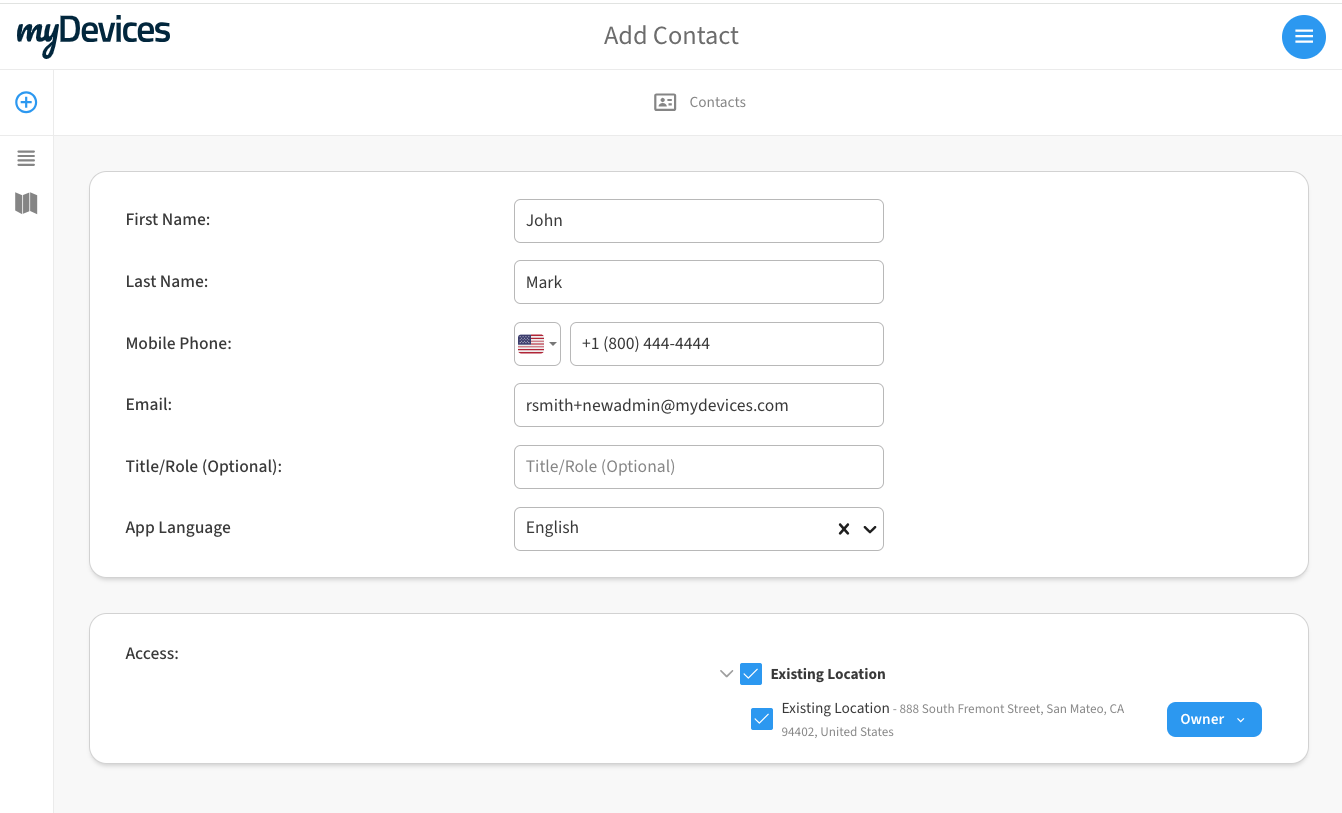
To move devices to a different admin, the original admin must give the owner location permissions to the new admin.
Existing Admin
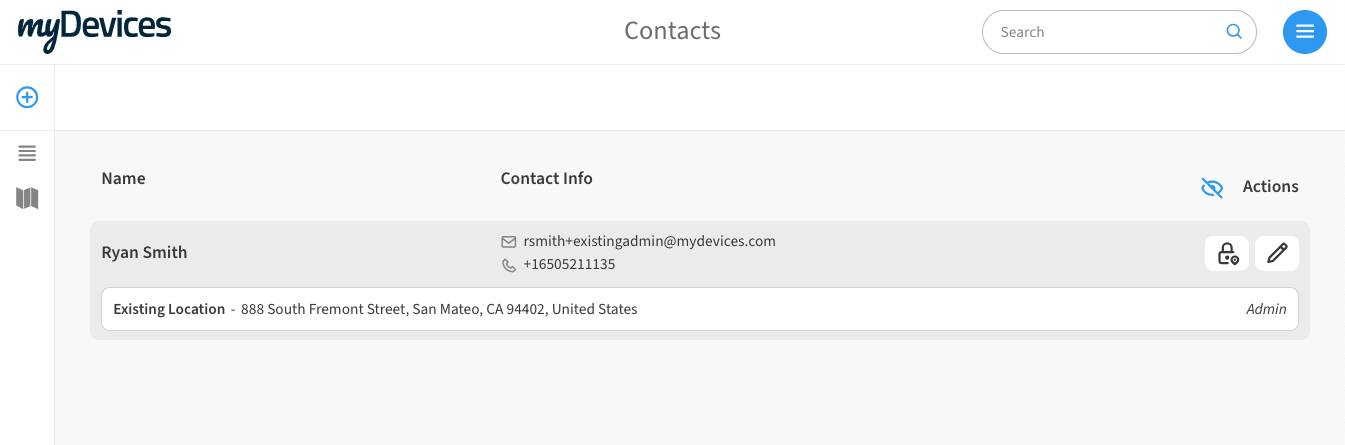
Giving Owner location permissions to New Admin
-
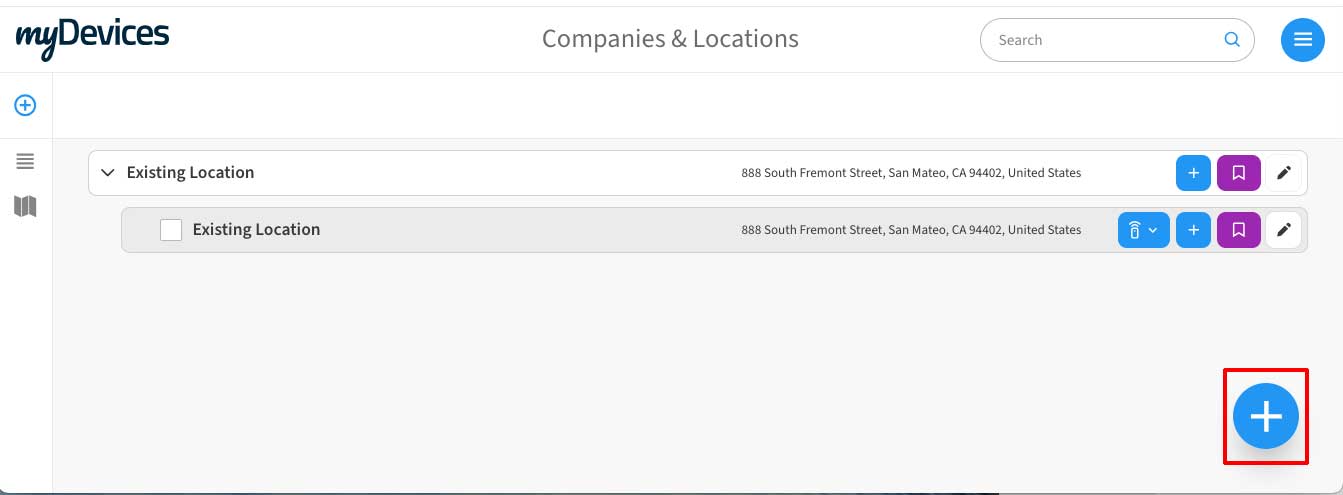
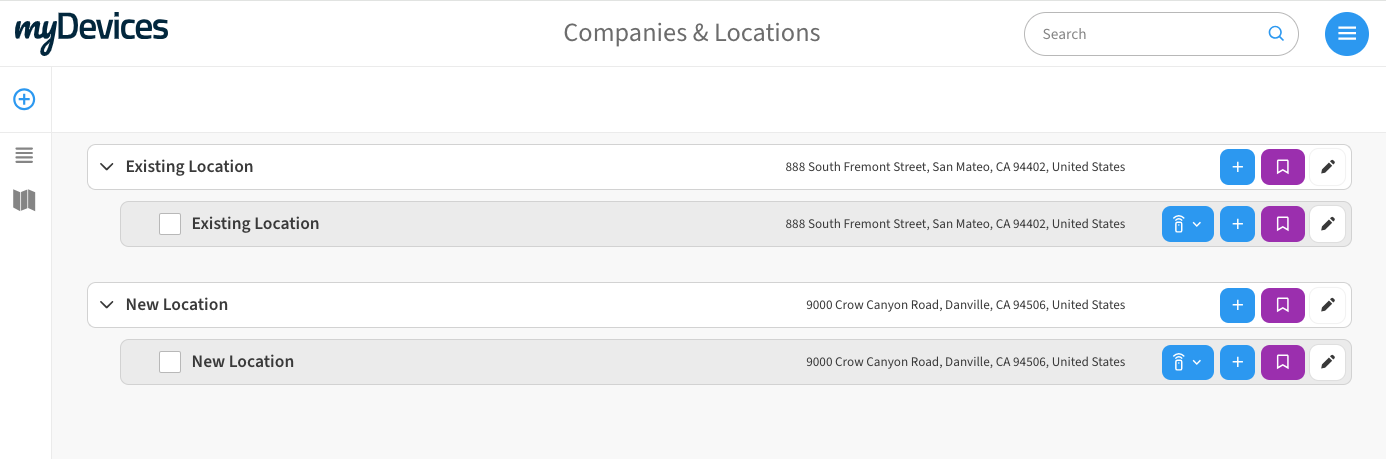
The new Admin, then logs into their existing account, navigates to the Company’s Location Screen and creates a new company and location which they are the admin
-
Click on the Show Device Icon to view devices for an existing location. Select the device(s) you want to move. Click the Move Here button for the new location.
-
Confirm the move.
When moving devices to another location device history is preserved, but will results in the following changes:
-
All existing device alerts will be deleted
-
The devices will be removed from existing reports
-
The devices will be removed from existing sensor maps within the location
-
Widgets that use the devices will need to be updated in the widget settings
-
The devices are now officially transferred to the new Admin.