

|
STEP 1: Application |
Log in or sign up a new account in the web application.
|
|
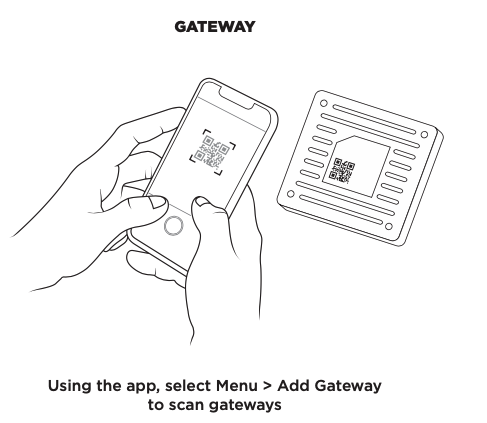
STEP 2: Gateway |
|
|
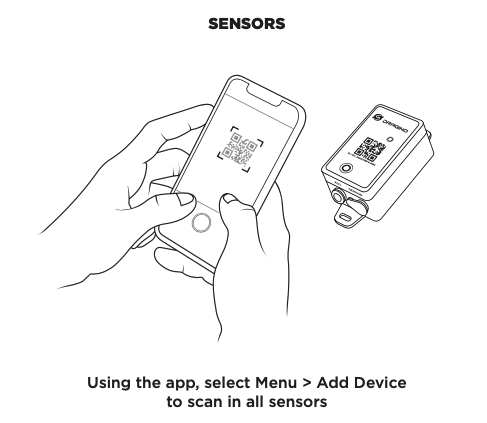
STEP 3: Sensors |
|
FAQ
Where can I find my device ID code?
The Device ID code is a 16-character hexadecimal code printed on the QR Code sticker on each sensor, or directly printed on the hardware itself.
I received the "Device ID you entered is invalid. Please try again." message.
Double-check that you are entering the correct 16-character Device ID or scanning a QR code that has a 16-character ID underneath it. If you’re still having trouble, or if you purchased the hardware from a 3rd party, please contact support for assistance and options to onboard it
Device missing accessories (e.g.: antenna, probe, power cord, etc.)?
Please contact our Support team and we’ll assist with any missing hardware
Device Showing Offline
Ensure you are trying to activate the device near an online gateway. The gateway is a receiver for the sensor and must be online and in-range it can hear the sensor’s transmissions.
If you need specific steps to Activate or Reset your sensor so it can try connecting again, these can be found in the web app by clicking on the Gear icon to access a sensor’s Settings tab, then clicking on Resources

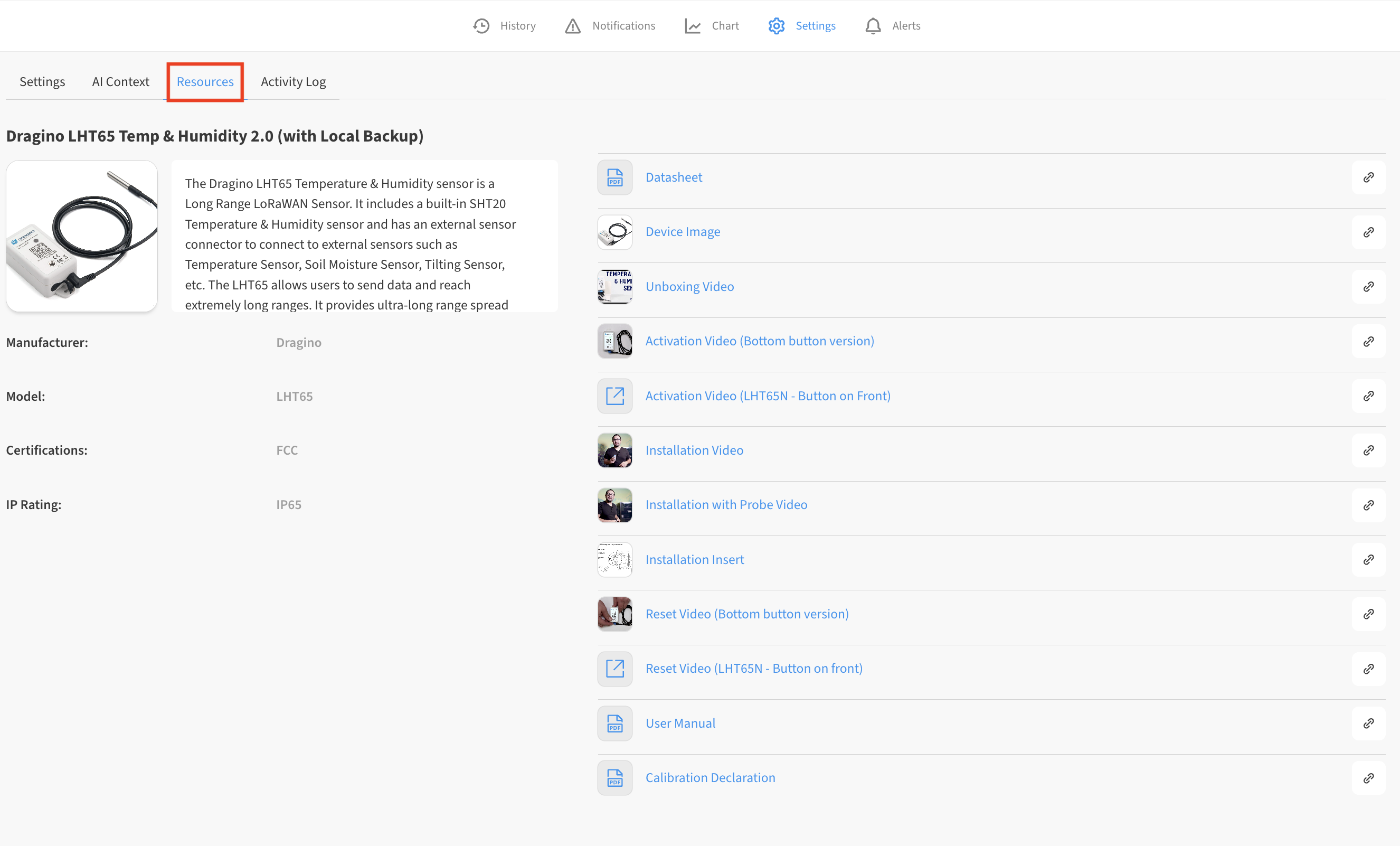
You can also find reset, re-connection, and troubleshooting steps for many hardware models in this help system: https://iot-help.scrollhelp.site/iotkb/sensors
I still haven't received a reading 20 minutes after adding my sensor.
The yellow “it may take X minutes/hours” message in the web app is simply a placeholder. Most sensors connect within seconds after performing the activation steps. You do not need to wait the full period listed in this box before trying again. For specific steps to reset and re-activate your sensor, see Device Showing Offline above.