

Note: Support for Offline Data stored and retrieval is currently only supported on certain devices, such as the Laird & Dragino Temperature devices configured for Offline Data Retrieval. Check with us for the latest information on devices which support this feature.
How does Offline Data Retrieval feature work?
Sensors with the Local Backup feature are configured to store readings locally in the event of prolonged network outage (i.e. unable to communicate with any nearby gateways). Once back in range of a functioning gateway, the device will then be checked to see if it has any cached data points that can be uploaded to fill in gaps in the sensor history. Any data available will then start to be uploaded and will appear normally in history as if there wasn’t an interruption.
How long can my device stay offline? // How much data is stored locally?
Typically sensors are configured to store 4 - 7 days worth of readings locally depending upon the transmission frequency of the sensor and sensor model
What Backup status indicators could be shown?
Initializing: The Local Backup status indicator will display initializing after it is powered on and starts communicating with the cloud services. Once it has successfully configured itself and is properly connected, the status will switch to Active.
Failed: If the initializing process fails, you will see this message. In such cases the best course of action is to reset the device and allow it to re-initialize. For specific reset instructions for your device model, click or tap on your device on the Manage screen, then go to the Settings tab → Resources.
Active: Local Backup is configured and working normally.
Restoring: The device is actively restoring data from Local Backup to the cloud. During this time, new readings will continue to be logged and old data will start appearing in history. When the restore operation is complete, the status will switch back to Active.
How will I know my data is being protected?
After powering on the device, the Local Backup status indicator will display Initializing as it starts communicating with the cloud services. Once it has successfully configured itself and is properly connected, the status will switch to Active.
How will I know my data was uploaded from the device?
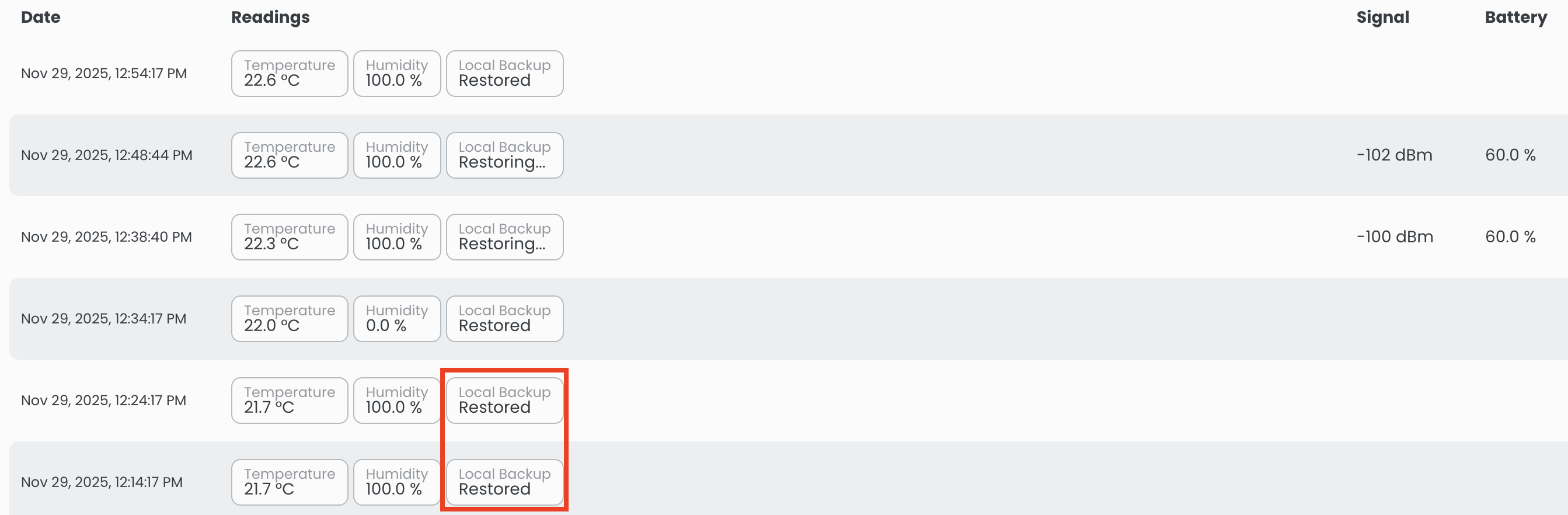
You can use the History tab for the device. From the Manage screen, select the device and the History tab will open automatically. From here you can look at when the outage occurred and as the data is automatically uploaded you will see the history get filled in. Uploaded data will be marked with Restored in the Local Backup field, and will not display a signal strength or battery reading.
How long before the upload starts? // How long does it take to upload data?
A check for missing data starts as soon as a new reading comes in for the device. Once that occurs, any missing readings start to upload automatically. In most cases this process takes just a few minutes, however in cases of prolonged outages this process could take up to an hour.
Why are Signal Strength and Battery information empty for Restored readings?
When locally cached offline data gets uploaded after a prolonged outage you’ll notice those entries show up with no signal strength or battery information. This is perfectly normal and to be expected for these data points, as those items are only captured at the time of a live reading.
The Temperature Reading value history is the most critical data, and will be filled in after the restore process is complete. Signal Strength and Battery will be updated normally as new live readings come in.
What do you mean by “prolonged” outage? // How can I configure my device to account for short outages?
By default the sensor is configured to look for missing readings if it has been offline for 60 minutes. For most customers and devices transmitting at regular intervals, we’ve found this is a good setting.
If you find that your device drops offline for only short periods and your use-case requires minimizing any gaps, you could consider lowering this value to say 30 minutes to lower that threshold. You can find the setting for this by selecting your device, going to the Settings tab and then look for the feature value found under Offline Data Retrieval.
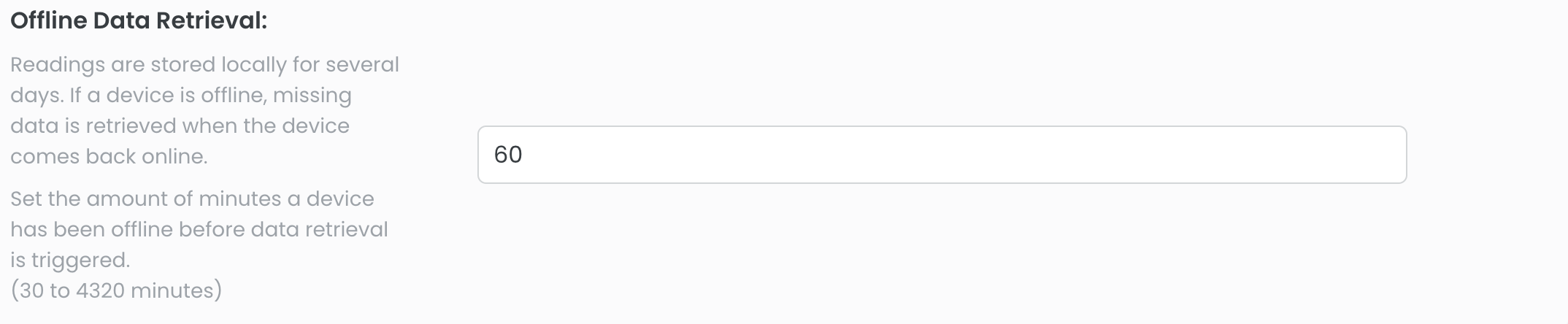
Do not set the Offline Data Retrieval value to a number of minutes that is smaller than the transmission interval your temperature sensor is set to. This will cause the system to check for missed readings on every check in which will increase data usage and can cause issues with the temperature log readability and retrieving data when there is a legitimate outage.