Use the following instructions to have your IoT events sent to your Amadeus HotSOS account.
Creating a new HotSOS integration
Use the following steps to setup a new HotSOS integration in your account.
-
Log into your IoT dashboard account where all of your devices are located.
-
Go to ☰ → INTEGRATIONS and then select the Amadeus HotSOS integration.
-
Enter the following information to complete the integration:
-
Name: Enter a name for this integration. In case you have multiple integrations, this will help uniquely identify it in the list.
-
API URL: Enter the URL provided to you by HotSOS. HotSOS has a few different URLs depending upon your region.
-
For example https://ifc.int.hot-sos.net.
-
-
API Username: Enter your Username for your HotSOS account.
-
API Password: Enter your Password for your HotSOS account.
-
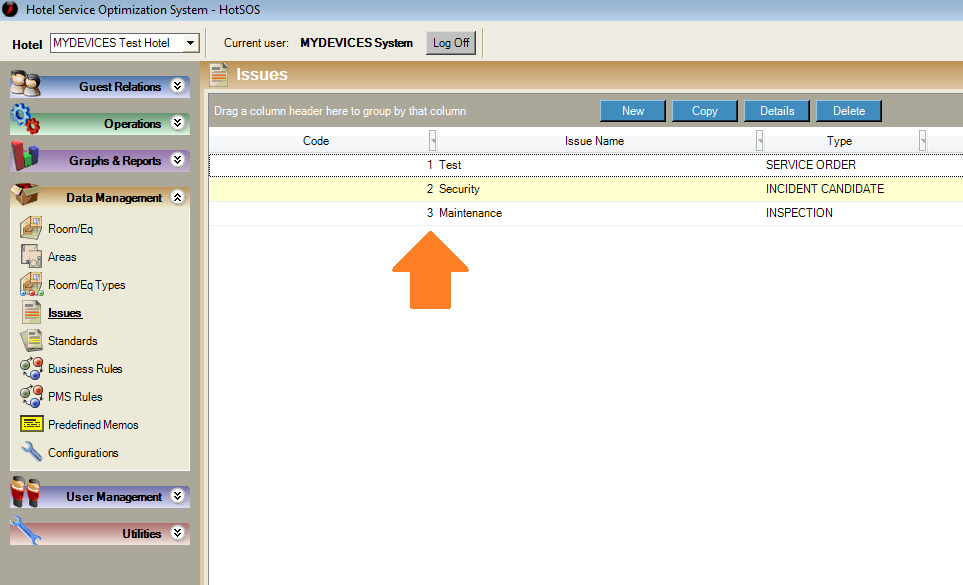
Issue Code: Specify the ID of the Issue Code that you want to be used when the integration is called.
-
Priority: Specify a Priority to be sent to HotSOS when the integration is called. Priorities should be entered as a value from 1 - 5, with 1 being the highest priority.
-
Event Subscriptions: In this field you can select whether your integration should pass sensor data received (uplink), gateway keepalive (ping), and alert events.
-
Device Subscriptions: In this field you can select specific devices for the integration to monitor. By default All Devices are selected.
-
You can create or find Priorities your HotSOS account under Issues.
-
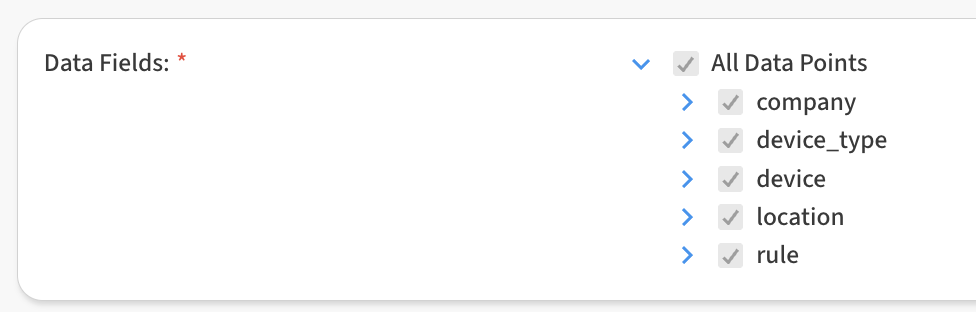
In the Data Fields area, you can customize the specific data points passed by the integration. By default all fields are selected.
-
Click Save Amadeus HotSOS to finish.
After saving the Integration, you will see it shown in your list of integrations.
-
You can then edit the integration to make any changes needed.
-
You can also toggle the Integration on/off at any time from here as well. Disabling the integration will stop new data from being sent to HotSOS.
Verifying things are working
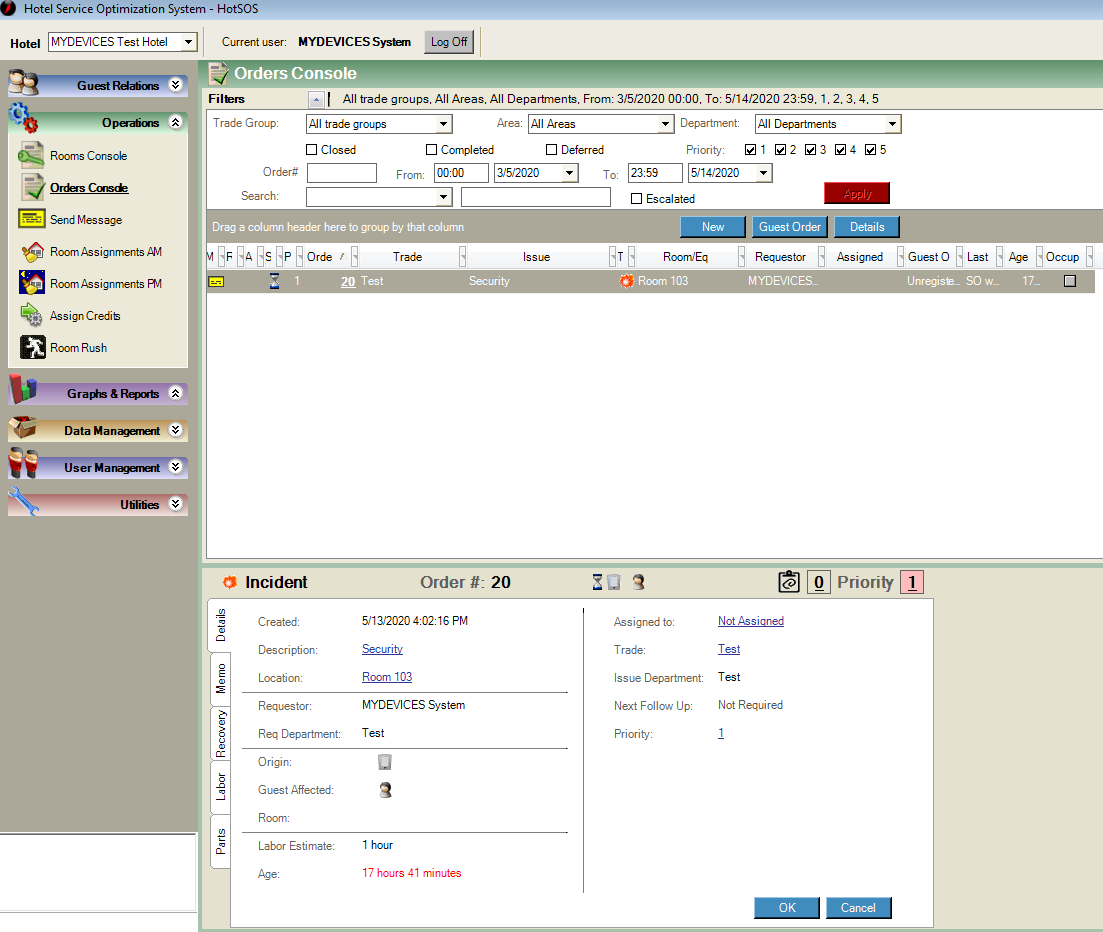
You can verify the integration is working by logging into your HotSOS account and viewing the list of incidents in the Orders Console. As new alerts trigger in our system, a new incident will be created in HotSOS.
Getting Room Numbers to show up in HotSOS
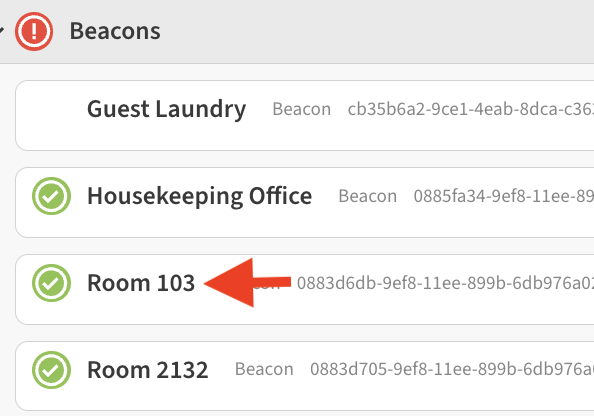
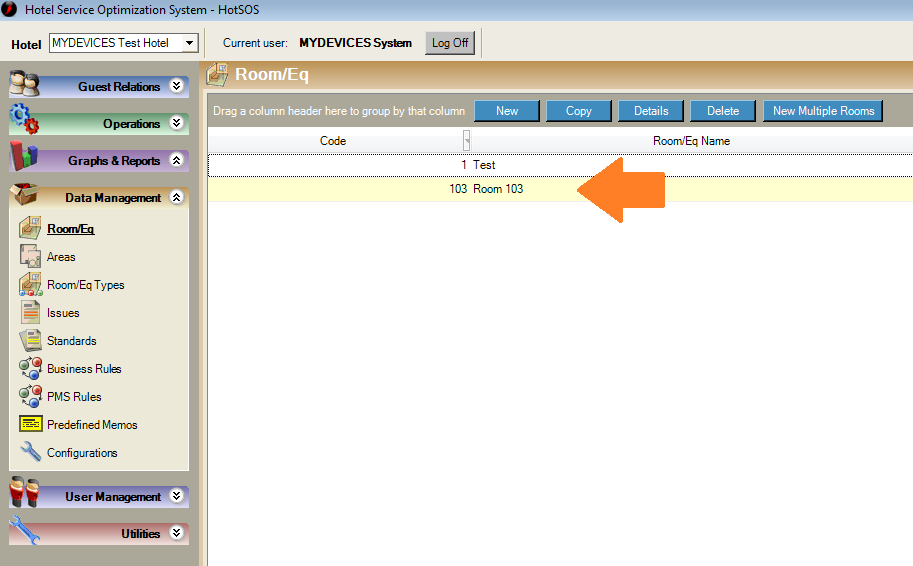
If you match Room number naming in both your IoT account and in HotSOS, that information will also be included in your incident details.
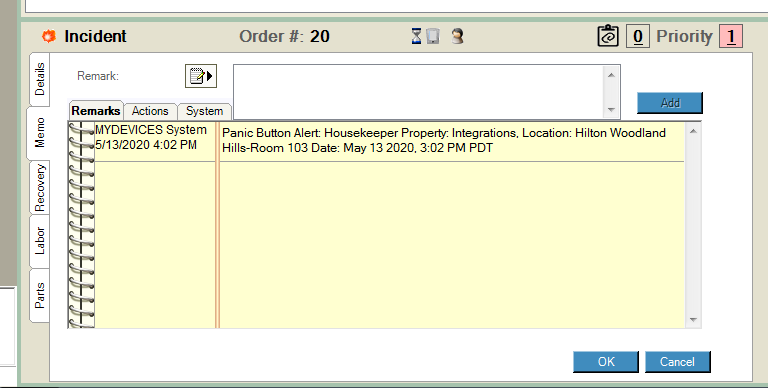
To set this up, make sure that you match the Name of the beacons in your IoT account and have corresponding entries in Rooms/Eq within HotSOS.