
Connect with Amazon's platform to have your IoT device and alert event data sent to an AWS S3 service bucket.
Connecting to AWS S3
Use the following steps to setup the AWS S3 Integration.
-
Log into your Amazon AWS Console.
-
Go to the S3 Service and pull up the details for the S3 bucket that you want to utilize - you can utilize an existing bucket or create a new one (refer to Amazon's instructions for help).
-
Within your AWS account, copy the Access Key and Secret Key pair for the user that will be used to write data to the bucket.
💡 Note: Refer to Amazon's Best Practice guide for setting up, accessing and using these keys. We strongly recommend that you secure the access key used by first creating a policy with create permission to your bucket and then add the policy to a user, such as outlined in Access Policies.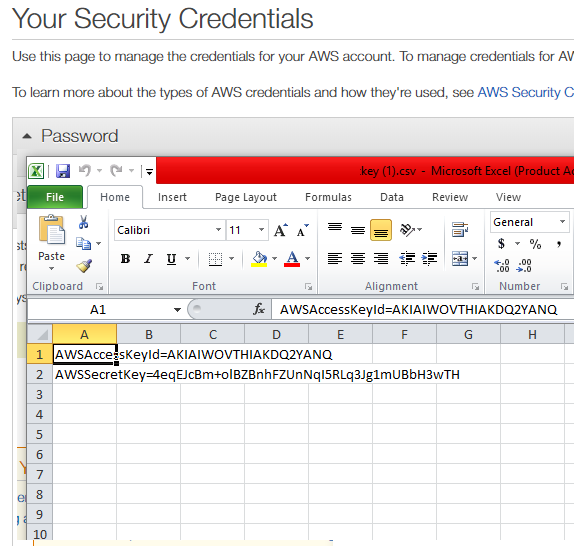
-
Log into your IoT dashboard account where all of your devices are located.
-
Go to ☰ → INTEGRATIONS and then select the AWS S3 integration.
-
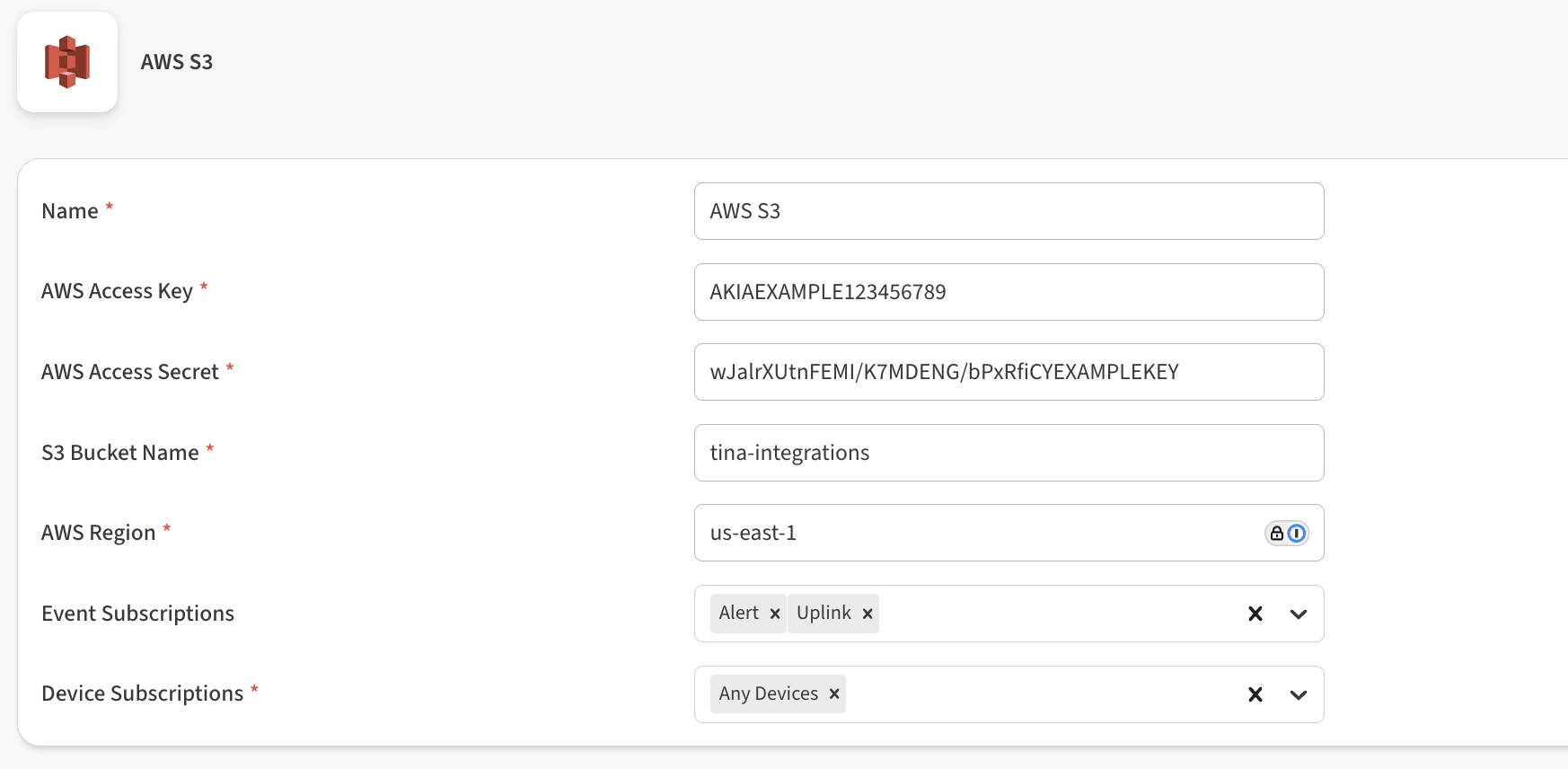
Enter the following information to complete the integration:
-
Name: Enter a name for this integration. In case you have multiple integrations, this will help uniquely identify it in the list.
-
AWS Access Key: Enter the Access Key for your S3 bucket.
-
AWS Access Secret: Enter the Access Secret associated with this Access Key.
-
S3 Bucket name: Enter the name of your S3 bucket.
-
AWS Region: Please specify the region identifier. Note: Please use only the Region identifier and not the plain text descriptor. Example: “us-east-1”
-
Event Subscriptions: In this field you can select whether your integration should pass sensor data received (uplink), gateway keepalive (ping), and alert events.
-
Device Subscriptions: In this field you can select specific devices for the integration to monitor. By default All Devices are selected.
-
-
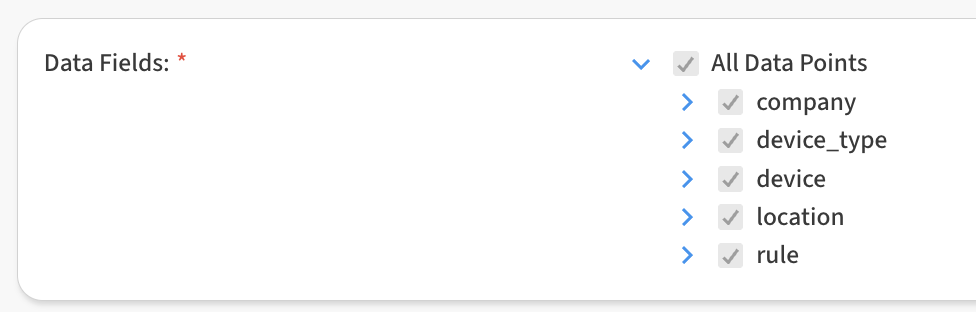
In the Data Fields area, you can customize the specific data points passed by the integration. By default all fields are selected.
-
Click Save AWS S3 to finish.
After saving the Integration, you will see it shown in your list of integrations.
-
You can then edit the integration to make any changes needed.
-
You can also toggle the Integration on/off at any time from here as well. Disabling the integration will stop new data from being sent to the AWS S3 bucket.
Verifying things are working
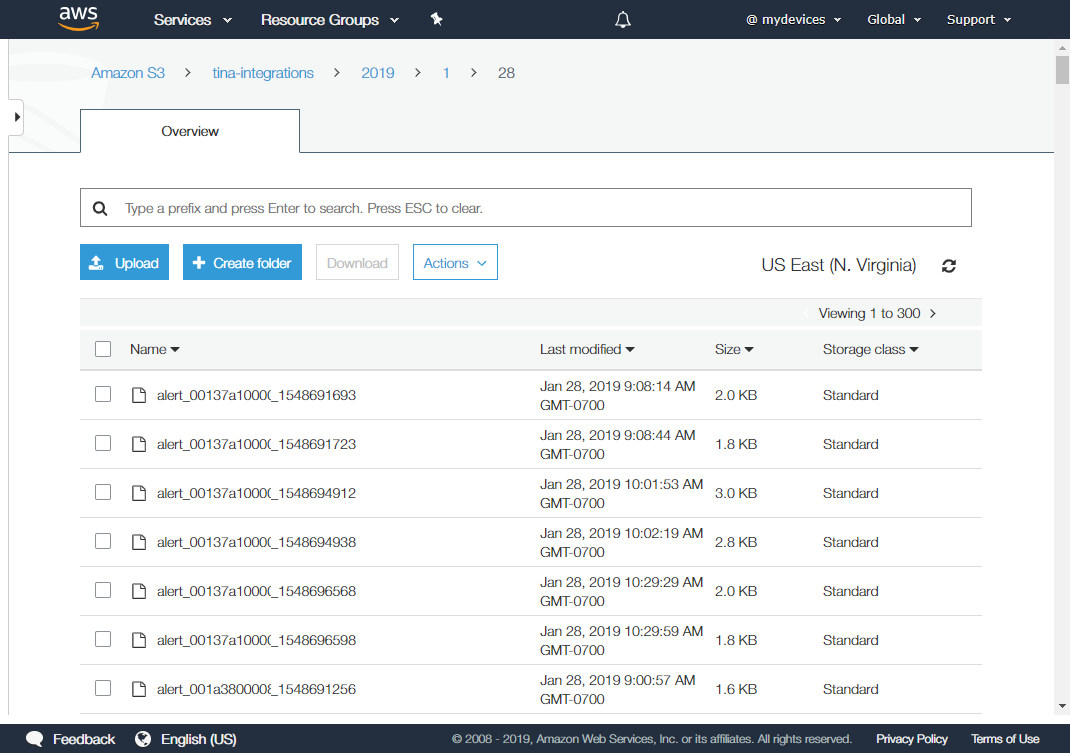
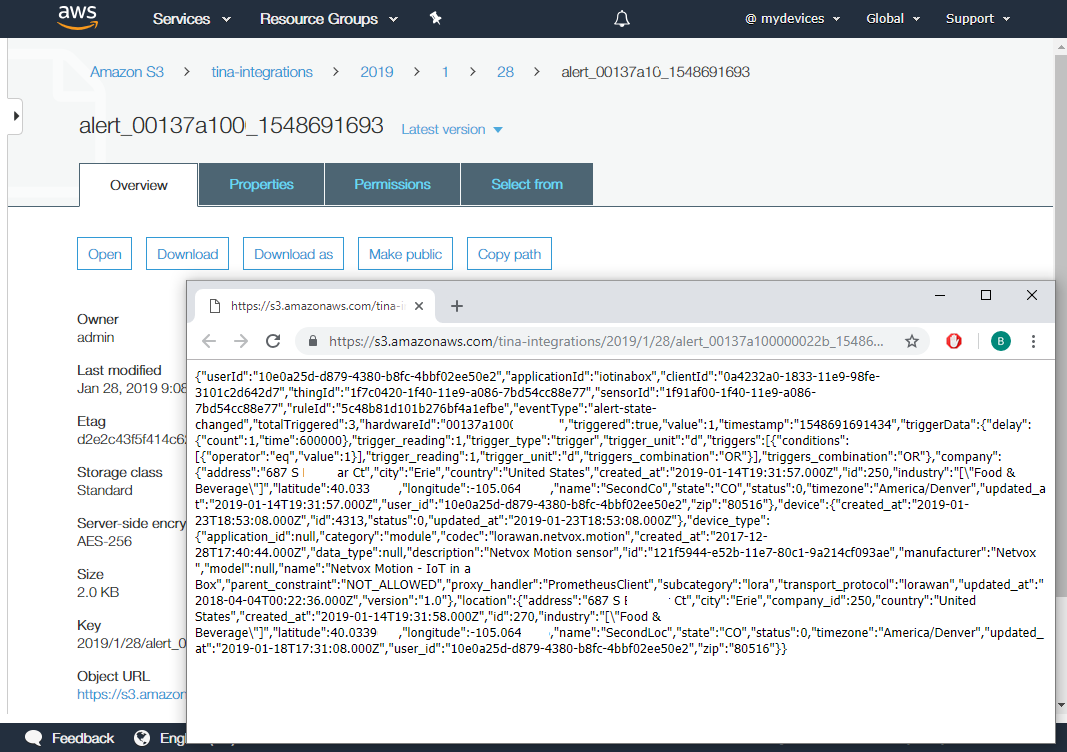
You can verify the integration is working by logging into the Amazon Console and viewing the bucket records.
Data is logged in reading and alert records, one for each new event. You can open each entry to find the event details, recorded in JSON format.