Connect with Amazon's platform to have your IoT device and alert event data sent to the AWS Simple Queue Service (SQS).
Connecting to AWS SQS
Use the following steps to setup the AWS SQS Integration.
-
Log into your Amazon AWS Console.
-
Go to the Simple Queue Service and pull up the details for the SQS Queue that you want to utilize. You will need the Queue name later when adding the integration.
-
Within your AWS account, copy the Access Key and Secret Key pair for the user that will be used to write data to the queue.
💡 Note: Refer to Amazon's Best Practice guide for setting up, accessing and using these keys. We strongly recommend that you secure the access key used by first creating a policy with create permission to your queue and then add the policy to a user, such as outlined in Access Policies.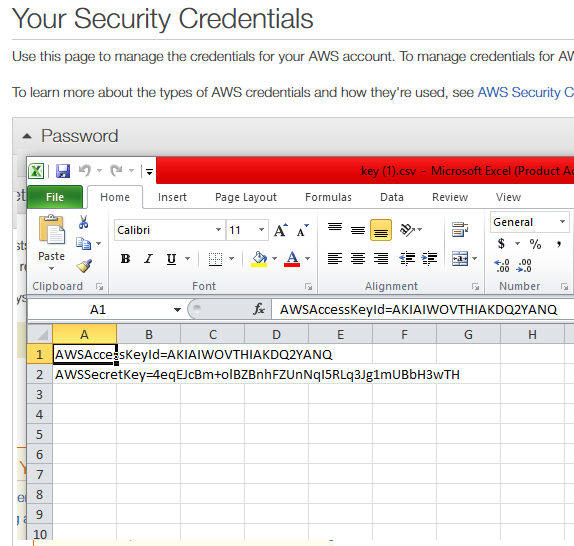
Example of Security Keys obtained for your AWS account -
Log into your IoT dashboard account where all of your devices are located.
-
Go to ☰ → INTEGRATIONS and then select the AWS SQS integration.
-
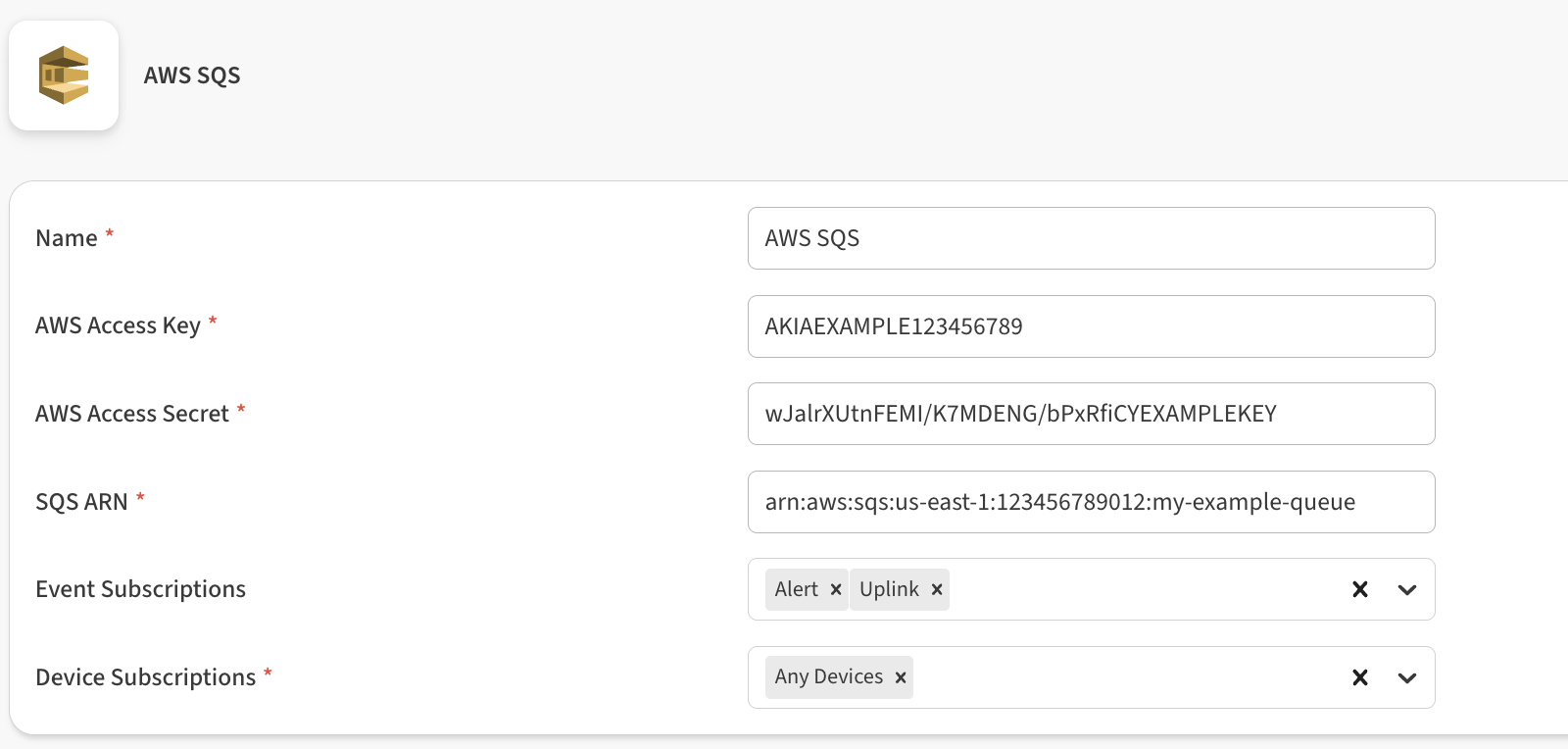
Enter the following information to complete the integration:
-
Name: Enter a name for this integration. In case you have multiple integrations, this will help uniquely identify it in the list.
-
AWS Access Key: Enter the Access Key used to access the queue.
-
AWS Access Secret: Enter the Access Secret associated with the Access Key.
-
SQS ARN: This is the Amazon Resource Name that uniquely identifies an Amazon Simple Queue Service (SQS) queue within AWS. Example:
arn:aws:sqs:us-east-1:123456789012:my-example-queue -
Event Subscriptions: In this field you can select whether your integration should pass sensor data received (uplink), gateway keepalive (ping), and alert events.
-
Device Subscriptions: In this field you can select specific devices for the integration to monitor. By default All Devices are selected.
-
-
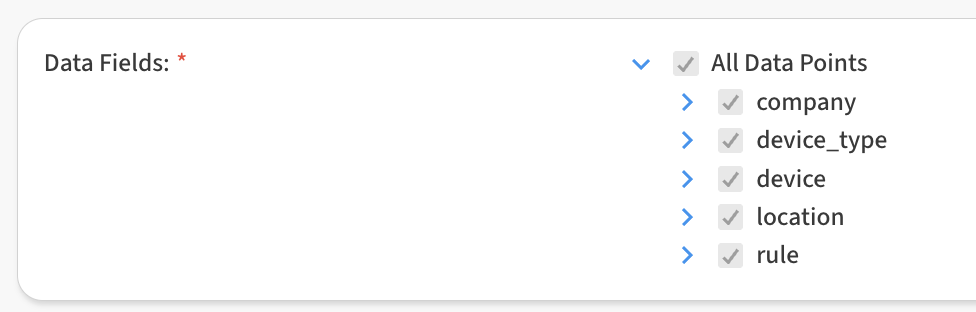
In the Data Fields area, you can customize the specific data points passed by the integration. By default all fields are selected.
-
Click Save AWS SQS to finish.
After saving the Integration, you will see it shown in your list of integrations.
-
You can then edit the integration to make any changes needed.
-
You can also toggle the Integration on/off at any time from here as well. Disabling the integration will stop new data from being sent to the AWS SQS queue.
Verifying things are working
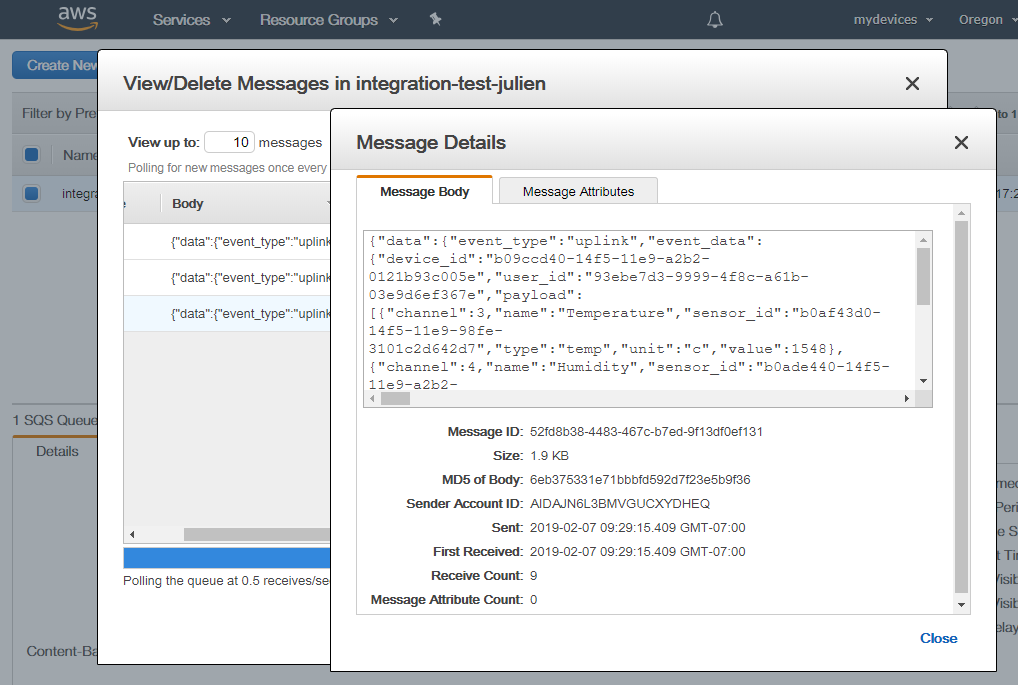
You can verify the integration is working by logging into the Amazon Console and viewing the Queue Messages.
Data is logged in reading and alert records, one for each new event. You can open each entry to find the event details, recorded in JSON format.