The Discord Integration allows you to post messages to Discord, triggered by alert events within your IoT account.
Creating a new Discord Webhook
If you already have a Discord server you can skip to step 3.
-
If you do not already have a Discord account click here.
-
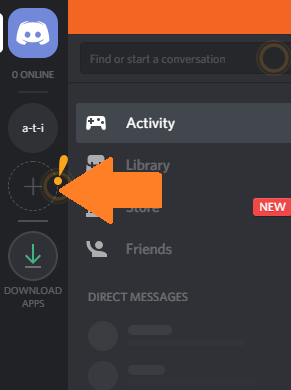
Login to your Discord account and click on the (+) on the left side and fill in the required fields to create a server.
-
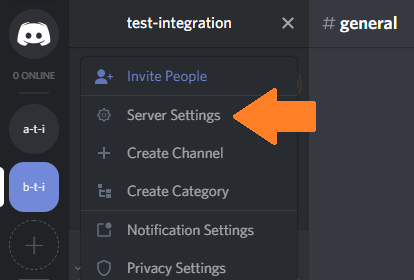
Click on the server name in the upper left and choose Server Settings then click Webhooks and choose Create Webhook.
-
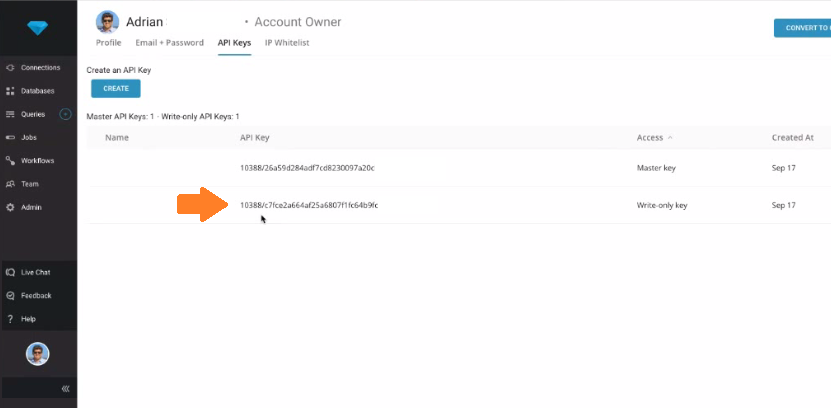
Fill out the Webhook settings and copy the Webhook Url.
-
Log into your IoT dashboard account and go to ☰ → INTEGRATIONS and then select the Discord Webhook integration.
-
Fill in the Url field with the Webhook URL created on Discord.
-
You can also optionally customize:
Event Subscriptions: In this field you can select whether your integration should pass sensor data received (uplink), gateway keepalive (ping), and alert events.
Device Subscriptions: In this field you can select specific devices for the integration to monitor. By default All Devices are selected.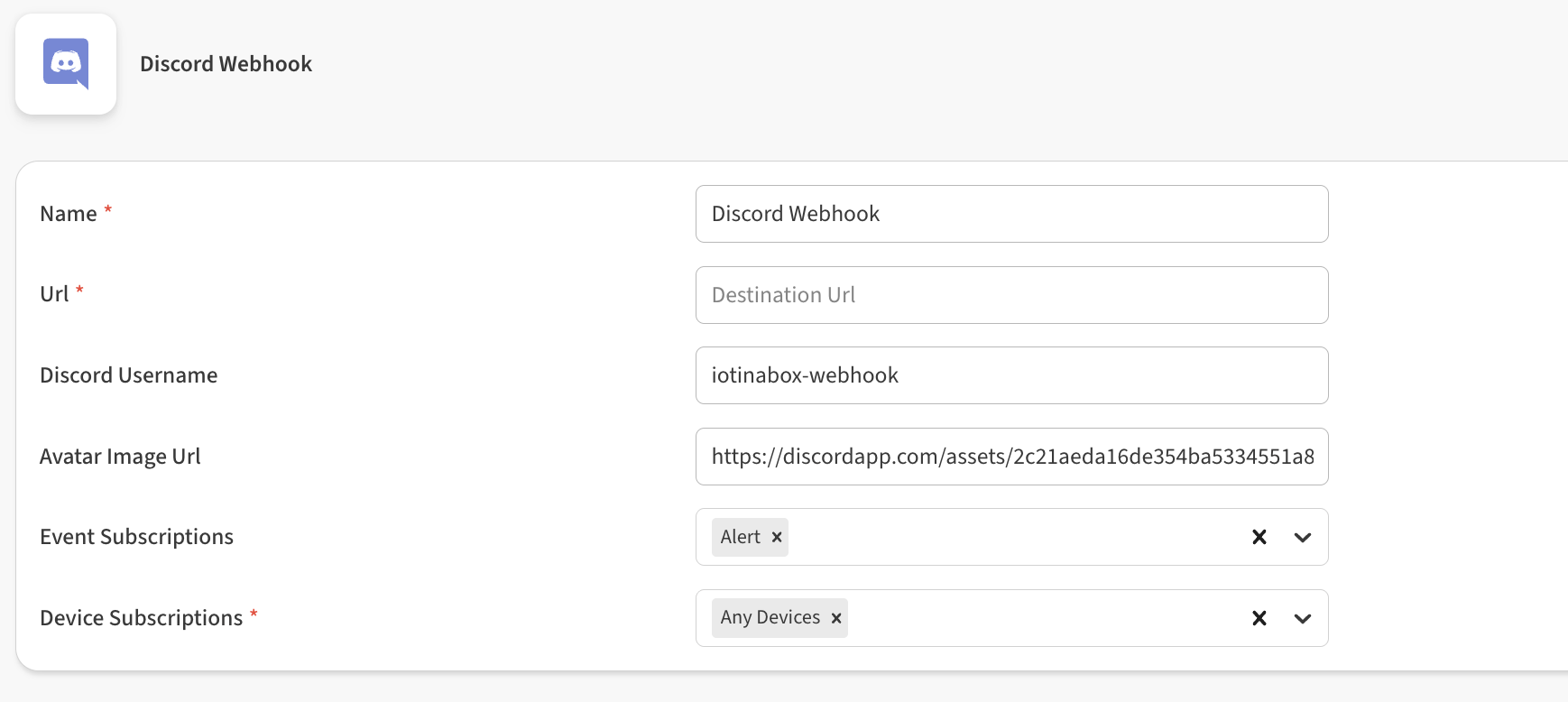
-
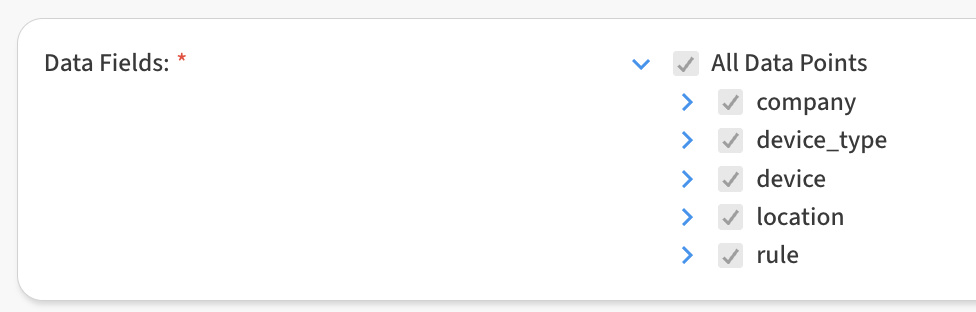
In the Data Fields area, you can customize the specific data points passed by the integration. By default all fields are selected.
-
Click Save Discord Webhook to finish.
After saving the Integration, you will see it shown in your list of integrations.
-
You can then edit the integration to make any changes needed.
-
You can also toggle the Integration on/off at any time from here as well. Disabling the integration will stop new data from being sent to the Discord webhook.
Verifying things are working
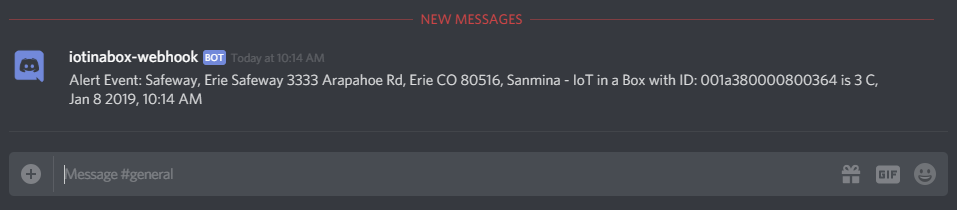
You can verify the integration is working by waiting for a new Alert event. As soon as a new event occurs, the event data will be posted to Discord.