Connecting to Google PubSub
Use the following steps to setup the Google Pub/Sub Integration.
Create your PubSub Topic
-
Go to the Cloud PubSub topics page in the GCP Console.
-
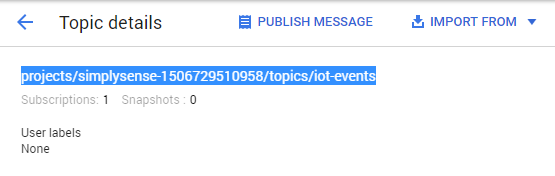
Click Create Topic, enter a name and complete adding your new topic. Once completed, make note of the complete topic string shown in Topic details - you will need this information later when setting up the Integration.

Setup your Cloud Storage Account Service key
In this step we will setup an account key which will then be used by the Integration so that it can publish events.
-
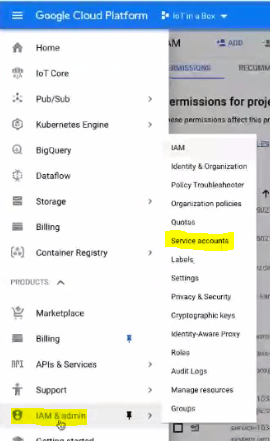
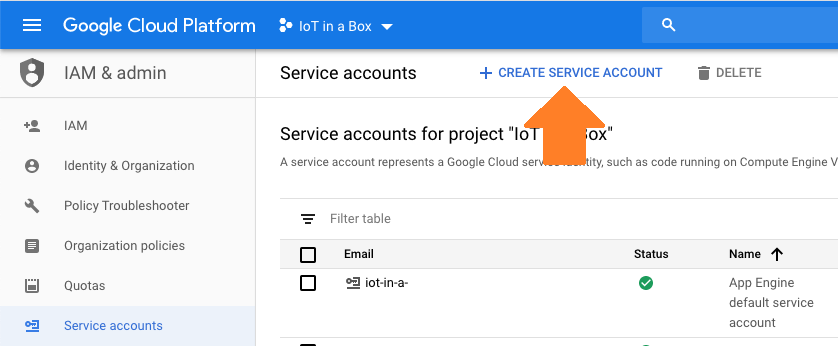
In the Google Cloud console and go to IAM & admin and select the Service accounts option.
-
Click on Create Service Account.
-
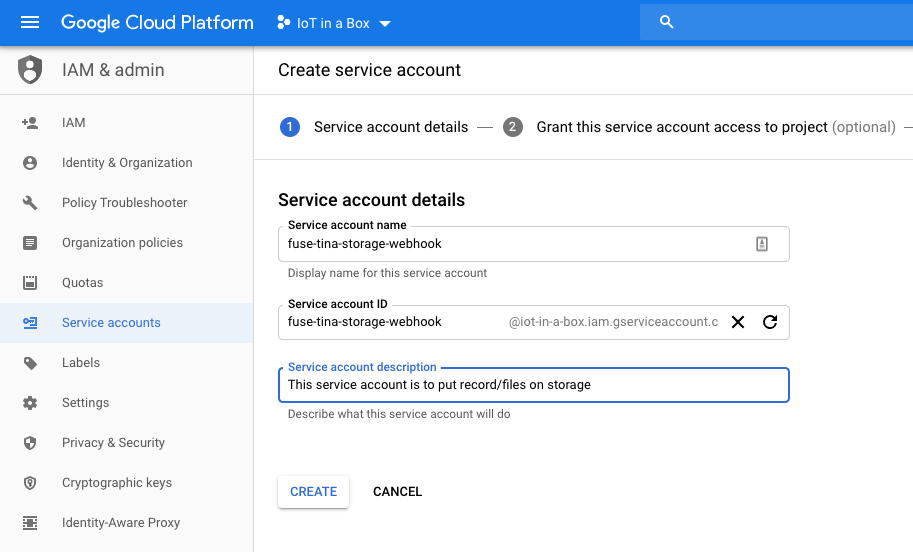
Give the account an appropriate Name and description. The Service account ID will be generated automatically for you during this step - you can leave it as the default.
-
Click Create to create the service account and continue.
-
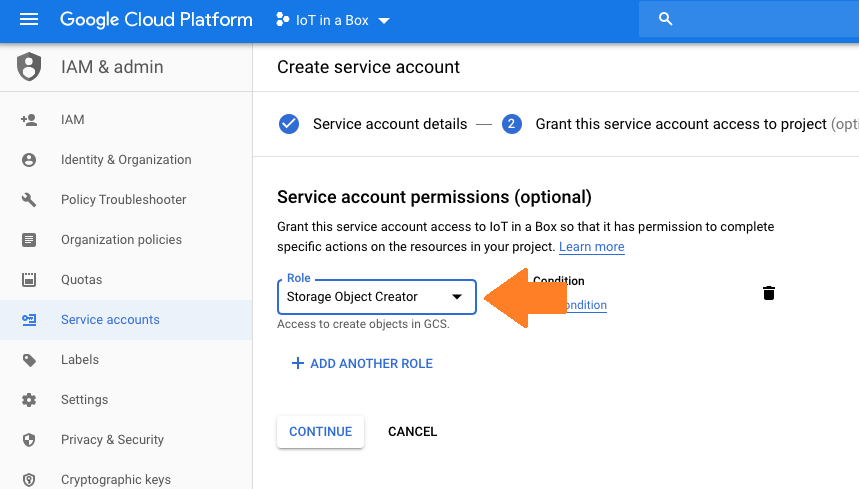
On the Permissions screen that appears, give the account the permission PubSub Publisher so that it can publish events.
-
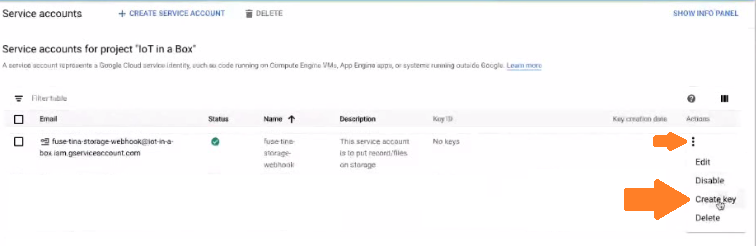
Locate the Service account you created, click on the 3-dot menu and select Create Key.
-
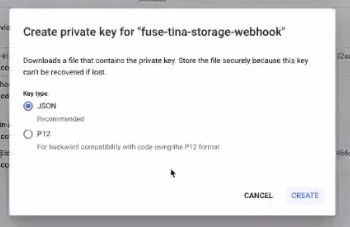
In the popup that appears, you can leave it as JSON and click Create. This will download a json file containing the private key information that we need when setting up the integration.
-
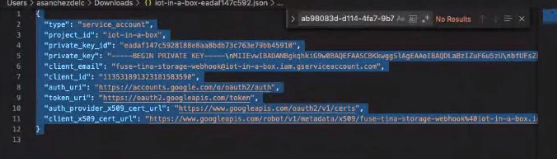
Open the downloaded json file. You will need to copy the entire contents from this file when asked during integration setup.
Create the Integration
-
Log into your IoT dashboard account where all of your devices are located.
-
Go to ☰ → INTEGRATIONS and then select the Google PubSub integration.
-
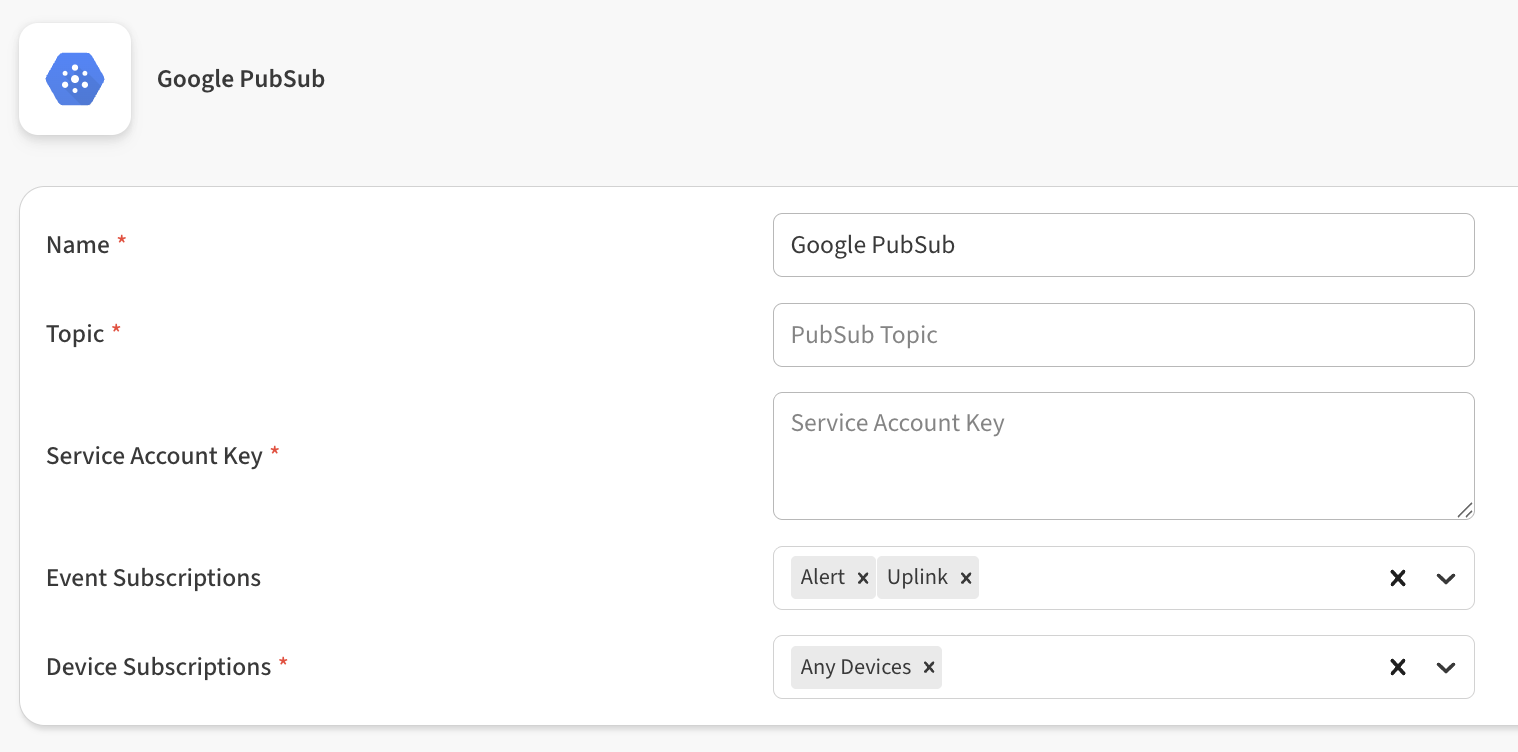
Enter the following information to complete the integration:
-
Name: Enter a name for this integration. In case you have multiple integrations, this will help uniquely identify it in the list.
-
Topic: Enter the complete topic string for your topic.
💡 Be sure that you copy the complete string, including both topic & project id here. -
Service Account Key: Paste the entire contents of the service key file, as obtained above.
💡 Paste the entire contents of the json private key file here. -
Event Subscriptions: In this field you can select whether your integration should pass sensor data received (uplink), gateway keepalive (ping), and alert events.
-
Device Subscriptions: In this field you can select specific devices for the integration to monitor. By default All Devices are selected.
-
-
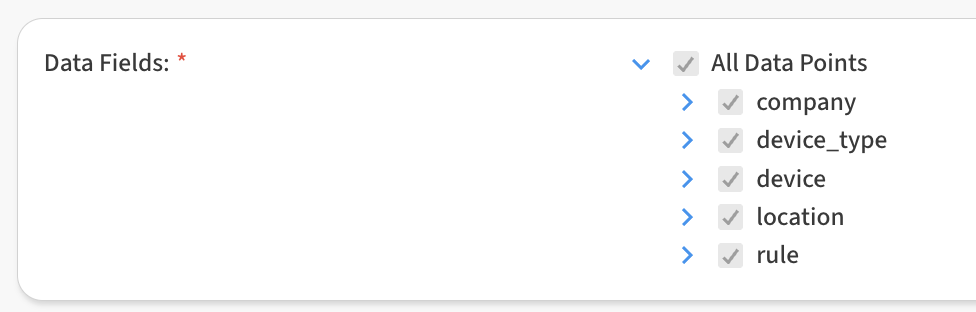
In the Data Fields area, you can customize the specific data points passed by the integration. By default all fields are selected.
-
Click Save Google PubSub to finish.