Activate
-
Press and hold the ACT button until you see a rapidly blinking green light, then release.
The sensor should connect online 10-15 seconds later. You’ll see a long green light as confirmation. If you see a repeating blinking red light instead, then try moving the sensor closer to the gateway and repeating the activation steps.
Reset Sensor
-
Click the ACT button 5 times. Sensor will respond with a long red light
-
Press and hold the ACT button until you see a rapidly blinking green light, then release.
The sensor should connect online 10-15 seconds later.
Replace Battery
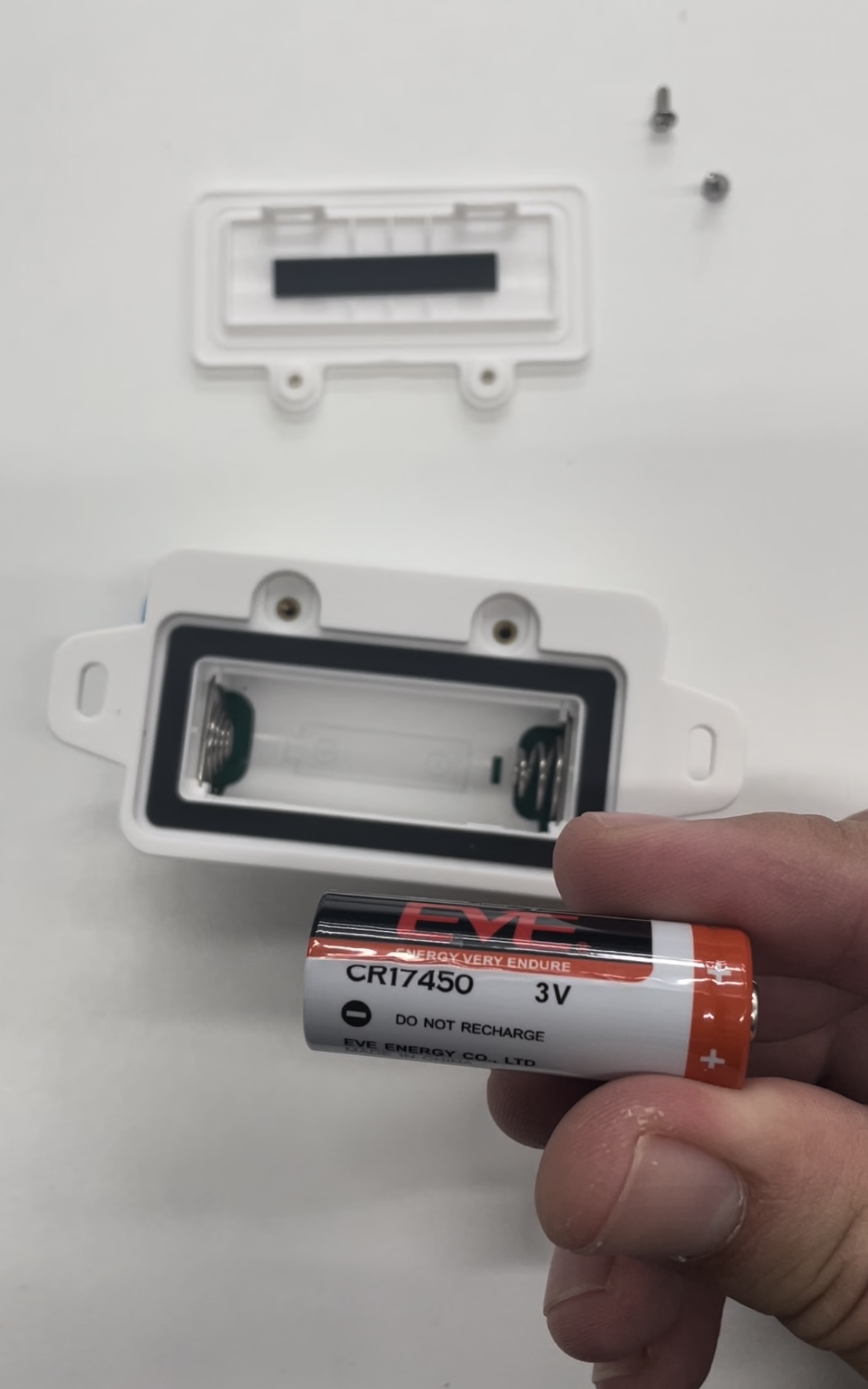
When battery is low, replace the 3V CR17450 battery.
Remove the two screws from the back of the sensor, remove the battery cover and replace the battery. Screw the battery cover back to the device. Activate the sensor once your new battery is inserted.
If you don’t see screws in the back of your LHT65 sensor, it is an older model that does not have a user-replaceable battery. Please contact support to order a replacement unit.
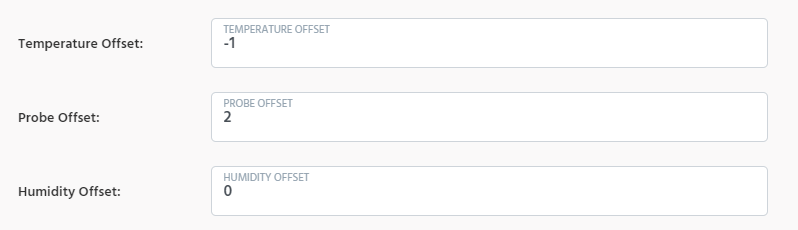
Temperature & Humidity Offsets
This is a new feature being rolled out to certain LHT65 templates.
Some of the new LHT65 Templates now support an Offset value for Temperature and Humidity values. This is an optional settings that you can use to “self calibrate” the values reported. It is useful in instances where for example you have multiple sensors in the same physical location, but the readings they receive differ.
Enter a value (positive or negative) to alter each value as it comes in.