

Assign Tracker to someone different
Each panic button can be assigned to a person. In the event of an emergency where the button is activated, this information is then included along with the alert. The assigned user can be easily changed from within the app using the Assign To dropdown.

From here you can easily change to a different name or create a new one.
💡 Click here for more help on using Assigned To.
Edit / Change Emergency Alert settings
Alerts for your Push Button Tracking devices can be adjusted from the Alerts screen. From Alerts you can see all the alerts setup for your devices and make any adjustments needed.
How to access the Alerts screen
To access Alert settings, find the location for which you want to change the alert, expand the Menu and select Alerts from the list of options displayed.
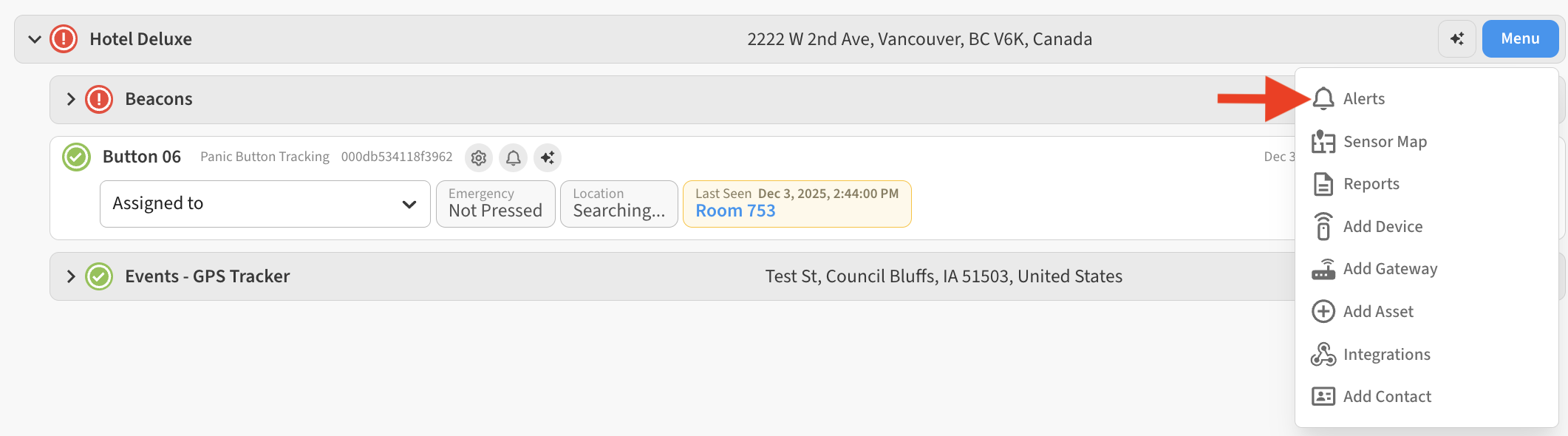
Editing Alerts
After opening the Alerts screen, locate the alert you want to edit and select its Edit (Pencil) button to open its settings.
From the Edit Alert screen, you can then adjust the various settings for the alert, such as a list of which contacts receive notification for the alert.
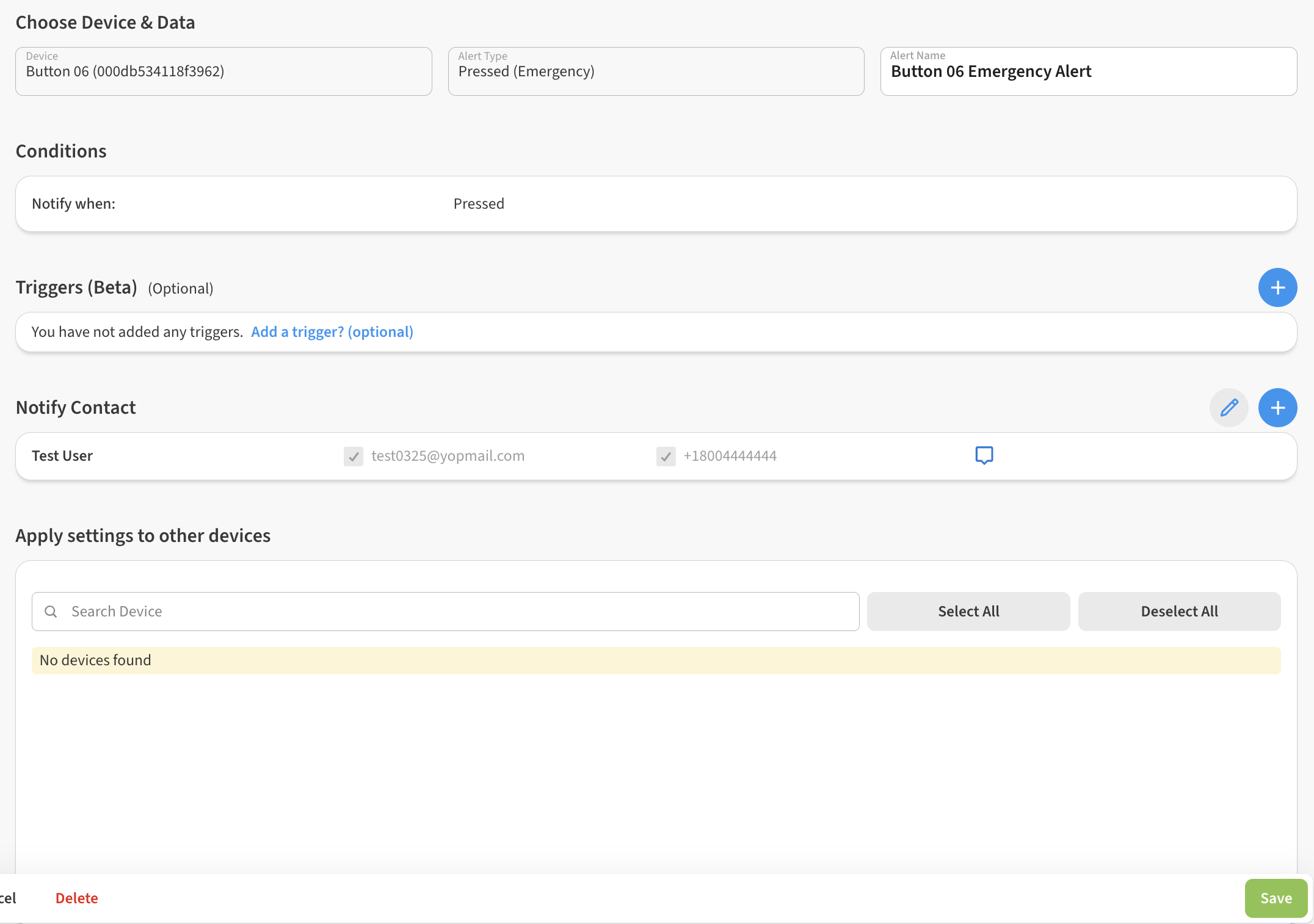
Change which Contacts receive the alert
After opening the alert for editing, you will find the list of contacts that get notified under the Notify Contact section. You can add or remove contacts from here by using the Edit (pencil) icon, and using the checkboxes to select which users should get notifications by text message, email, or both.

Remember to Save changes to the alert if you make changes to recipients!
Apply settings to other panic buttons
You can use the Apply settings to other devices area at the bottom of the alert settings to select other buttons to apply the same settings/recipients to. These settings will be copied to all selected devices when you click Save.