

Here we will walk through the process of creating a new Company and Location as well as how to add just a new Location to an existing Company using the dashboard app.
Add a New Company & Location
If you have an existing Company and you just want to create a new Location, you can skip directly to the Add New Location part.
-
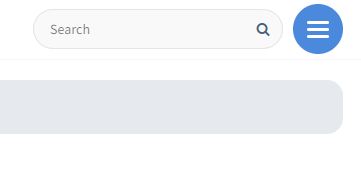
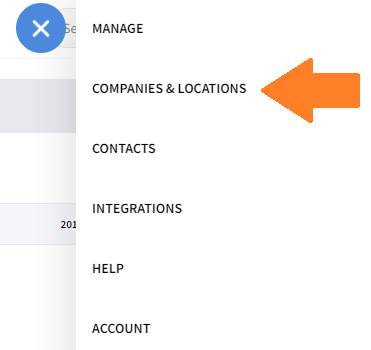
Expand the menu and select Companies & Locations from the toolbar.
-
To start the process of creating a new Company & Location, select the + icon in the lower right

-
Complete the form to create a Company and its first location.
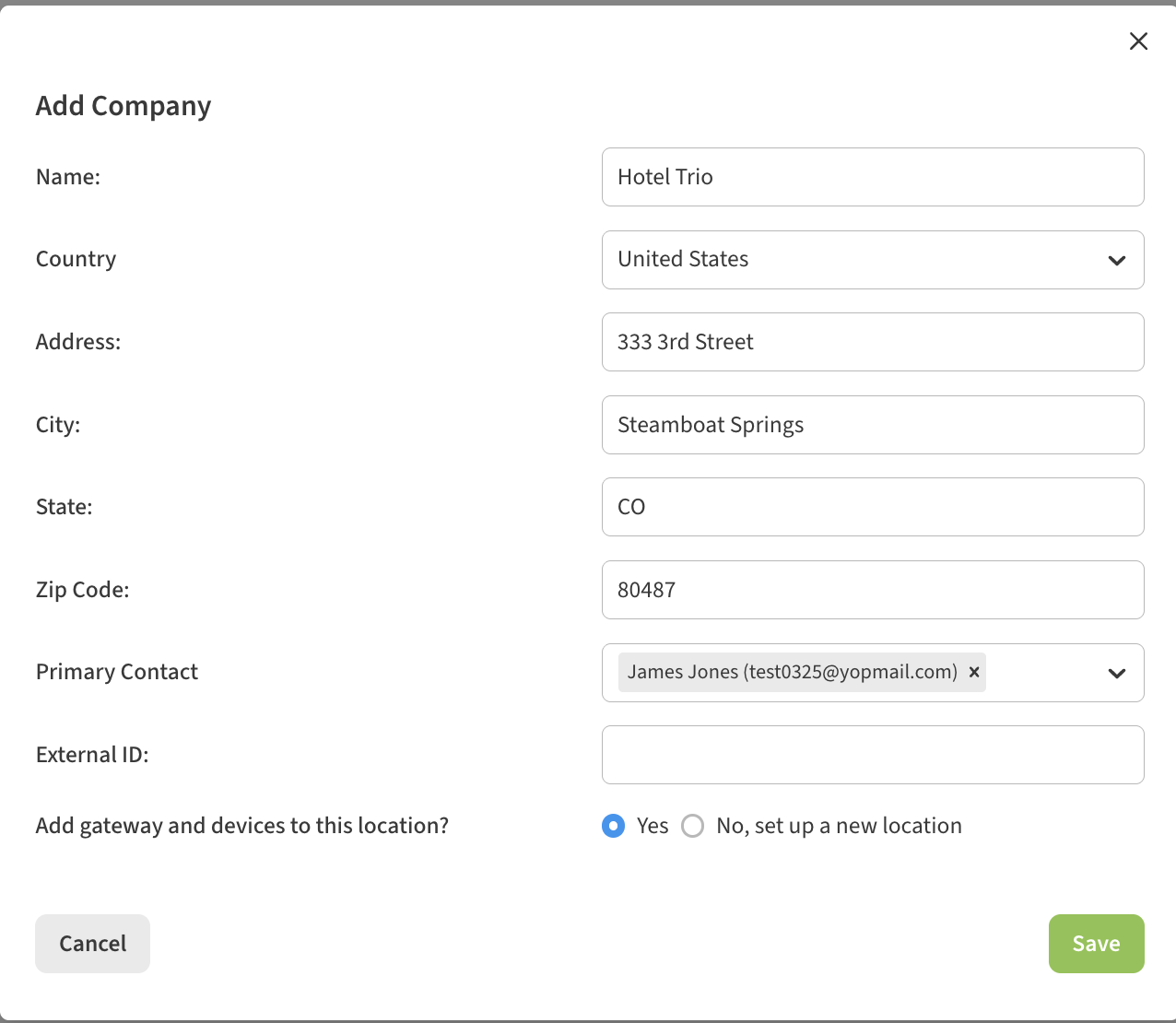
Primary Contact means the user(s) who will be suggested as default recipients for all Alerts and Reports
External ID is an optional field where you can store data relevant to the Company/Location. Read more about external ID.
-
You will then be returned to Companies & Locations screen where you will see your new Company and Location. If you so desire, you can create additional Locations in the hierarchy by using the + buttons seen next each company and location.

Add New Location to Existing Company
After you have an existing Company, you can always add additional Locations.
-
Click on Companies & Locations from the toolbar.
-
Find the Company or Location you want to add a new location underneath and click on the + next to it to begin adding a new Location.
-
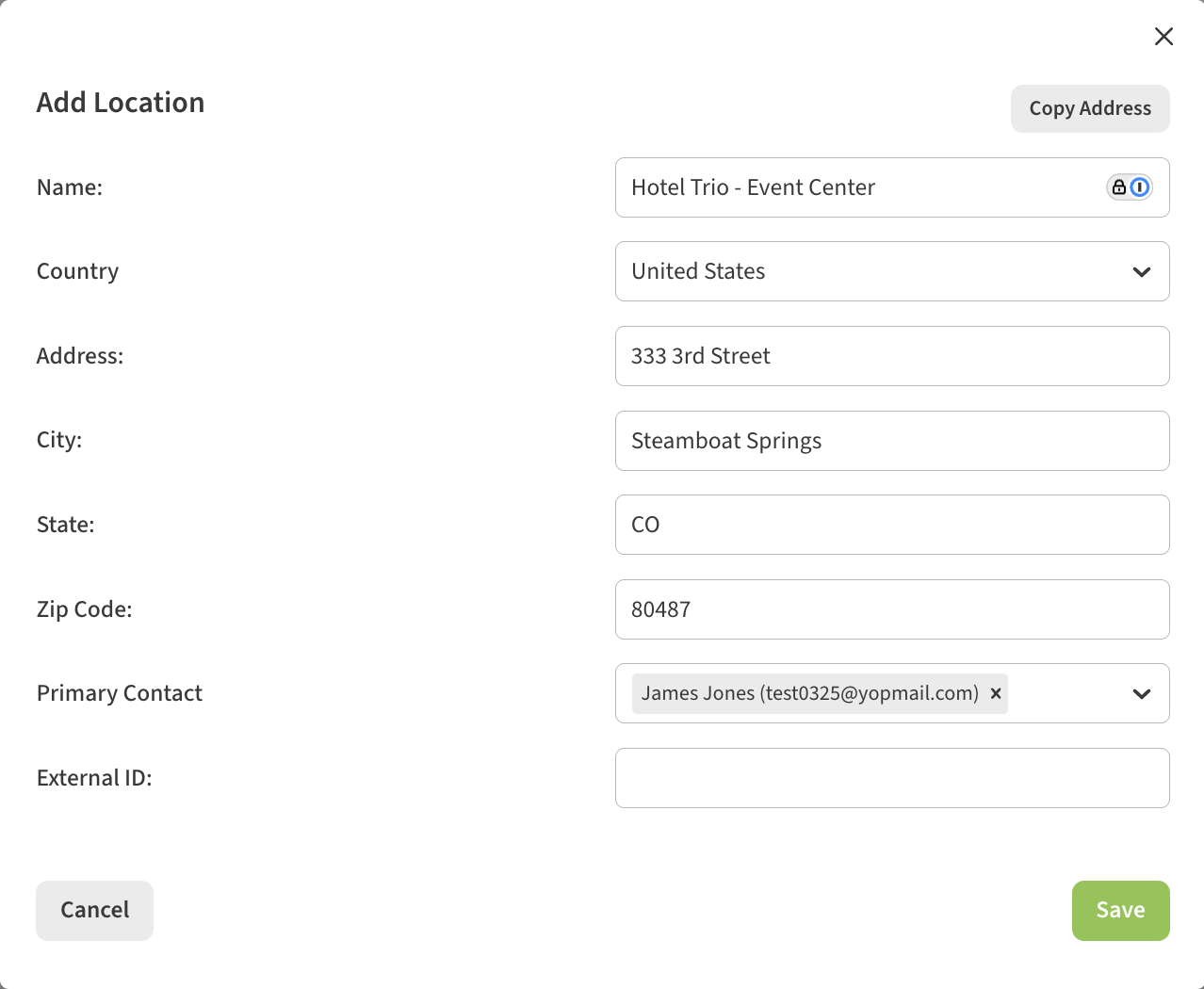
Complete the form to add a new location.
-
You will then be returned to Companies & Locations screen where you will see your new Location.
