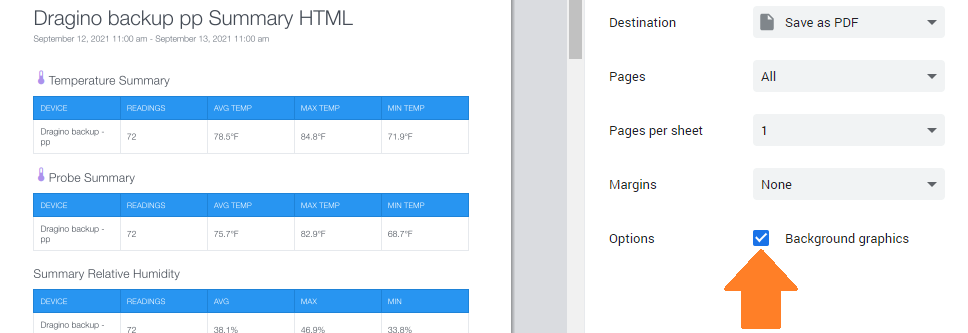
The following information will help you to save your HTML Report as a PDF file which you can then archive or share with others.
-
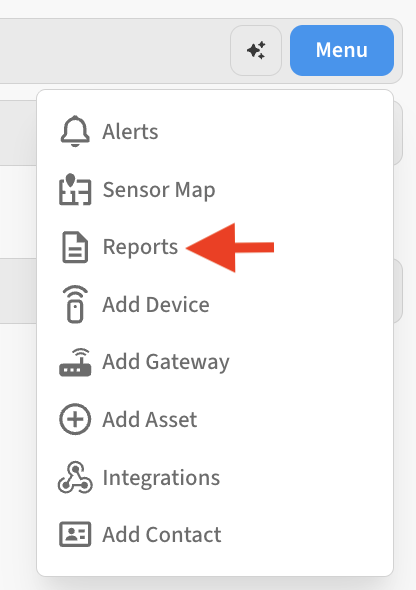
Go to Menu → Reports for the Location containing the report you’d like to save as PDF
-
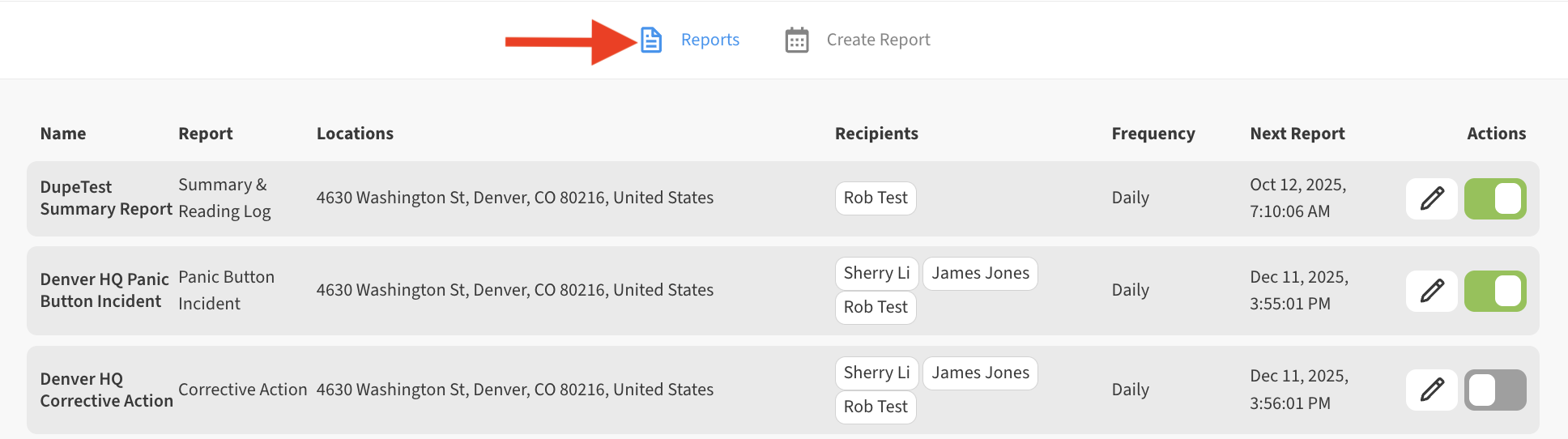
Go to the Reports tab to view a list of the reports
-
Click or tap on the report you want to save as PDF, this will open a list of historical reports.
-
On the list of historical reports, click on the View icon to open the HTML report.

-
Right-click on the page and select Print to open the print options in your web browser.
-
Save the report as a PDF.
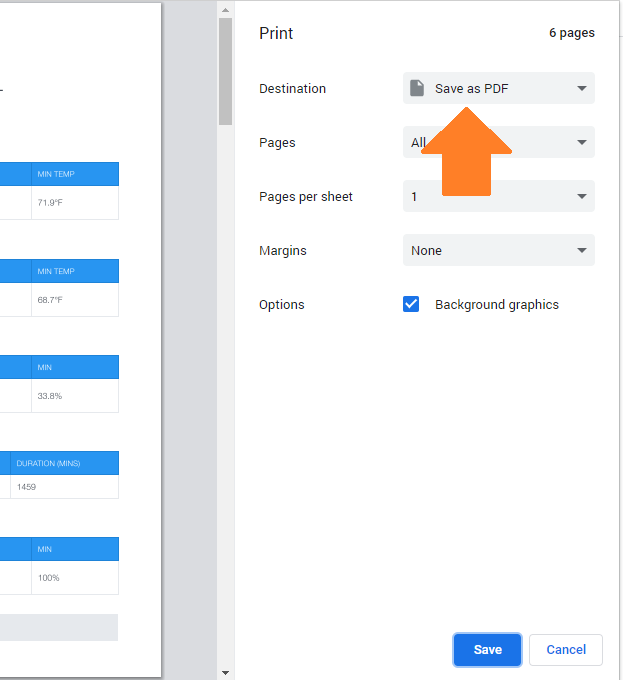
To save the nicely colored background graphics found in the HTML report, be sure to select Headers & Footers and Background graphics option in print settings. You should only have to do this once.