

Each time a device is added via Menu → Add Device a Daily Summary report is automatically created for that Location.
You can edit these reports to adjust their frequency, limit them to specific devices and readings times, or additional email recipients to the report.
You can also create new reports that fit your needs.
You can Create or Edit all reports from the dashboard using the Reports section.
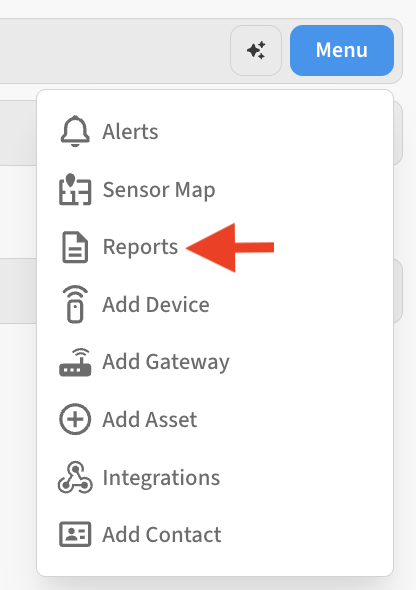
Editing Reports
-
On the Location containing the Report you’d like to edit th.
-
On the Reports screen you will see a list of active reports.

-
Select the Edit (pencil) button next to any report to open its settings.

After opening the Report settings for editing, you can adjust the following items:
Edit Report Frequency
In the Frequency section you can adjust how often the report is delivered, and at what time of day. There are options for daily/weekly/monthly recurring reports.
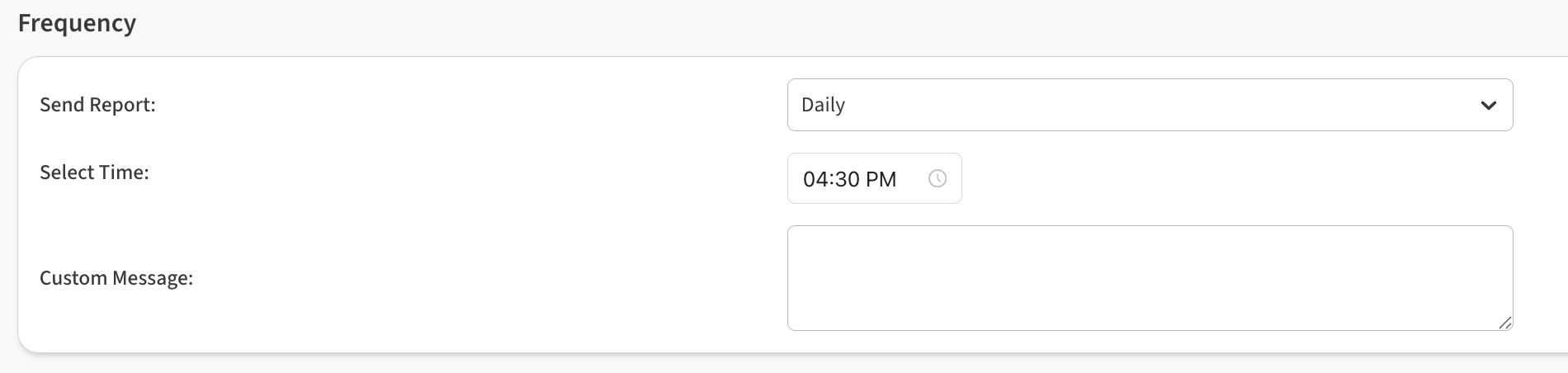
Depending on the frequency you choose, the report will cover all data in the same period prior to the run time. For example, if you run a Daily report on December 9 at 7:00AM, it will contain data from December 8 at 7:00AM to December 9 at 7:00AM. If you create a Monthly report for the 1st of the month, it will contain the full month’s data prior to its run time.
You can also use the Custom Message field to insert a small message which will be delivered to all report recipients.
Edit Report Devices & Readings Times (optional)
By default, a report created in a Location will contain all devices in that location, and all readings from those devices in the report time period. This can result in a lengthy report in cases where there are many devices in a location, or where one device generates many data points.
You can use the optional Devices & Reading Times section to specify only the devices you want in the report, and for each device, if you want all the readings, or just a sample from specific time points.

Edit Report Recipients
By default, each of the Primary Contacts for the Location will be suggested as email recipients for any reports in a location. You can easily add/remove people from the recipients list for the report by clicking on the Edit (pencil) icon in the recipients section and checking/unchecking the checkboxes next to each user.

Save Your Changes
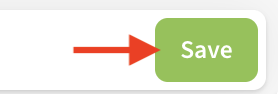
Be sure to click the Save button after making any changes to a report to ensure those changes are saved.
Create new report
You can have as many reports as needed in each location. Creating a new report is easy from the dashboard Reports screen.
-
Expand the location menu and select Reports.
-
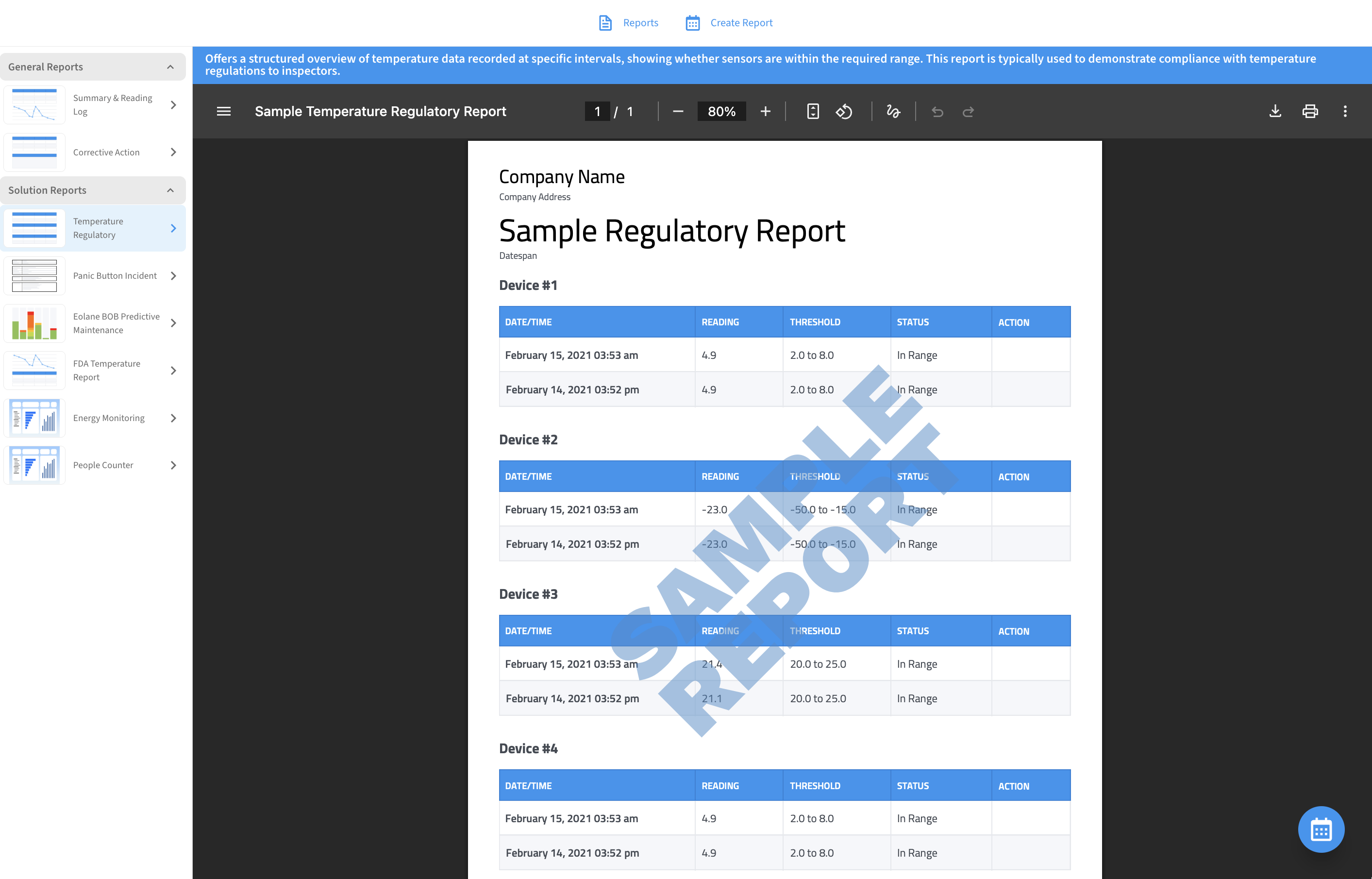
This will take you to the Create Report tab which shows you an overview of the available report types. You can see a preview of what the report will look like on this tab
-
Select the desired report type in the left sidebar, then click the Create Report (calendar) icon to begin creating a new report.
-
Enter any Frequency that determines how often the report will generate. In this section you can adjust how often the report is delivered, and at what time of day. There are options for daily/weekly/monthly recurring reports.
Depending on the frequency you choose, the report will cover all data in the same period prior to the run time. For example, if you run a Daily report on December 9 at 7:00AM, it will contain data from December 8 at 7:00AM to December 9 at 7:00AM. If you create a Monthly report for the 1st of the month, it will contain the full month’s data prior to its run time.
You can also use the Custom Message field to insert a small message which will be delivered to all report recipients.
-
Select which Recipients will be notified each time the report runs.
By default, each of the Primary Contacts for the Location will be suggested as email recipients for any reports in a location. You can easily add/remove people from the recipients list for the report by clicking on the Edit (pencil) icon in the recipients section and checking/unchecking the checkboxes next to each user.
-
(Optional) Customize the specific Devices and Readings Times to include in the report
By default, a report created in a Location will contain all devices in that location, and all readings from those devices in the report time period. This can result in a lengthy report in cases where there are many devices in a location, or where one device generates many data points.You can use the optional Devices & Reading Times section to specify only the devices you want in the report, and for each device, if you want all the readings, or just a sample from specific time points.
➡ Don’t forget to Save the report so that it gets added to the list of reports that get run.