This article shows you some information on how to use your Panic Button to safely conduct a test of connecting to a nearby Beacon and verify you see it correctly in the app.
Test Panic Button connection with nearby beacon
-
Locate a button to use for your testing and ensure it has some battery charge.
-
Disable the alert associated with the button you’re using for test via Menu → Alerts and toggling off the alert associated with this button.
-
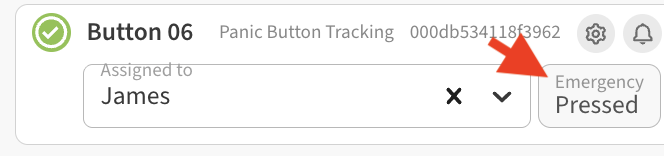
Put the button in Alert mode by double pressing it (button will vibrate to confirm, and you should see a Pressed state in the Emergency box in the web app.
-
Place the button near the beacon you want to verify. Allow it a few cycles (20 to 30 seconds) to pick up the beacon in question, you should see it’s name in the Location box. If you don’t see it, check that the beacon is powered on and does not have a dead battery.

-
Reset your Panic button by pressing and holding it for at least 20 seconds, then release.
Don’t forget - Reset your Panic Button at the end of the test. And if you want to place the Button back into active service, be sure to re-enable the Emergency Alert under Alerts for that button.
How to Check Beacon for battery / LED activity
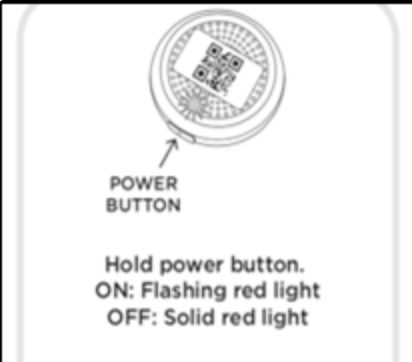
Press and hold the button on the side of the beacon.
-
Flashing Red light indicates beacon was just turned ON.
-
Solid Red light indicates beacon was already on, and you just turned it OFF. Repeat pressing the power button to turn the beacon ON (flashing red light)
-
If you see no light activity at all, the beacon battery has run out and either the beacon battery will need to be replaced or the beacon itself replaced (contact us for pricing and installation services).
Don’t forget - if you test the beacon by turning it off, be sure to turn it back on again!