

Step 1
-
Connect gateway to Ethernet.
-
Locate the gateway’s IP address on your network (you can use an IP scanner).
-
Get gateway’s password, which is the serial number on the sticker on the bottom of the gateway in the area marked in the image below. Please note that this password will be different on each gateway.

-
SSH into gateway using a command line interface program like Terminal on Mac or Command Prompt on PC:
ssh root@192.168.2.xxx -
Password is the gateway’s serial number as seen in the image above
-
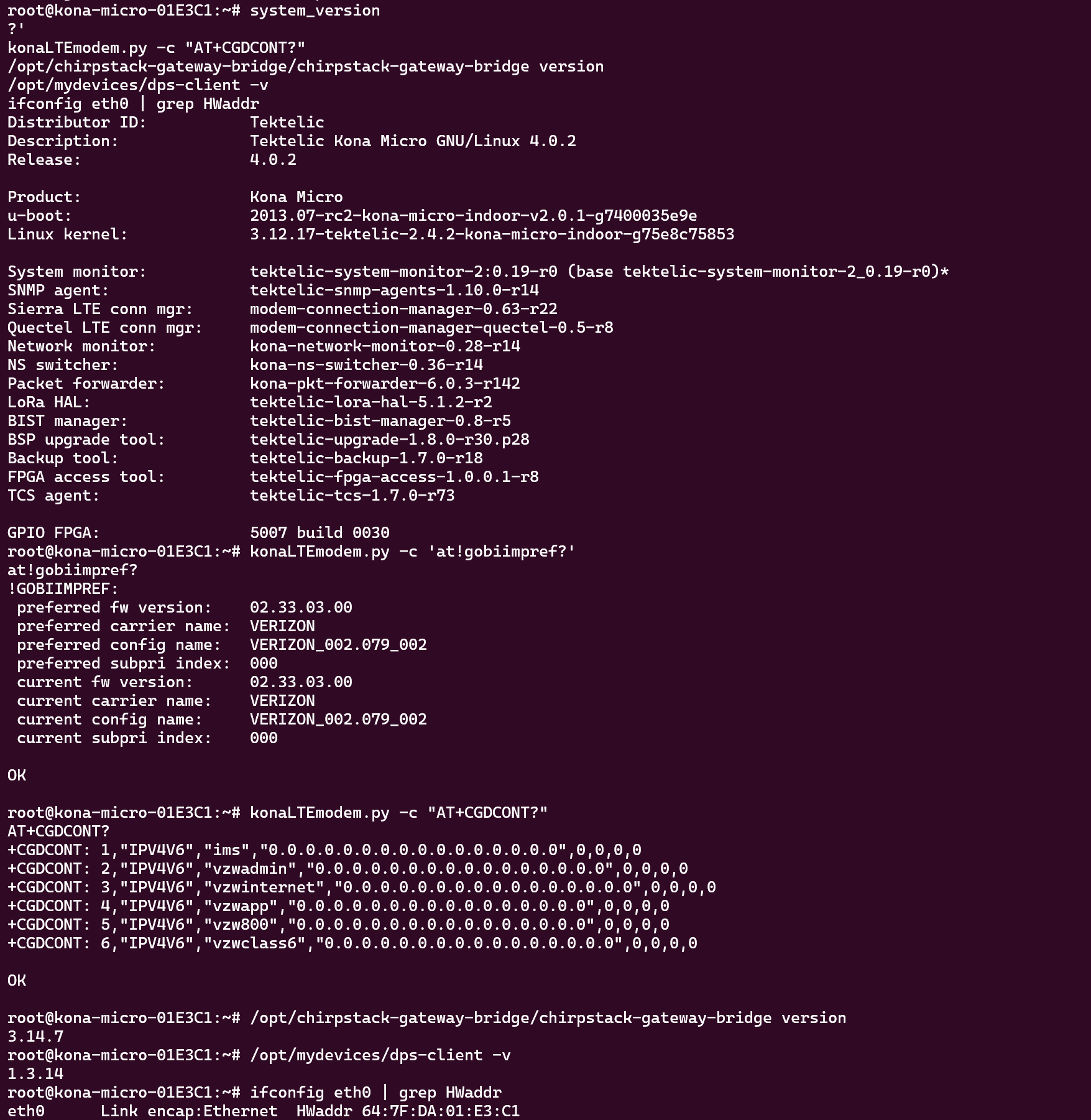
After SSHing into the Gateway please run the following commands to verify that the Firmware is on Verizon:
system_version
konaLTEmodem.py -c 'at!gobiimpref?'
konaLTEmodem.py -c "AT+CGDCONT?"
/opt/chirpstack-gateway-bridge/chirpstack-gateway-bridge version
/opt/mydevices/dps-client -v
ifconfig eth0 | grep HWaddr
Step 2
Send the following commands to download and install the Generic Firmware.
curl https://hwdartifacts.blob.core.windows.net/hwdassets/SWI9X30C_02.38.00.00.cwe > /dev/shm/SWI9X30C_02.38.00.00.cwe
curl https://hwdartifacts.blob.core.windows.net/hwdassets/SWI9X30C_02.38.00.00_GENERIC_002.082_000.nvu > /dev/shm/SWI9X30C_02.38.00.00_GENERIC_002.082_000.nvu
/opt/Sierra/LteModemFW/lte-fw-download-script.sh generic /dev/shm/
This process should take about 5 - 10 minutes.
Step 3
-
To check that the firmware has indeed changed, run the commands in Step 1 to verify.