

The following will show you how to invite (or elevate) contacts to the Owner permission level so that they have full permissions to help manage a Location. Because our software allows for only 1 Admin user, consider using the Owner role for situations where you need multiple admins, as it has nearly as much power.
Contacts with Owner permissions may:
-
Create or edit Reports, Sensor Maps and Alerts.
-
Add, edit and remove Devices.
-
Invite or Modify Contacts to access that Location.
-
This includes elevating others to Owner role, and removing other users from the Location entirely.
-
-
Edit or Remove the Location.
Owners may not edit or remove the parent Company. That functionality is reserved for the Admin role.
How to invite a Contact as a new Owner
1- Log into the dashboard account as a user with the Admin role (or another contact who already has the Owner role).
2- Go to the Contacts screen via ☰ → CONTACTS.
3- Open the list of Contacts and find the entry for the user in question.
If the Contact does not appear in the list you can add them as a new contact using the + button. You can then follow the remaining steps below.
4- Location the entry under their Access permissions and select the dropdown to modify their permission to Owner.
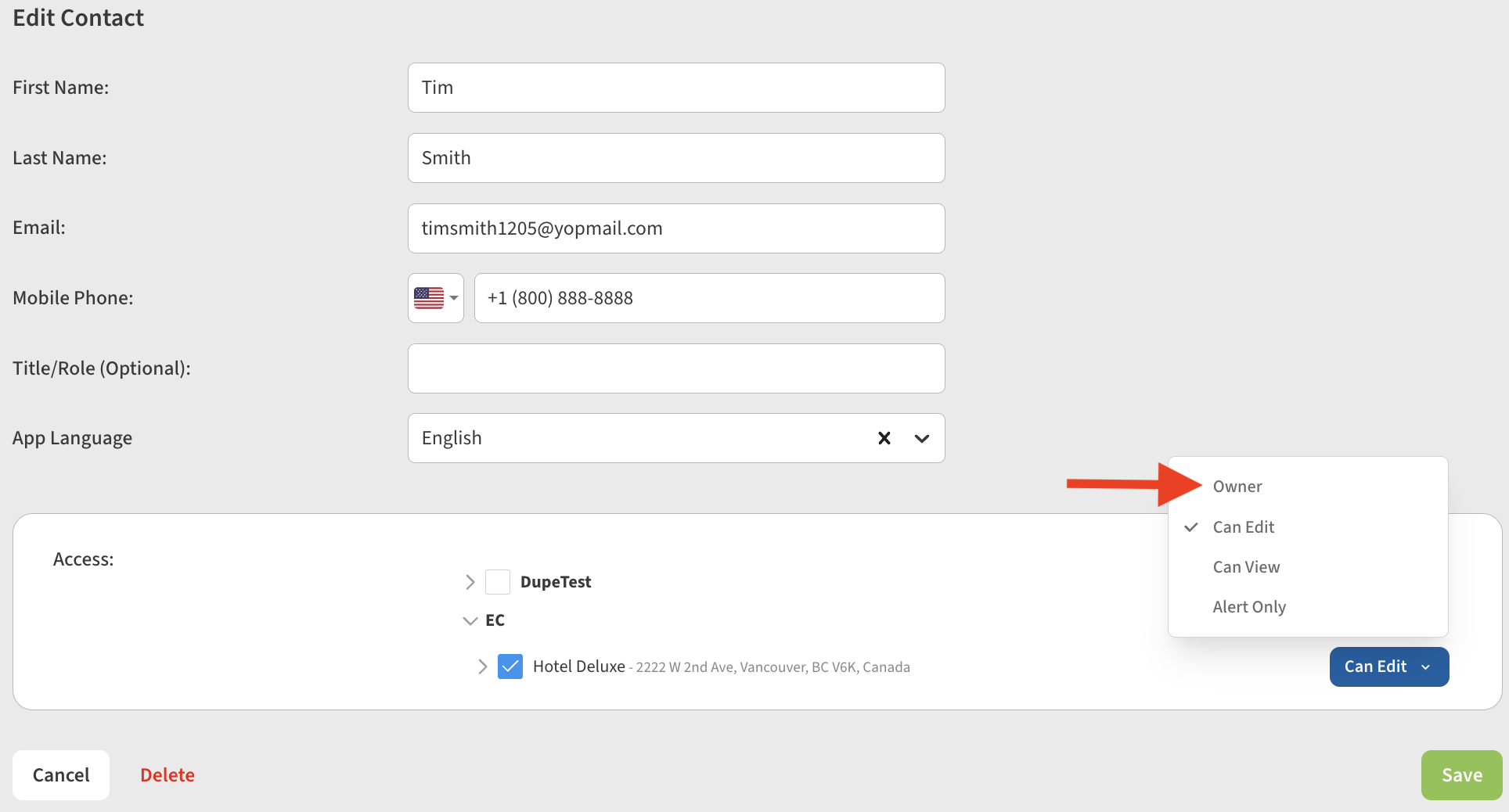
5- Be sure to select Save to commit the change.
The Contact will receive an email informing them that their permission have been modified. You will also see the updated Access permission indicated on the Contacts screen.

Common task: Elevate Owner after Admin leaves the company
If you have an existing account where the Admin has left the Company, the following is our recommendation for a quick update to secure your account:
-
Log into the Admin dashboard account and change the Password from the Account screen.
-
Go to the Contacts screen and elevate yourself (and others if desired) to Owner role for any Locations the Admin owns.
You would then only need to log into the old Admin account dashboard account if you needed to edit or delete the parent company information.
If you feel you really need to update the email address for the Admin account, refer to How do I change the Admin owner for a Location? .