

A Location's Primary Contacts are the contacts who will be suggested as default recipients for any alerts and reports associated with that Location. The following article will help you to know how to add, edit and remove Primary Contacts for a location.
A Location can have any number of Primary Contacts (including zero).
Note: The Primary Contact is not to be confused with the Admin owner for a location, which refers to the highest level of permissions for the Location – this is the person who setup the Location under their own account and has full permissions to modify everything for the location.
-
Open the Companies & Locations screen via ☰ → COMPANIES & LOCATIONS.
-
Locate the Company or Location for which you want to modify the primary contact, then click on the Edit (pencil) button.

-
Under the Primary Contact field, select the existing contact that you’d prefer be the primary.
💡 Note that you can have multiple Primary Contacts if you wish.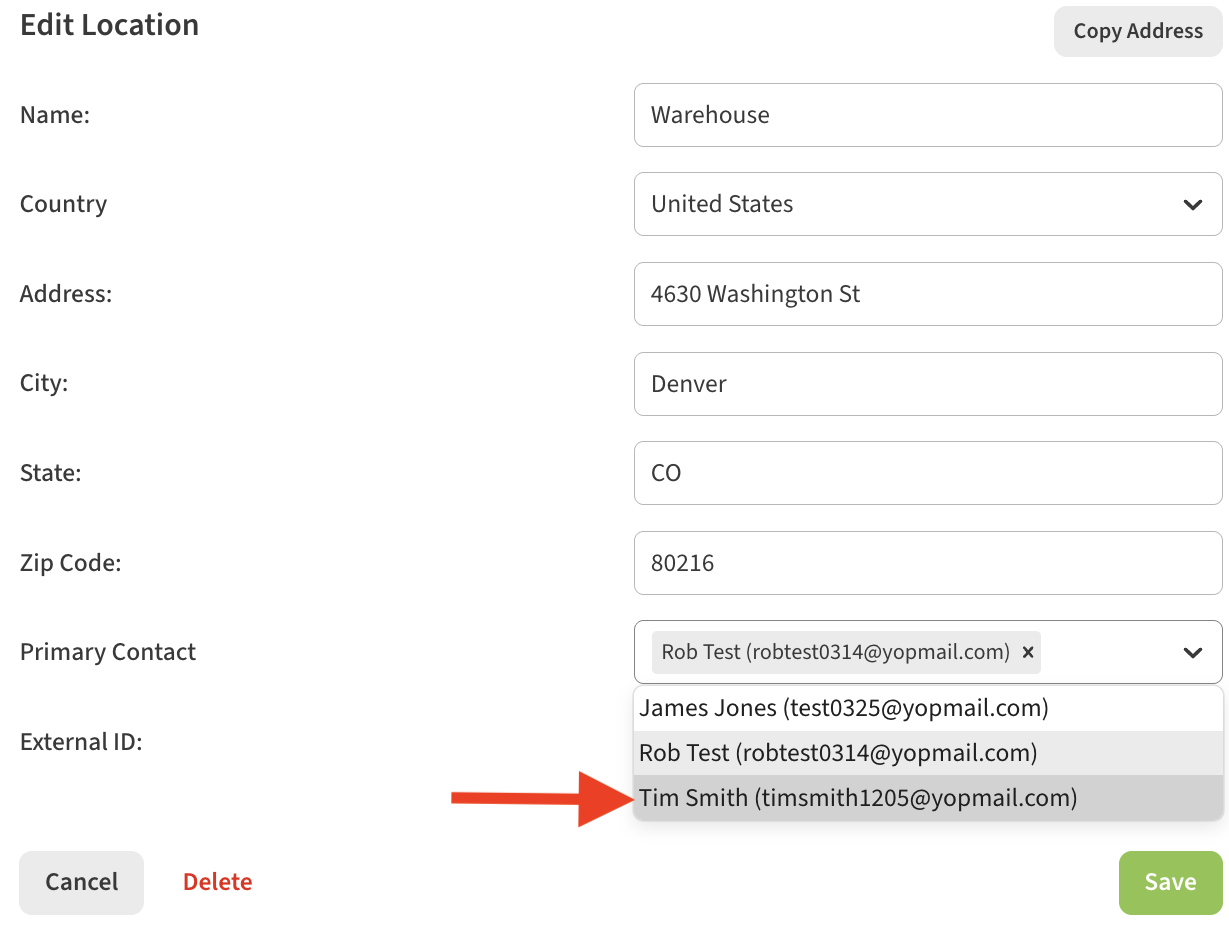
You can use the X button next to each contact to remove them from the Primary Contact list for a location as well.
Don’t forget to Save your changes!
After updating the Primary Contacts, you will notice that any new Reports or Alerts you set up will include these contacts by default. You can then make any manual adjustments needed to the recipients list by editing the report/alert settings.