

Setup an Integration but not getting data? Here are some reasons why this might be occurring and what you should look into before contacting us.
Is your Integration running?
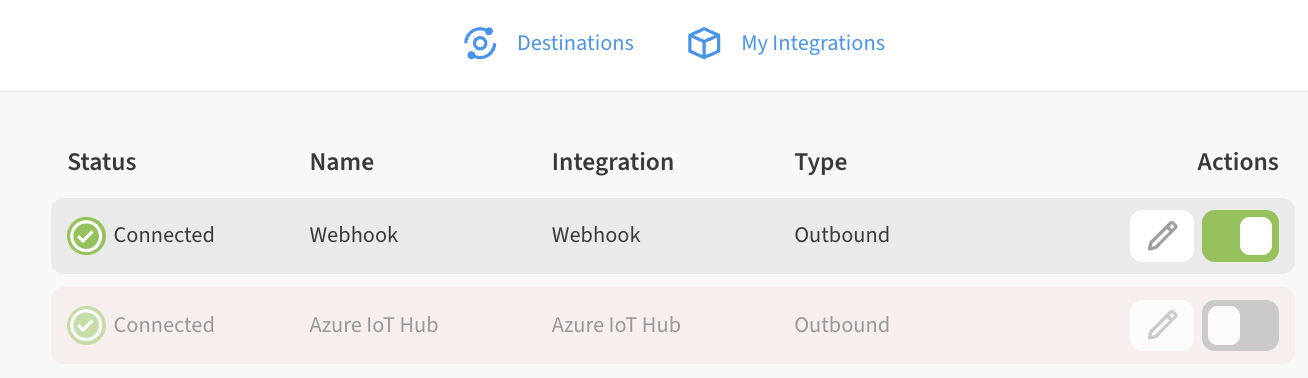
Integrations can be disabled (toggled OFF, grey) by anyone with Admin, Owner or Can Edit permissions in your account. Double-check that the integration is running (toggled on, green)
(Common Issue) Integration setup in non-Admin account
For security reasons, Integrations will only forward data on devices administered by the creator of the integration. This means that you must have the Admin role for the location where the devices are located. Owner permission level is not sufficient.
If you setup an Integration under an Owner, Can Edit or Can View user in a shared account, device data for the shared account will not be visible to your integration.
You can check a contact’s role for each location by viewing them in the list at ☰ → CONTACTS
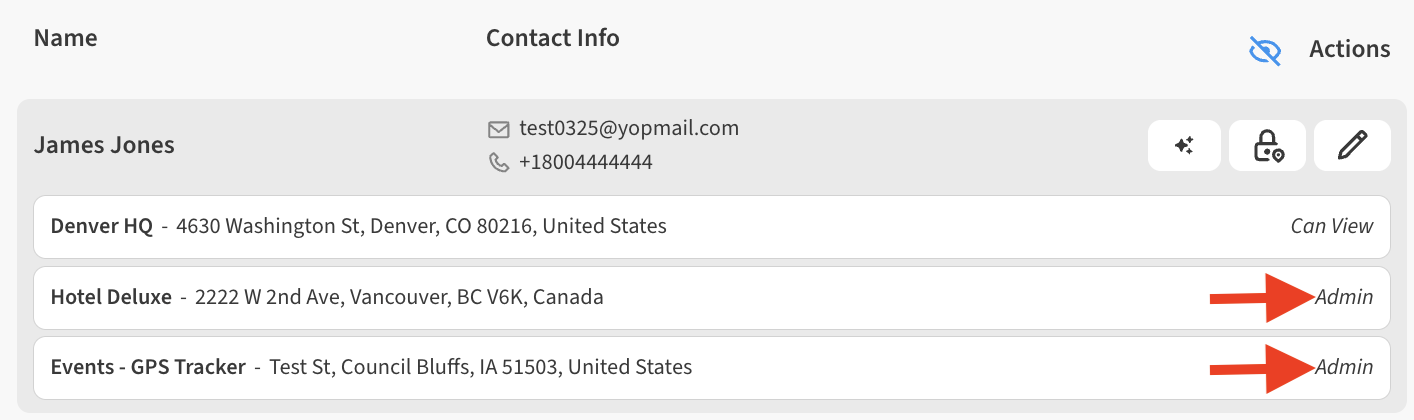
See here for some more information on Admin users.
Did your Integration get automatically disabled because of errors?
Integrations may become automatically disabled in the event of repeated errors. Here is an article with more information on why this might occur and what to look for.
Recommendations for validating Integrations work in your account
Beyond log information (which may or may not be available to you on your receiving side), the best way to test to see if Integrations are working in your account is to use a basic Webhook and a known 3rd party test site such as https://webhook.site/ .
-
Create a test webhook URL, such as using https://webhook.site/ or https://postb.in/.
-
Using the webhook target you just generated, set up a webhook under the account where your devices are located.
-
Wait for a new Uplink (device reading) to come in for one of your devices.
You should receive a JSON message to your test webhook as soon as a device reading comes in.