

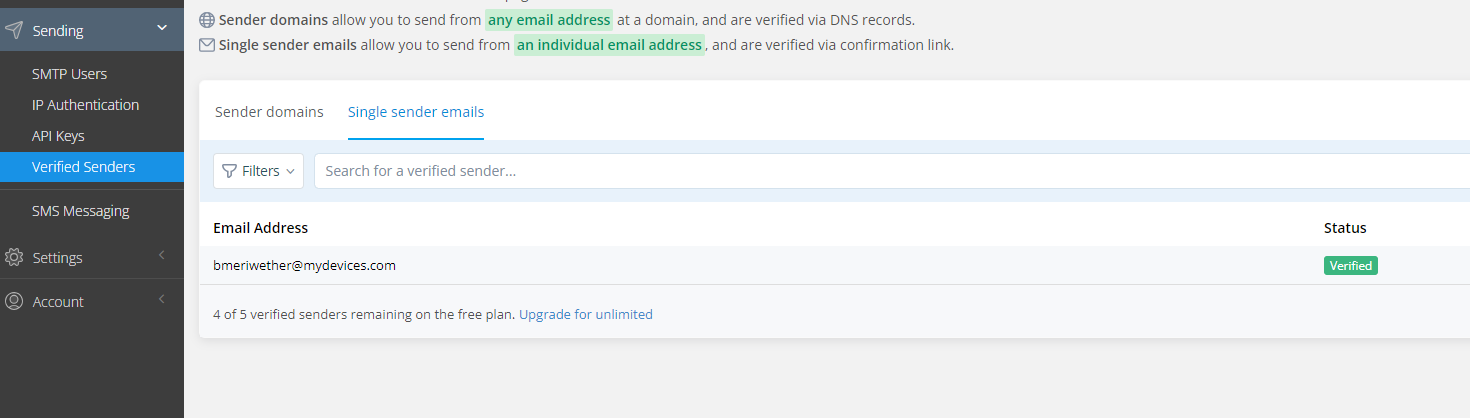
Step 1: Add Verified Sender email address
This will be the From Email Address used in the IoT Console.
The
Single sender option has been tested as working. In theory the Domain option should work as well but has not been tested by us.
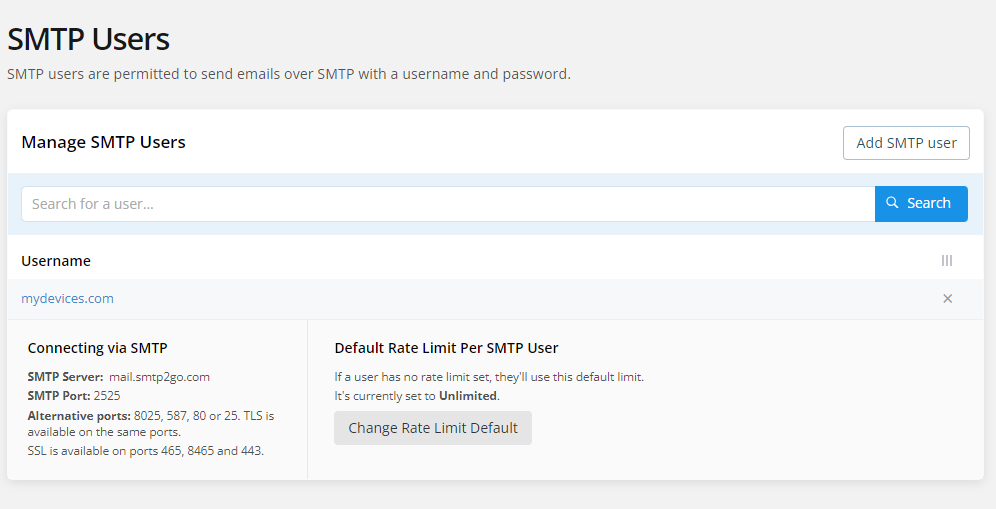
Step 2: Add an SMTP User
This will be the SMTP Username and SMTP Password used in the IoT Console.
Step 3: Configure Email settings in the IoT Console
SMTP2Go supports a number of alternative ports & security options. Those most likely would work, however only the below settings have been tested at this time.
-
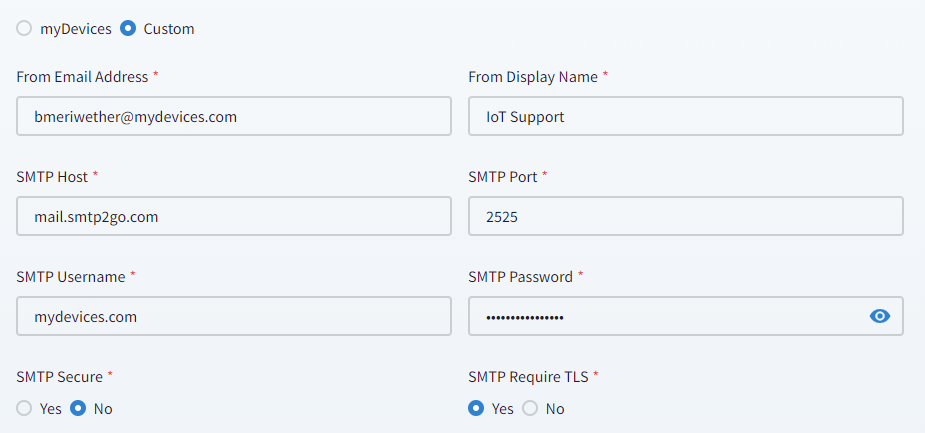
Go to the Email settings in the IoT Console and be sure the setup is as follows:
-
From Email Address: The Verified Sender address created in Step 1.
We found that this address must be in the verified sender list or delivery will fail.
-
SMTP Host: mail.smtp2go.com
-
SMTP Port: 2525
-
SMTP Username: the SMTP user created in Step 2
-
SMTP Password: the SMTP password for the user created in Step 2
-
SMTP Secure: No
-
SMTP Require TLS: Yes
-
-
Be sure to click on Save.