Push Notifications let alert recipients get notified on their iPhone or Android phone's lock screen / notification center. They use your existing alerts and recipients, so nothing needs to be rebuilt: you tick Push for a person on an alert, and they set it up once on each phone they want notified.
Push Notifications are free and unlimited, and available to every user on the platform.
Turning Push on for a person does not change their text message or email alerts. Each channel is a separate checkbox, so a recipient can receive any combination of the three.
Requirements
-
iPhone / iPad: iOS 16.4 or later. The app must be added to the Home Screen using Safari and opened from the Home Screen icon at least once. Push notifications do not arrive in a Safari browser tab or in Chrome on iOS.
-
Android: Chrome, with Google Play services (standard on nearly all Android phones). The app can be installed to the Home Screen or used from a Chrome tab; both receive push notifications.
-
Desktop: push notifications also work in current desktop browsers such as Chrome and Edge. This article focuses on phones.
Step 1 — Turn on Push for a recipient on an alert
Push is chosen per recipient on each alert, the same way as text message and email.
-
Open the alert via ☰ → ALERTS and click the Edit (pencil) icon.
-
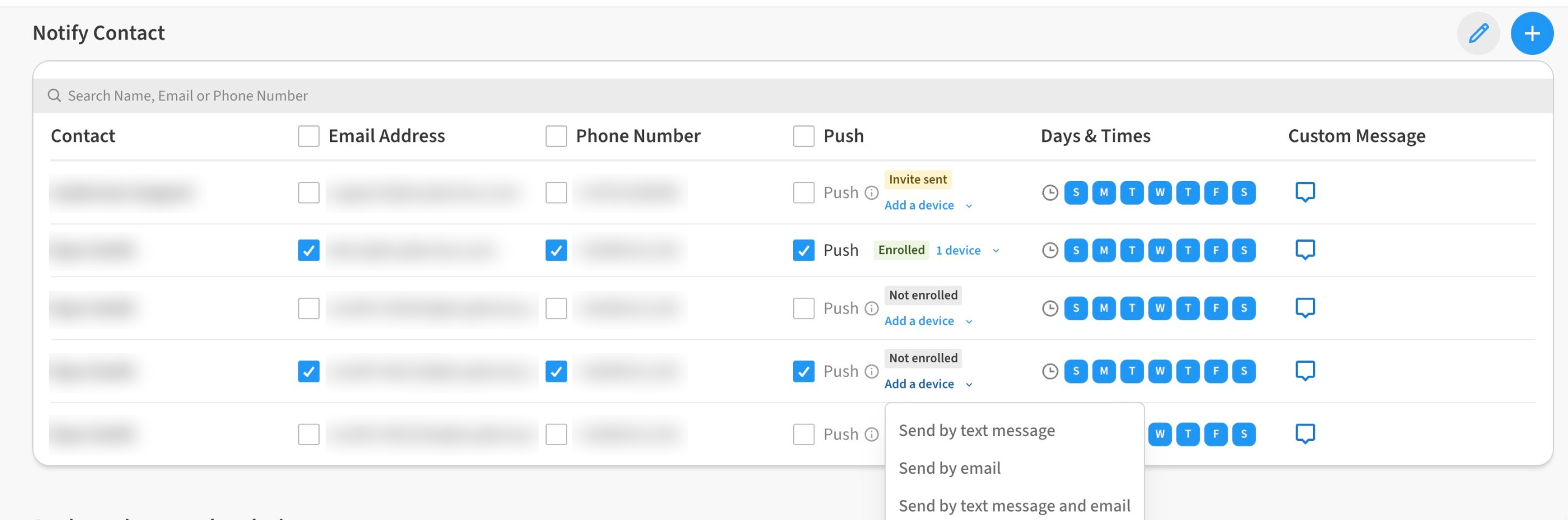
Scroll to the Notify Contact list. Next to Email Address and Phone Number, each recipient has a Push checkbox. Tick Push for each person who should receive push notifications. The checkbox in the column header selects everyone.
-
Each recipient's Push column also shows whether their phone is set up:
-
Not enrolled — no phone set up yet. Nothing will be delivered until they complete Step 2.
-
Invite sent — a setup link has been sent and we're waiting for them to finish setup.
-
Enrolled — at least one phone is set up and will receive push notifications for this alert.
-
-
To get someone set up, open Add a device ˅ on their row and choose how to send them the setup link:
-
Send by text message, Send by email, or Send by text message and email — sends a short message with a link. Tapping the link opens the app on their phone and walks them through setup (Step 2).
-
Turn on for this device — shown only on your own contact. Sets up the phone or computer you are using right now; your browser will ask you to allow notifications.
-
-
Save the alert.
The ⓘ icon next to Push opens the setup instructions at any time. Push recipients keep the alert's Days & Times schedule and Custom Message; push notifications follow the same rules as text message and email.
Step 2 — Set up your phone
Each person sets up push notifications once on each phone they want notified. If you received a setup invite by text or email, tap the link and follow the steps on screen. You can also open the setup guide directly by adding /install?platform=ios or /install?platform=android to your app's address:
-
iPhone or iPad:
https://<your app address>/install?platform=ios -
Android:
https://<your app address>/install?platform=android
iPhone / iPad
-
Open the setup link in Safari (not Chrome).
-
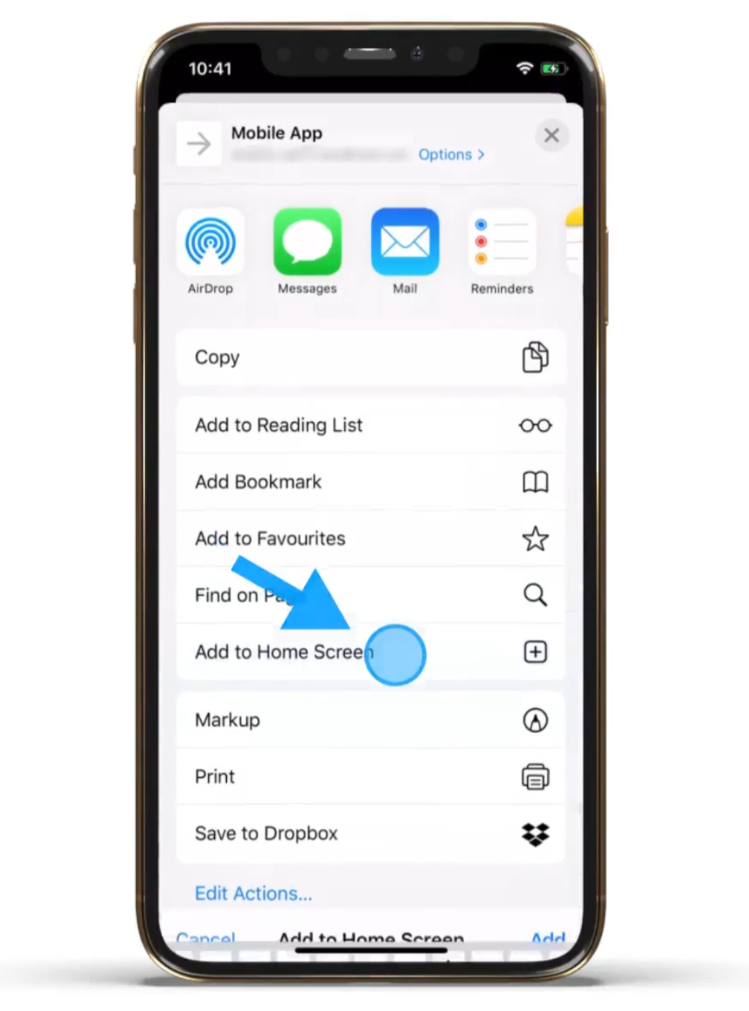
Tap the Share button, then Add to Home Screen, then Add.
-
Open the app from the new Home Screen icon and sign in.
-
When asked, tap Allow to allow notifications. If you aren't asked, go to ☰ → Account → Account Settings → Push Notifications and turn Push on for this device.
Android
-
Open the setup link in Chrome.
-
Tap the ⋮ menu, then Install and create shortcut, then Install.
-
Open the app from the new icon and sign in.
-
When asked, tap Allow to allow notifications. If you aren't asked, go to ☰ → Account → Account Settings → Push Notifications and turn Push on for this device.
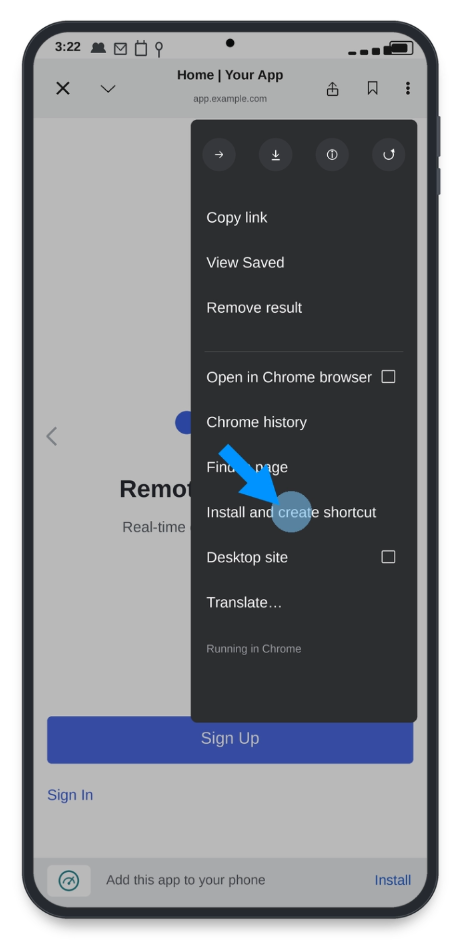
Once set up, the alert's recipient list shows you as Enrolled. You can enroll more than one phone; each one appears under your Account Settings.
What a push alert looks like
A push notification shows the alert name, the device and reading that triggered it, and the location, the same information as the text message alert. Tap the notification to open that device in the app.
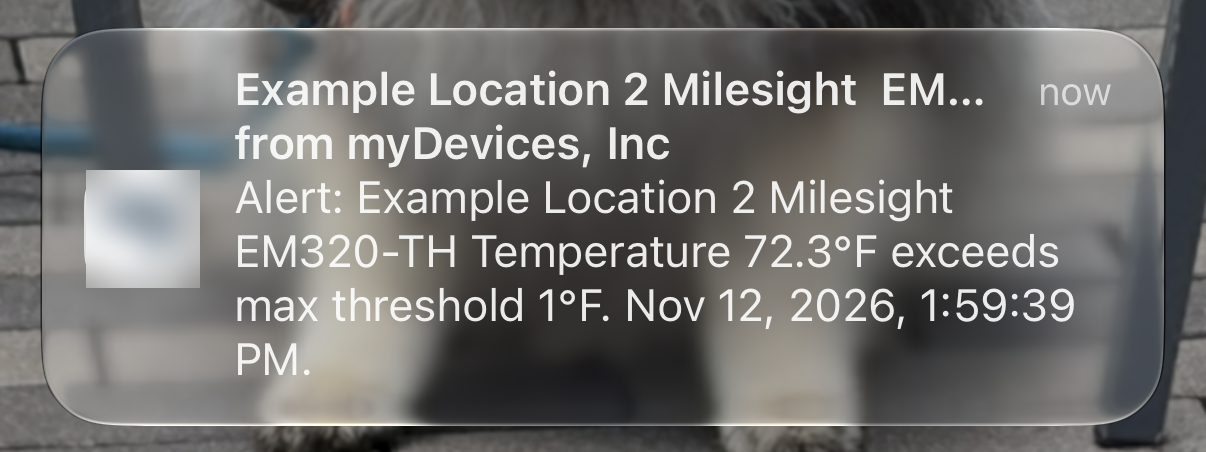
Push notifications are sent for the same events as your other alerts: sensor readings outside the alert's conditions, and device or gateway offline alerts. They respect the alert's repeat settings and the recipient's Days & Times schedule.
Managing your enrolled phones
Go to ☰ → Account → Account Settings → Push Notifications. Here you can turn push notifications on or off for the phone or computer you're using right now, and see every phone you have enrolled, with the browser and when it was last active. Remove a phone you no longer use with the trash icon.
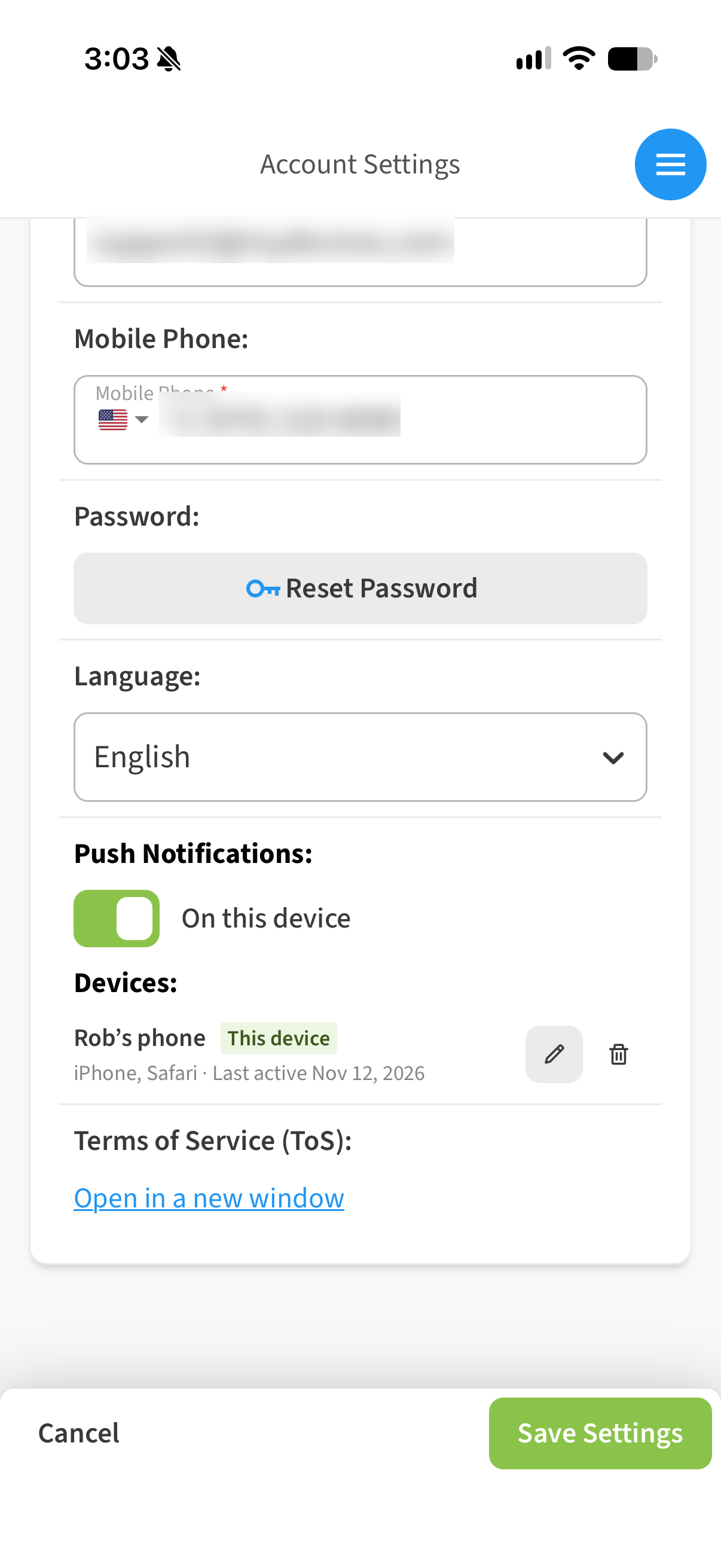
Turning Push on or off for a contact (admins)
Admins and Owners can pause or restore push delivery for a person without touching their alerts, exactly like text message and email:
-
☰ → CONTACTS: the Notifications enabled column has a PUSH toggle next to SMS, EMAIL and REPORTS. It shows All, Off or a count such as 3/5.
-
Click the Edit (pencil) icon on a contact to toggle Push per location.
See Toggle Text Message, email, and report notifications on or off for a contact for details.
Not receiving push notifications?
Work down this list on the phone that should be receiving them:
-
Is the person ticked for Push on the alert, and does their row say Enrolled? If it says Not enrolled or Invite sent, they still need to complete Step 2.
-
iPhone: was the app opened from the Home Screen icon? iOS only delivers push notifications to apps added to the Home Screen from Safari. A Safari tab, or Chrome on iOS, will not receive them.
-
Were notifications allowed? If Block or Don't Allow was tapped at the prompt, the app cannot ask again. Re-enable them in the phone's settings:
-
iPhone: Settings → Notifications → [app name] → Allow Notifications on. We also recommend Lock Screen, Notification Center and Banners all checked, Sounds on, and Show Previews: Always (otherwise the alert text is hidden on the lock screen).
-
Android: Settings → Apps → [app name] → Notifications → All notifications on. Also check Settings → Apps → Chrome → Notifications is on.
-
-
Is Do Not Disturb or a Focus mode on? Both hide notifications. Turn them off or add the app as an exception.
-
iPhone: is Scheduled Summary on? Settings → Notifications → Scheduled Summary batches notifications and delays them. Turn it off.
-
Is the phone online? Push notifications need Wi-Fi or mobile data; on Android they do not need a SIM.
-
Still nothing? In the app, go to ☰ → Account → Account Settings → Push Notifications and check that Push is on for this device. Turning it off and on again re-registers the phone.
If you're still stuck, contact support and tell us the phone model, operating system version, and whether the problem is on one phone or all of them.
How Push compares to text message and email
|
|
Push notification |
Text message (SMS) |
|
|---|---|---|---|
|
Arrives as |
A notification on the phone's lock screen / notification center |
An SMS in the phone's messaging app |
An email |
|
Set up by |
The recipient, once on each phone they want notified (about a minute) |
Nothing to set up; uses the mobile number on the contact |
Nothing to set up; uses the contact's email address |
|
Tied to |
The phone, not a phone number or email address. One person can enroll several phones. |
The contact's mobile number |
The contact's email address |
|
Opens |
Tap the notification to open the alerting device in the app |
Tap the link in the message |
Click the link in the email |
|
Alert rules, schedules, custom messages |
Same as the other channels |
Same |
Same |
|
Cost |
Free, unlimited |
|
Free, unlimited |
Frequently asked questions
Do I have to use Push instead of text message or email?
No. Push is a third option. Each recipient can have any combination of the three.
Does Push cost anything?
No. Push notifications are free and unlimited.
Can one person get push notifications on more than one phone?
Yes. Set up each phone; all of them appear under Account Settings → Push Notifications.
Does Push work on a computer?
Yes, in current desktop browsers such as Chrome and Edge, when you allow notifications for the app.
Why did I get an alert by text and email but not by push (or vice versa)?
Each channel is delivered independently. Check the alert's recipient list to confirm Push is ticked and the person is Enrolled, then follow the checklist above.