

When our application sends alert notifications, you should receive them by email or text message (SMS). If you’re not receiving alert notifications, the steps below will help identify the most common causes and how to resolve them quickly.
Email Notifications Not Received
If an expected email notification does not arrive:
-
Check Your Junk/Spam Folder as emails may be mistakenly flagged as spam.
-
Verify your Email Address
-
Ensure your email address is entered correctly in the Notify Contact list for the alert you’re expecting to receive notifications for.
-
Look for typos, extra spaces, or outdated addresses.
-
-
Check With Your IT Department as some organizations filter or block automated system emails.
Text Message (SMS) Notifications Not Received
If you are not receiving text message alert notifications:
-
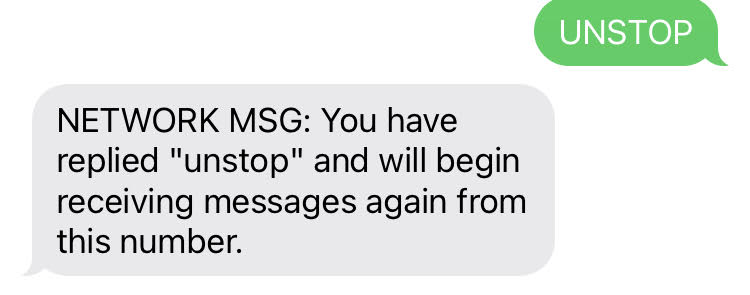
Text UNSTOP to 1-844-984-1700 and ensure you get this response:
-
Confirm Your Mobile Number
-
Make sure your phone number is entered correctly in the Notify Contact list for the alert you’re expecting to receive notifications for.
-
-
Ensure “Do Not Disturb” or Blocking Isn’t Enabled
-
Check if your device blocks messages from unknown senders.
-
Ensure the system’s sending number or shortcode isn’t on a personal block list.
-
-
Check With Your Mobile Carrier
-
Your mobile carrier may filter or block automated alerts.
-
Ask whether messages from short codes or automated systems are being blocked.
-
Ensure your plan supports receiving SMS alerts.
-
Still Not Receiving Notifications?
If you’ve tried the steps above and alerts still aren’t arriving, please contact our Support team