

This article will show you how to physically install your Milesight UG65 cellular gateway. Installation only takes a few minutes: attach the two included antennas, then connect power.
Both antennas are required. The gateway will not connect to the cellular network without the LTE antenna attached and standing vertically, and it will not receive data from your sensors without the LoRa antenna attached.
What's Included
-
Milesight UG65 gateway
-
LoRa antenna — the white antenna that screws onto the back of the gateway
-
Cellular (LTE) antenna — the thin black antenna with a flexible cable that connects to the bottom of the gateway
-
Power adapter
Step 1: Attach the LoRa Antenna
-
Locate the antenna connector on the back of the gateway.
-
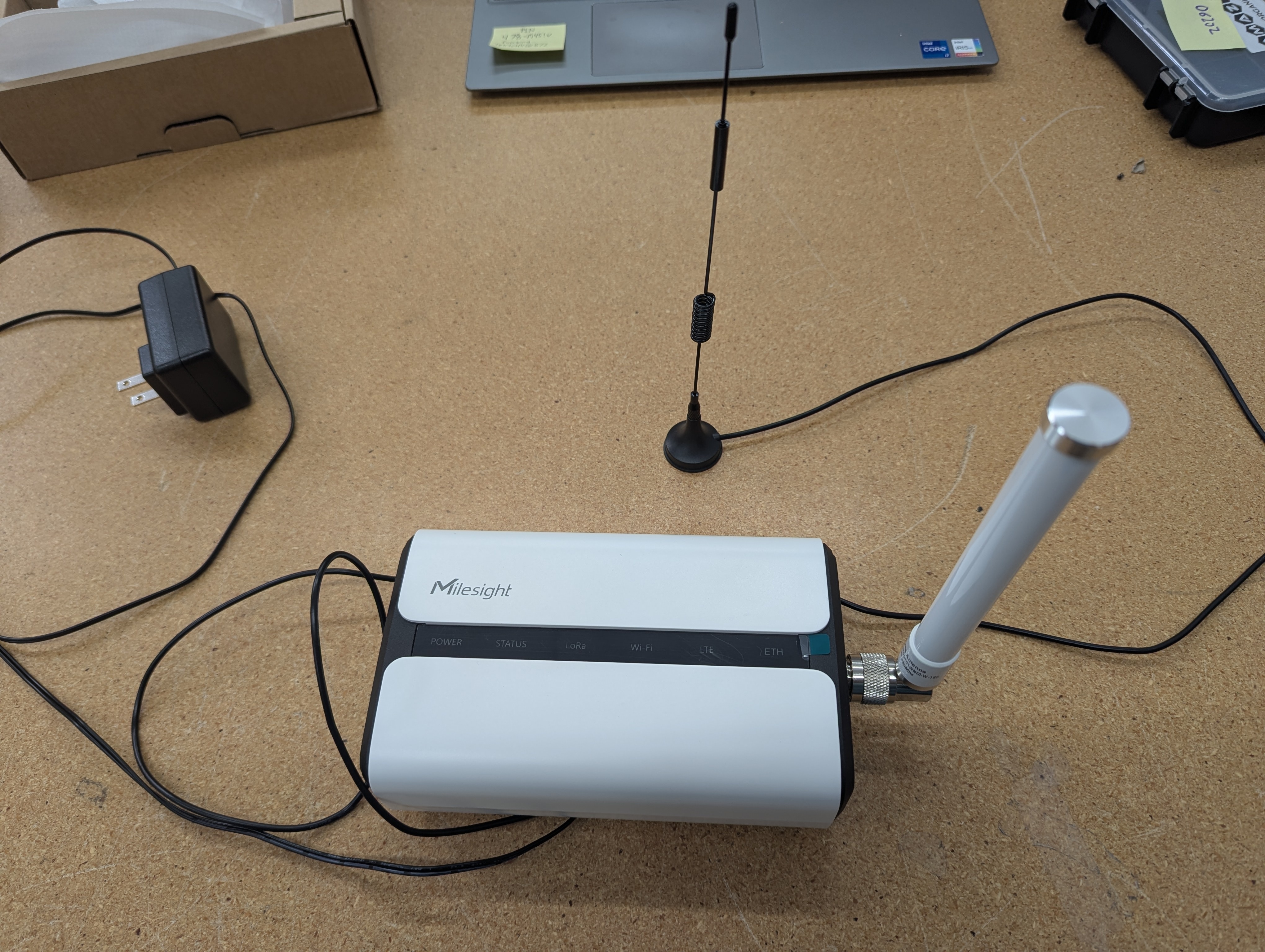
Screw the white LoRa antenna onto the connector. It should connect firmly, but do not over-tighten.
Step 2: Attach the Cellular (LTE) Antenna
-
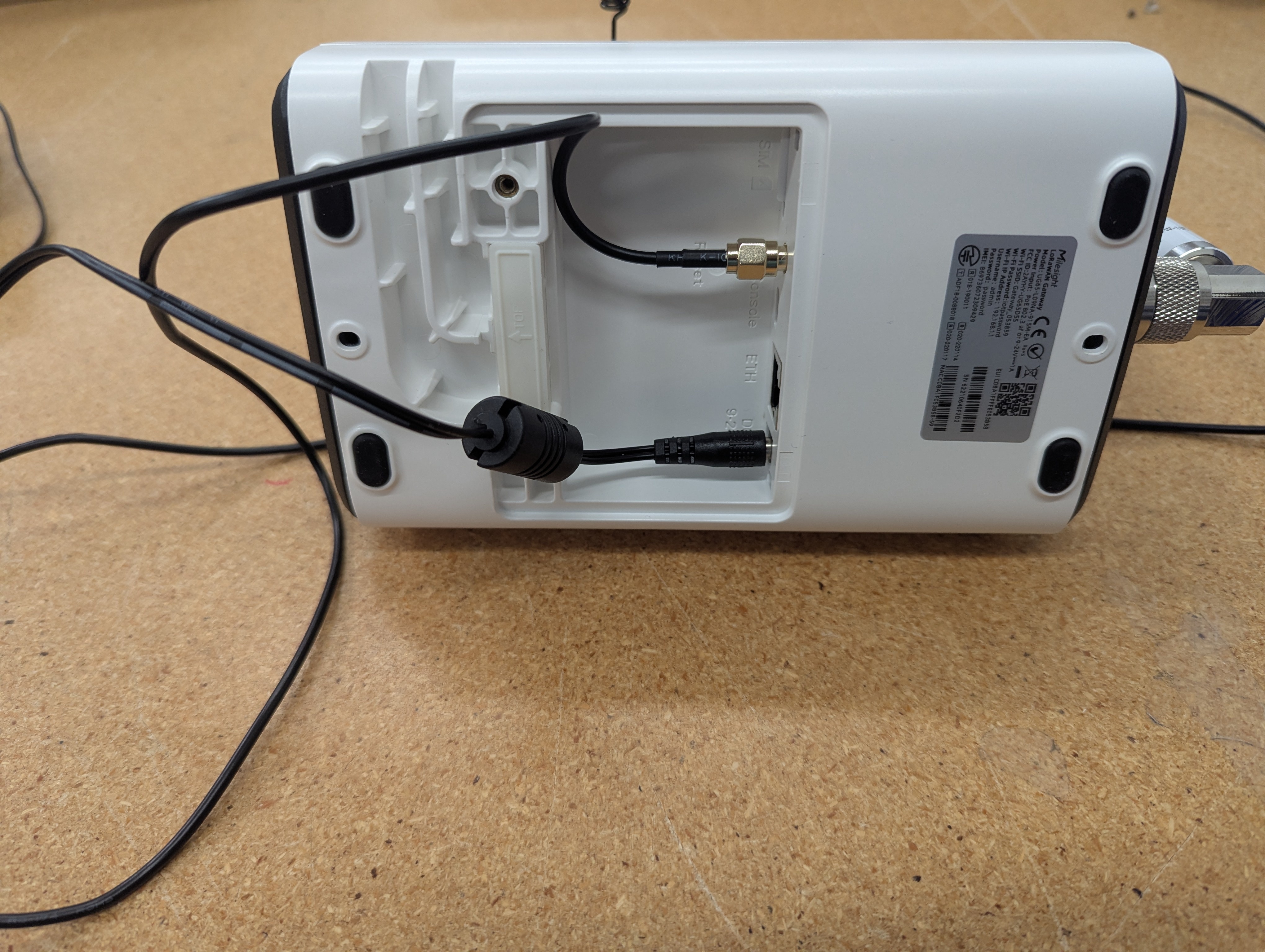
Locate the antenna port on the bottom of the gateway.
-
Screw the cable end of the thin black LTE antenna onto the port. It should connect firmly, but do not over-tighten.
-
Position the antenna so it is standing vertically upright, as shown below. This orientation is important for good cellular reception.
Step 3: Connect Power
-
Plug the power adapter into the gateway, and then into a power outlet.
-
The POWER indicator will light up while the device boots.
-
Once the gateway connects to the cellular network, the LTE indicator will light up. Your gateway is now ready for use.
Please allow up to 10 minutes for the gateway to boot up and connect to the cellular network after powering it on.
Placement Tips
-
Place the gateway in a central location, elevated where possible, and away from large metal objects or appliances that could interfere with reception.
-
Cellular reception varies within a building. If the LTE indicator does not light up, try moving the gateway to a different location (for example, closer to a window) and power cycling it.
Troubleshooting
If the gateway does not come online after 10 minutes:
-
Confirm both antennas are firmly secured and the LTE antenna is standing vertically upright.
-
Unplug the gateway, move it to a different outlet or location in case the issue is cellular reception in the current spot, and plug it back in.
-
Check the LED indicators: if POWER and STATUS are lit but the LTE indicator never lights up, the gateway is not reaching the cellular network — this is most often an antenna or reception issue.
For more help, see My Gateway is Offline or contact our support team.