

By default, Gemtek Ethernet Gateways are configured to request a dynamic (DHCP) IP address. If your network requires a Static IP address, this article shows you have to access the Gemtek’s web configuration interface and update this setting.
Please note that the Gemtek gateway has a hidden WiFi network that it broadcasts which you’ll need to connect to first in order to access the gateway’s web configuration page, so you can ultimately configure the gateway for Static IP.
There is no option to access the web configuration page via Ethernet at this time, you must connect to the hidden WiFi AP.
-
Look at the bottom of the Gateway & find the AP name.
-
Look for that AP name in your WiFi networks & connect to it.
-
If the WiFi network does not show up, then look for the WiFi name (SSID: AP-XXXXXX) & password on the label. Then go to your WiFi settings on Windows/Mac & manually create a WiFi network, WPA2 Security & with the SSID and Password from the label
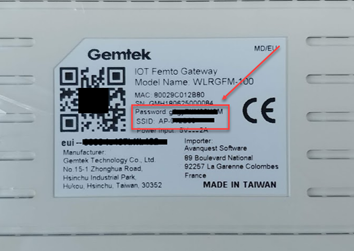
If no Password is printed on the gateway, then the password is a7z4GBXXXX, with the “XXXX” being the last 4 digits of devEUI. For example a7z4GBb432. -
Once you have connected to the AP-XXXX network, open a web browser & visit http://192.168.55.1 If this does not work, try http://192.168.55.1:443
-
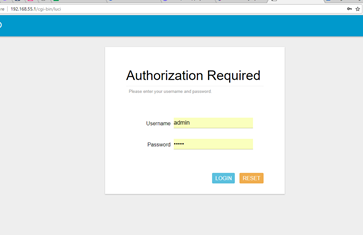
You will then need to login as:
Username: admin
Password: admin (or password from bottom of the label).
-
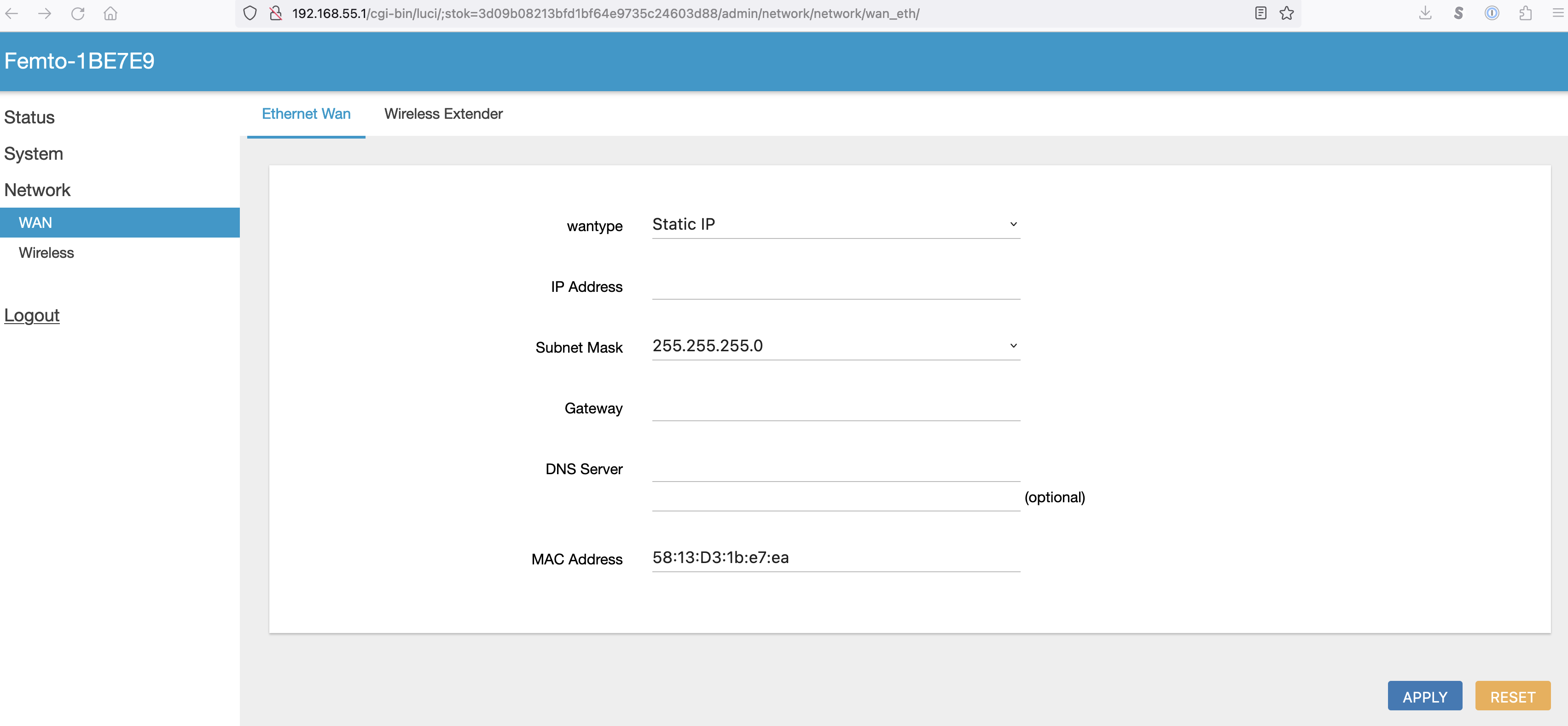
Once logged in, go to Network → WAN –> Ethernet Wan and set the wantype to Static IP. From there you can configure the gateway as desired.
-
Be sure to click Apply to gave your settings to the gateway.