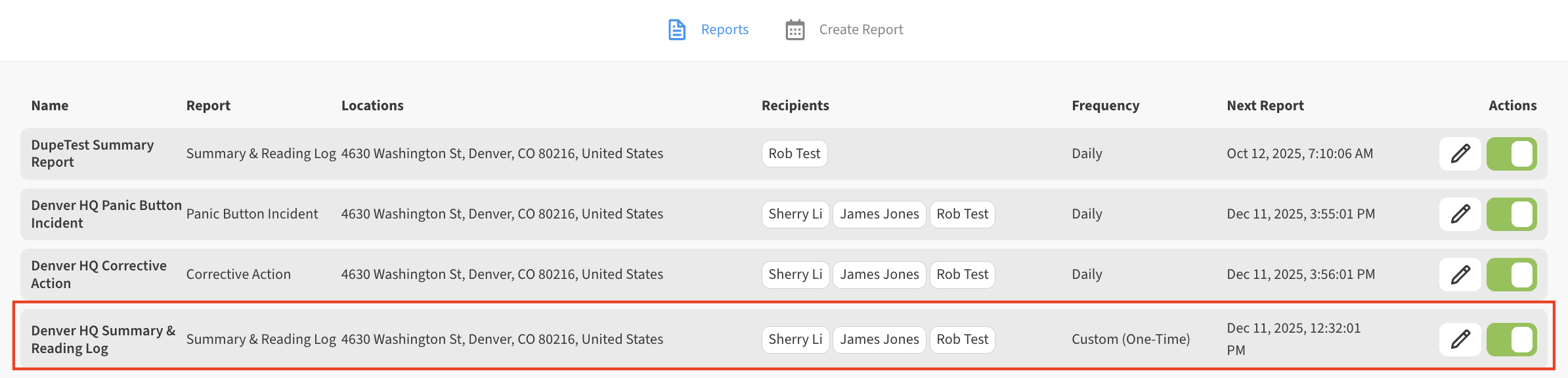
Custom (One-Time) reports allow you to generate on-demand reports for a specified date/time range. This is useful if you need to run a report only once rather than on a daily/weekly/monthly recurring basis.
Custom (One-Time) reports can be selected as a Frequency option for any report type.
Note: You must have at least Can Edit permissions in order to create or modify report settings for a location. If you need these permission please contact any user on your Contacts list who has Admin or Owner privileges for the Location and request access.
-
Log into your account and locate the Location to which you want access Reports.
-
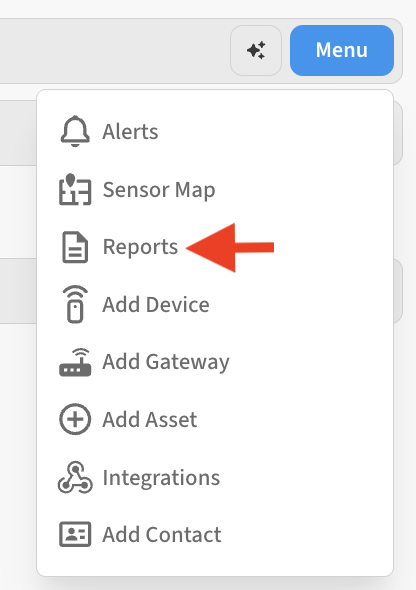
Expand the location Menu and select the Reports option.
-
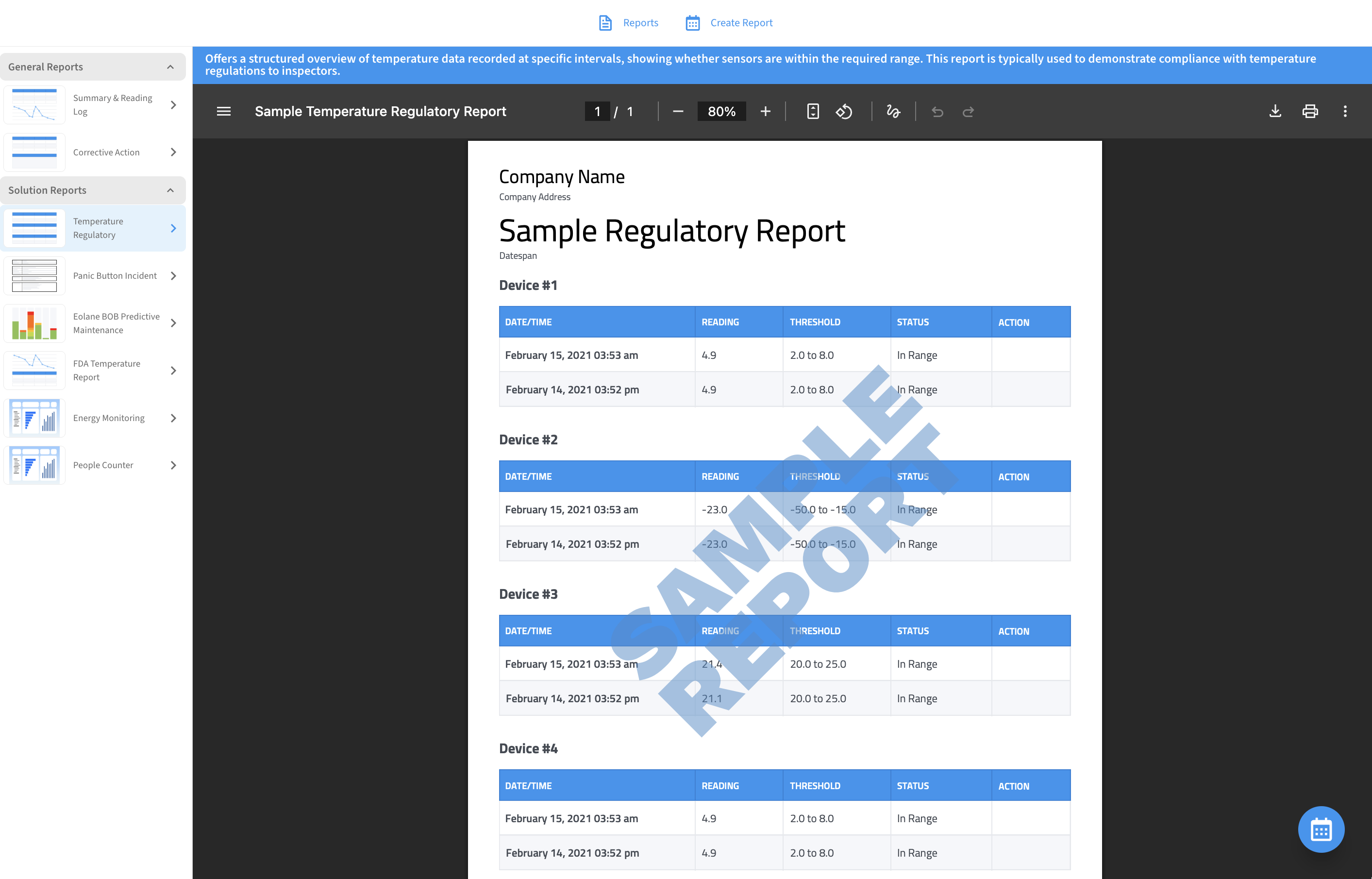
This will take you to the Create Report tab which shows you an overview of the available report types. You can see a preview of what the report will look like on this tab
-
Select the desired report type in the left sidebar, then click the Create Report (calendar) icon to begin creating a new report.
-
Under Frequency, select Custom (One-Time).

-
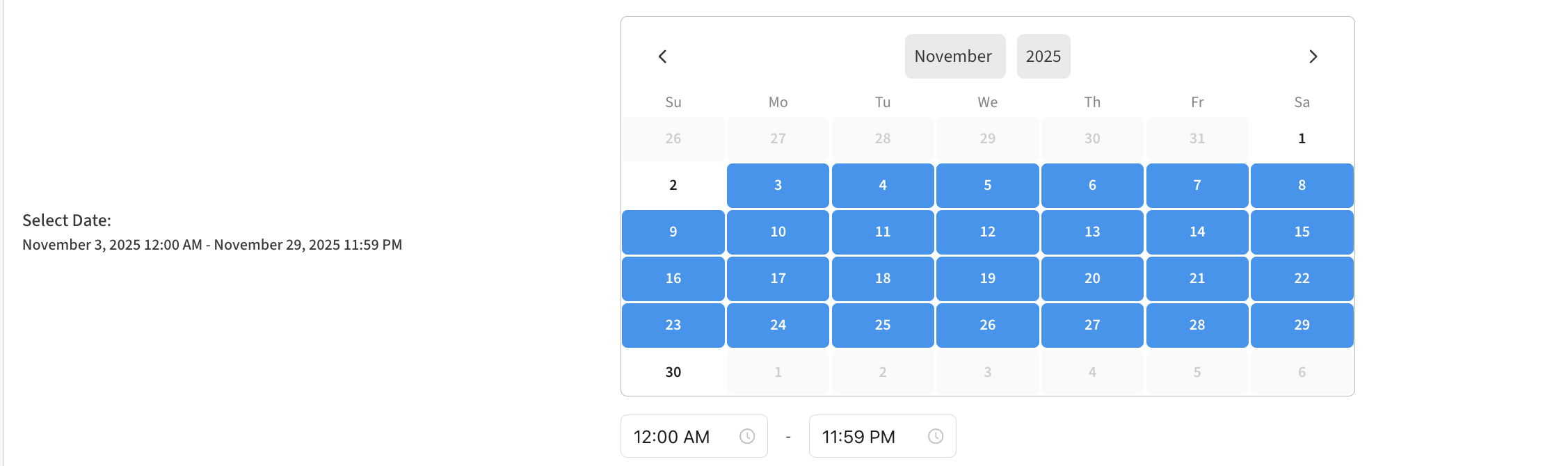
Use the date range control to setup the date range you want the custom report to cover.
-
Optional: You can then customize any additional report parameters you want, such as customizing the Recipients list, or editing the specific Devices and Readings Times to be included in the report.
-
Don’t forget to Save when done.
-
After saving your report, it will be shown in the list of Reports on the Reports tab. It will take a few minutes for your custom report to run, at which time the recipients will be notified by email.