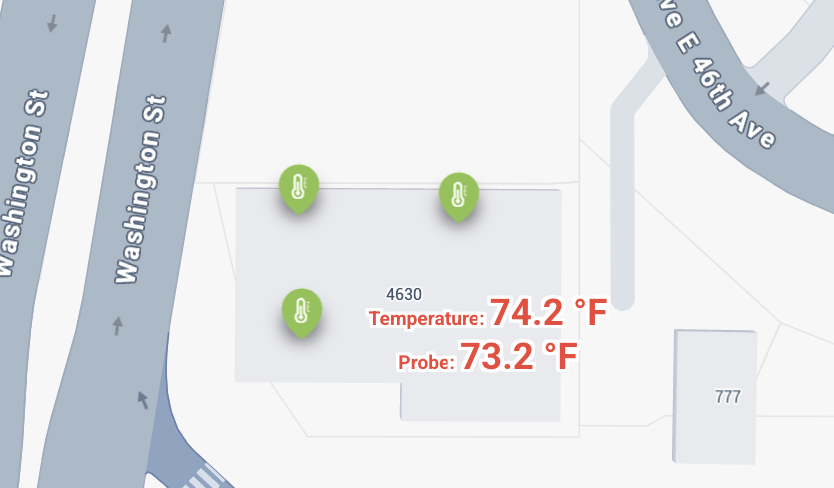
The following will show you how to switch your Sensor Map pins so that they display specific data points next to the pin markers. You may find this feature handy if you are most interested in just one or two data points at the marker’s location – having these always displayed on the map can be a nice shortcut.
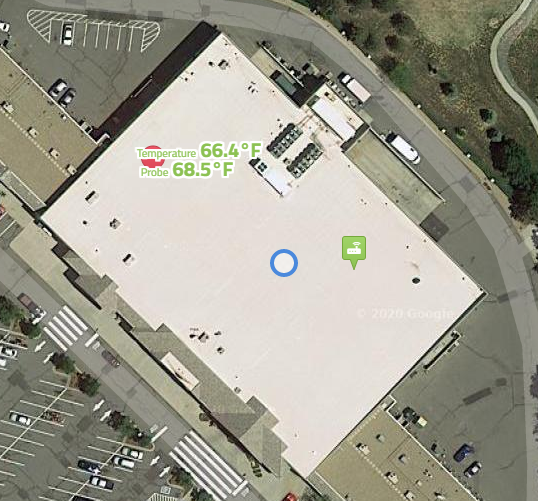
To switch the pin markers to show values:
-
Click on the sensor map pin. A panel will appear at the bottom of the screen showing detail for the sensor associated with that pin. Click on the Settings (gear) icon to access the customization options for that device.

-
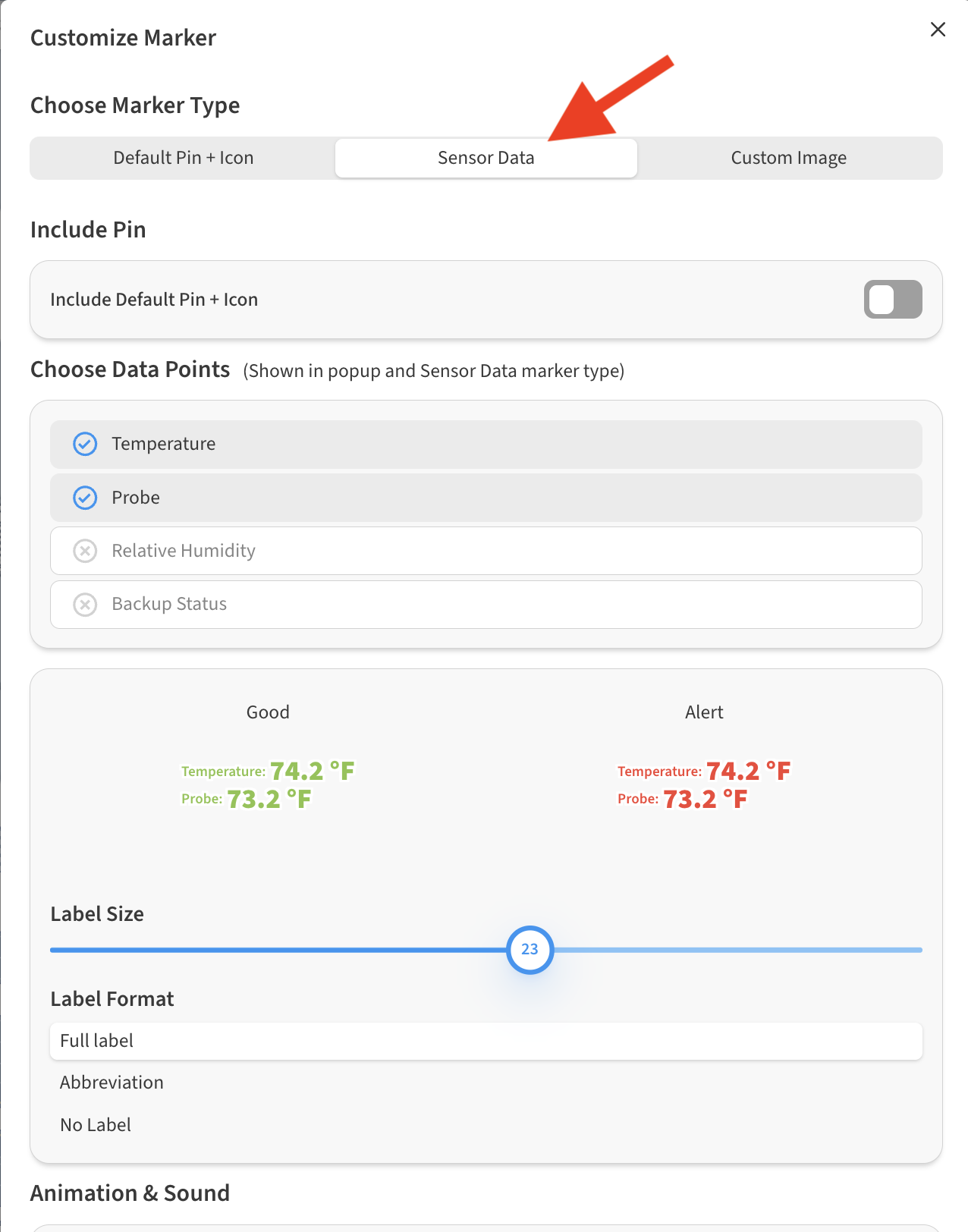
On the Customize Marker dialog that appears, click on Sensor Data in the Choose Marker Type area.
-
Select whatever data points you want to be displayed and click on Done to save your changes.