

How to download old Reports from your account.
There are a few scenarios where manually downloading report data might be useful:
-
If a report ran and someone did not get their copy by Email, you can download and send the report to them manually.
-
Download reports for archival history.
-
View a history of reports and easily compare them at a glance.
Access Report History to get your report data.
-
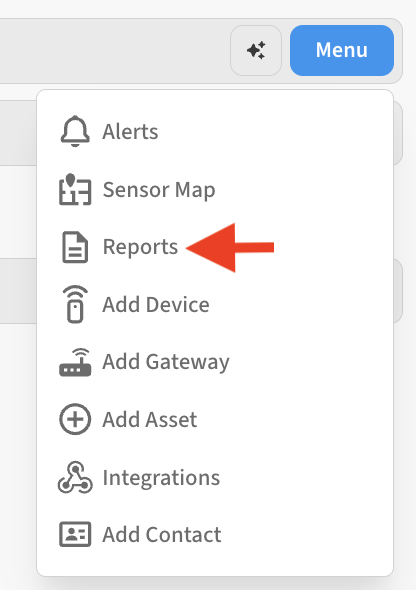
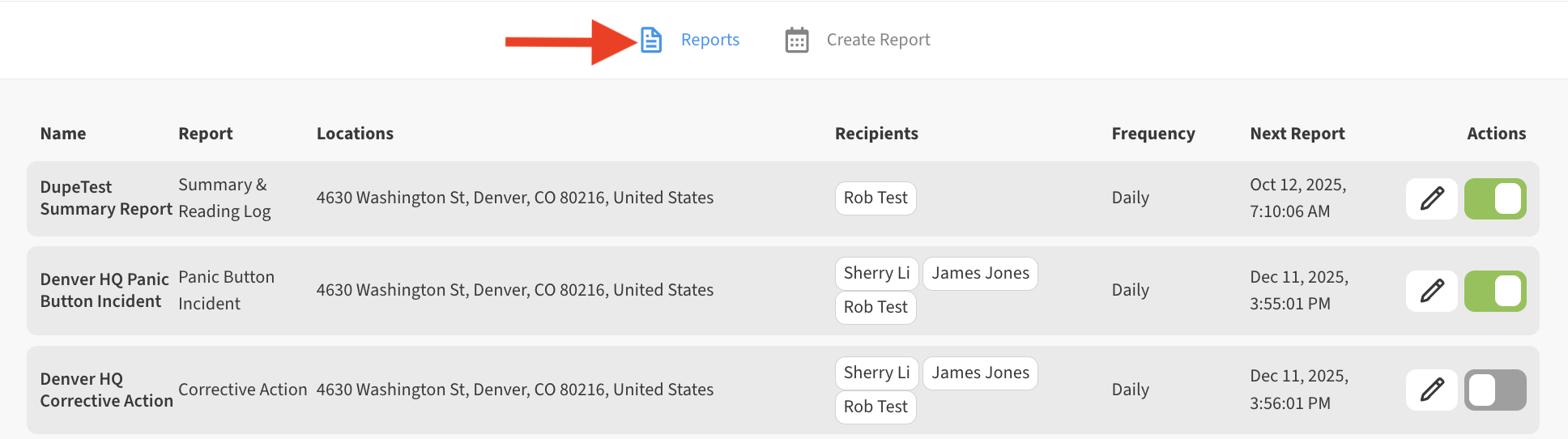
Go to Menu → Reports, then click on the Reports tab to get a list of reports for any Location.
-
From the list of Reports presented, click or tap whichever report you want to view history for
-
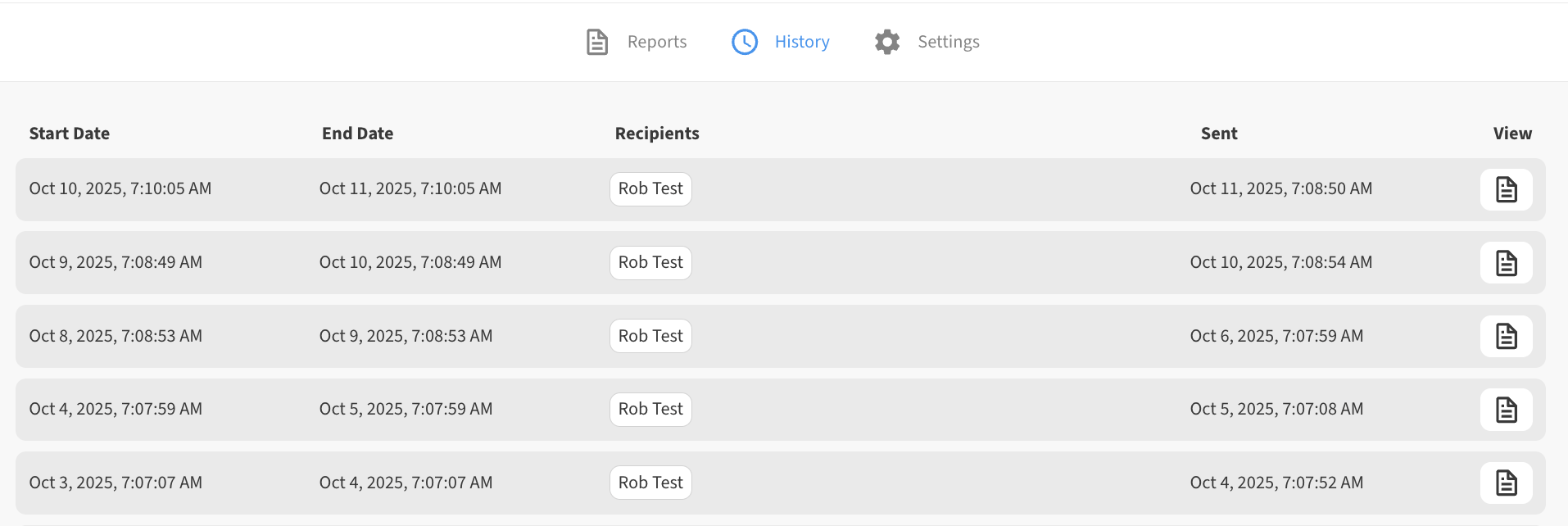
On the Report History tab you will see an entry for each time the report has generated.
-
Click or tap the View icon next to the desired report entry.

-
Once you are viewing the Report you can then Print the Report as a PDF to download it.