

Alerts normally notify you when a single sensor reports a problem. A Location Alert watches a group of alerts at one location and notifies you only when several of them are in alert state at the same time — a strong signal that something location-wide is happening rather than a one-off sensor issue.
Creating a Location Alert
-
Navigate to the location you want to monitor and go to Menu → Alerts.
-
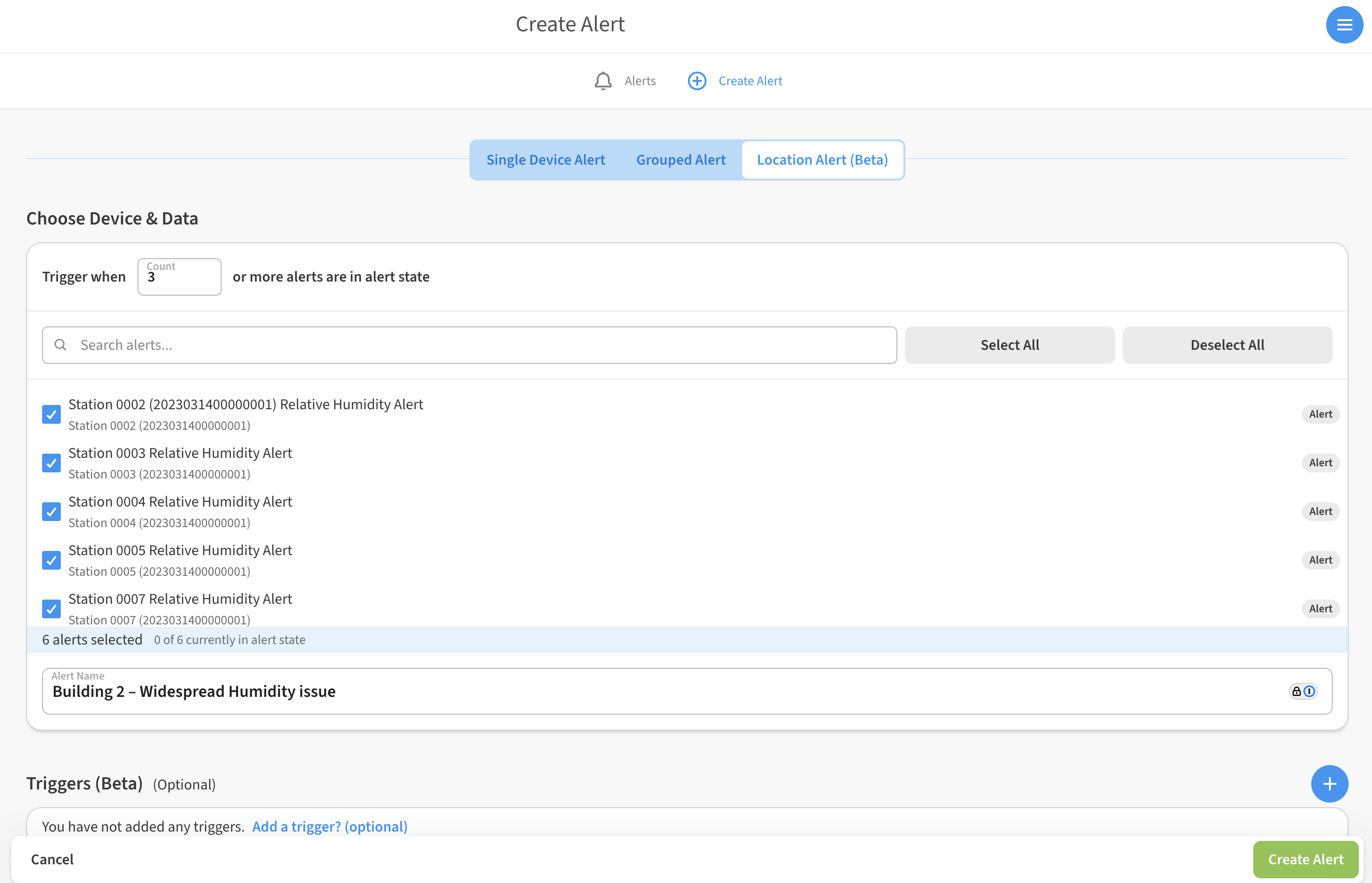
Click + (Create Alert) and select the Location Alert tab at the top of the screen.
-
In the Trigger when field, enter the number of alerts that must be in alert state at the same time to trigger the Location Alert (for example, 3 or more).
-
Select the alerts you want to include using the checkboxes. Use the Search alerts field or Select All / Deselect All to build your list quickly. Only the alerts you select count toward the trigger threshold.
-
Enter an Alert Name that describes the situation (for example, "Building 2 – Widespread Humidity issue").
-
Click Create Alert.
How Location Alerts behave
-
The Location Alert triggers when the number of selected alerts currently in alert state reaches or exceeds the entered threshold.
-
Location alerts generate their own unique notifications, separate from the individual sensor alerts — recipients can clearly see the issue is location-wide.
-
Individual sensor alerts are unaffected: they continue to trigger and notify as individually configured. A Location Alert is an additional layer – it needs to be built of multiple individual alerts.
Example uses
-
Leak detection — a building with hundreds of leak sensors triggers a location-wide alert when 5 or more report a leak, indicating potential flooding.
-
Air quality — get notified when multiple Air Quality alerts fire in the same building at once.
-
Manufacturing — trigger a plant-level alert when 10 or more energy sensors go into an off state, signaling a broader operational issue.